Guides · Updated 21 October 2026
Charles Schwab portfolio tracker: a read-only sign-in, the Transactions CSV, or both
Schwab gives a tracker two ways in, and Fortunest reads both. The SnapTrade sign-in is an approval at Schwab's own site, read-only, that keeps the account current on its own. The Transactions CSV is the export Schwab already offers under History — and Fortunest reads all twenty-seven Action values a real one carries, from reinvested dividends to spin-offs and foreign tax paid. Either way the account then sits in one dollar-denominated portfolio with your other brokers and crypto exchanges, with time-weighted and money-weighted returns, dividends, risk and an assistant that reads it all.
The short answer
- The sign-in keeps it current; the CSV makes it exact. Use the connection for a hands-off account, the export for a complete record of the range you choose — and keep one of the two for any stretch of time.
- The connection needs a free Fortunest account and is web-only. The CSV needs no account and also works in the desktop app.
- What you get: Schwab beside Fidelity, Robinhood, a CSV from another broker or a Coinbase key, in US dollars, with TWR and IRR against the S&P 500, a dividend projection, risk metrics and the AI assistant.
- Free, then Pro if you outgrow it. The free plan is the whole dashboard and the assistant for up to 3 accounts and 50 assets, no card. Pro is €6.99 a month or €69 a year, VAT added at checkout — unlimited accounts and assets, the Taxes tab and MCP access for external AI agents.
Route 1: connect Schwab with a read-only sign-in
The steps follow how a SnapTrade connection works in the docs; Schwab's row is in the Supported platforms table.
- Make a free Fortunest account Open the app and sign up with an email or Google — no card. A broker link has to outlive a browser session, so SnapTrade brokers are greyed out for a guest; everything else in the app works without an account.
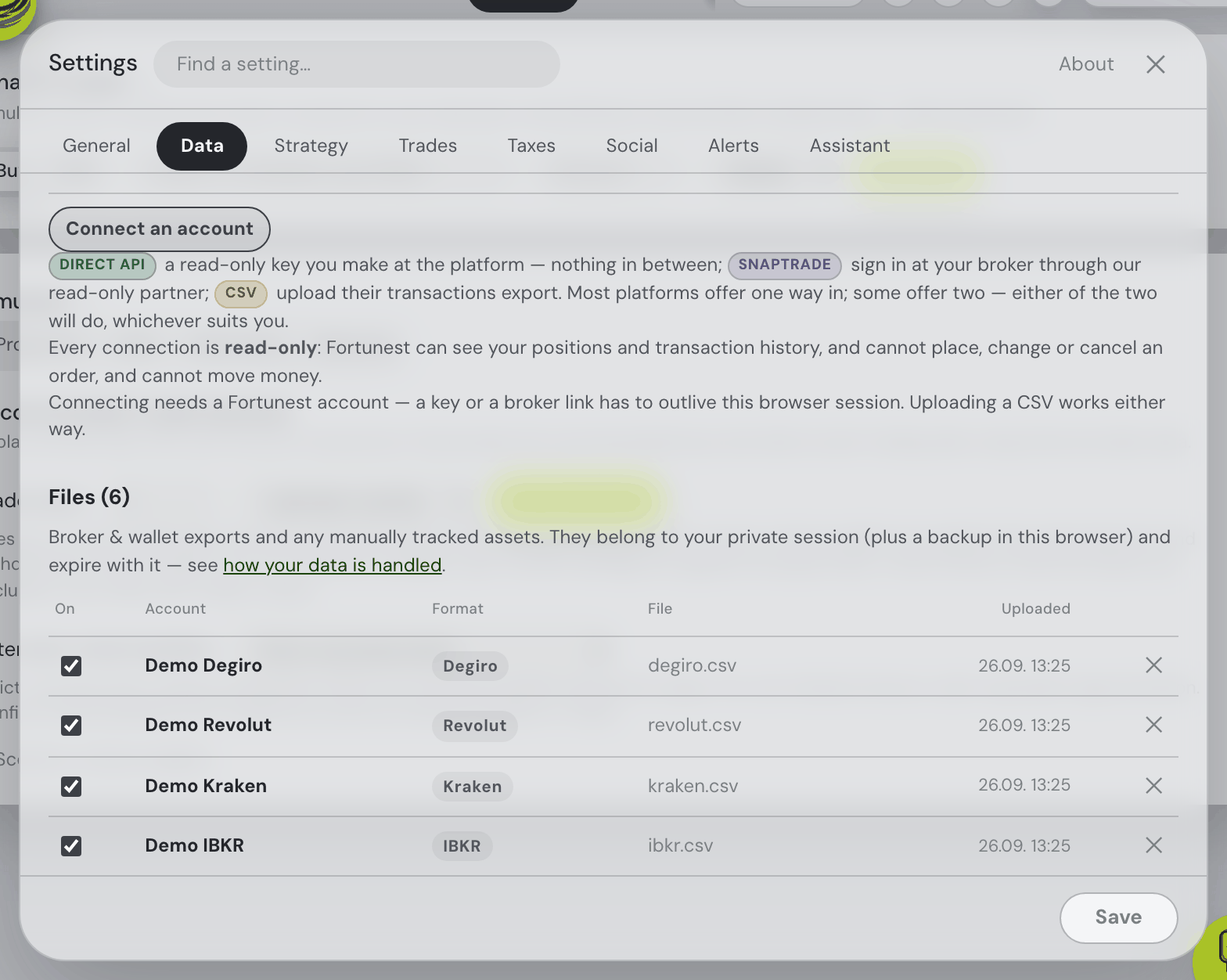
- Pick Schwab in the connect list Open ⚙ Settings → Data → Connect an account and type Schwab. Its row carries the SnapTrade sign-in mark, and the app says before anything opens that you are about to sign in at Schwab, not in Fortunest.
- Sign in at Schwab's own site and approve read-only access SnapTrade's portal opens with Connect with read-only access on its first screen, then hands you to Schwab's own login and consent page. Your Schwab password and two-factor code go to Schwab only — never to Fortunest or SnapTrade — and the approval can be revoked from your Schwab account at any time.
- Holdings first, history behind them You come back to the dashboard and each account the approval covers becomes its own account in Fortunest, named after Schwab and numbered (rename it from its row). Positions arrive first; the transaction history SnapTrade collects for the connection follows in the background and is imported when it lands.
How far back. SnapTrade's own documentation says a connection's activity record “often has years of history” and sometimes reaches the account's opening, refreshed once a day; how far it goes for a given Schwab account is up to Schwab's side of the integration. Fortunest takes whatever arrives and never invents the rest: when the history starts after you bought something, the holding is still there at the quantity Schwab reports, and the gap is written as a flagged correction on the Portfolio tab instead of a made-up trade. Options are skipped — the app has no model for a contract — while dividends, reinvested dividends, interest, fees, transfers, splits and spin-offs come in as what they are.
Route 2: upload the Schwab Transactions CSV
The export is described in full in the Schwab section of the docs; the short version:
- Export the transactions In Schwab open Accounts → History → Transactions, set the widest date range it allows and press Export. Schwab says the History page holds up to four years of transactions, so export once a year if you want to keep the whole record.
- Remove an account banner if there is one Some downloads put a line naming the account above the column headings. Delete it: a format is recognised from the file's first line, and a banner there makes the file unrecognisable — you are told so, rather than getting a silent misread.
- Drop it into Fortunest Drag the file onto the Portfolio value tile in the app, or into ⚙ Settings → Data. No account is needed, and older exports can go in together — rows two files share are counted once.
All twenty-seven Action values a real Schwab export carries import: Buy, Sell and Reinvest Shares; twelve spellings of dividend and capital-gain income, prior-year restatements included; stock splits, reverse splits, spin-offs, mergers, name changes, conversions and stock distributions; journalled shares alongside wire, MoneyLink and internal transfers; credit interest, advisor and ADR fees, foreign tax paid, and cash in lieu. A reinvested dividend stays two rows — the income and the purchase it paid for. Everything is read as US dollars from the file's own $. Option contracts (Buy to Open, Sell to Close) are counted and reported rather than imported.
Pick one route per period. A Schwab CSV and a Schwab brokerage connected through SnapTrade do not yet know about each other, so for any period they both cover, keep one — untick the other in ⚙ Settings → Data, or upload exports only for the years before the connection's history begins.
What you get once Schwab is in
Once Schwab is in, it is one account among the others rather than a separate app to check:
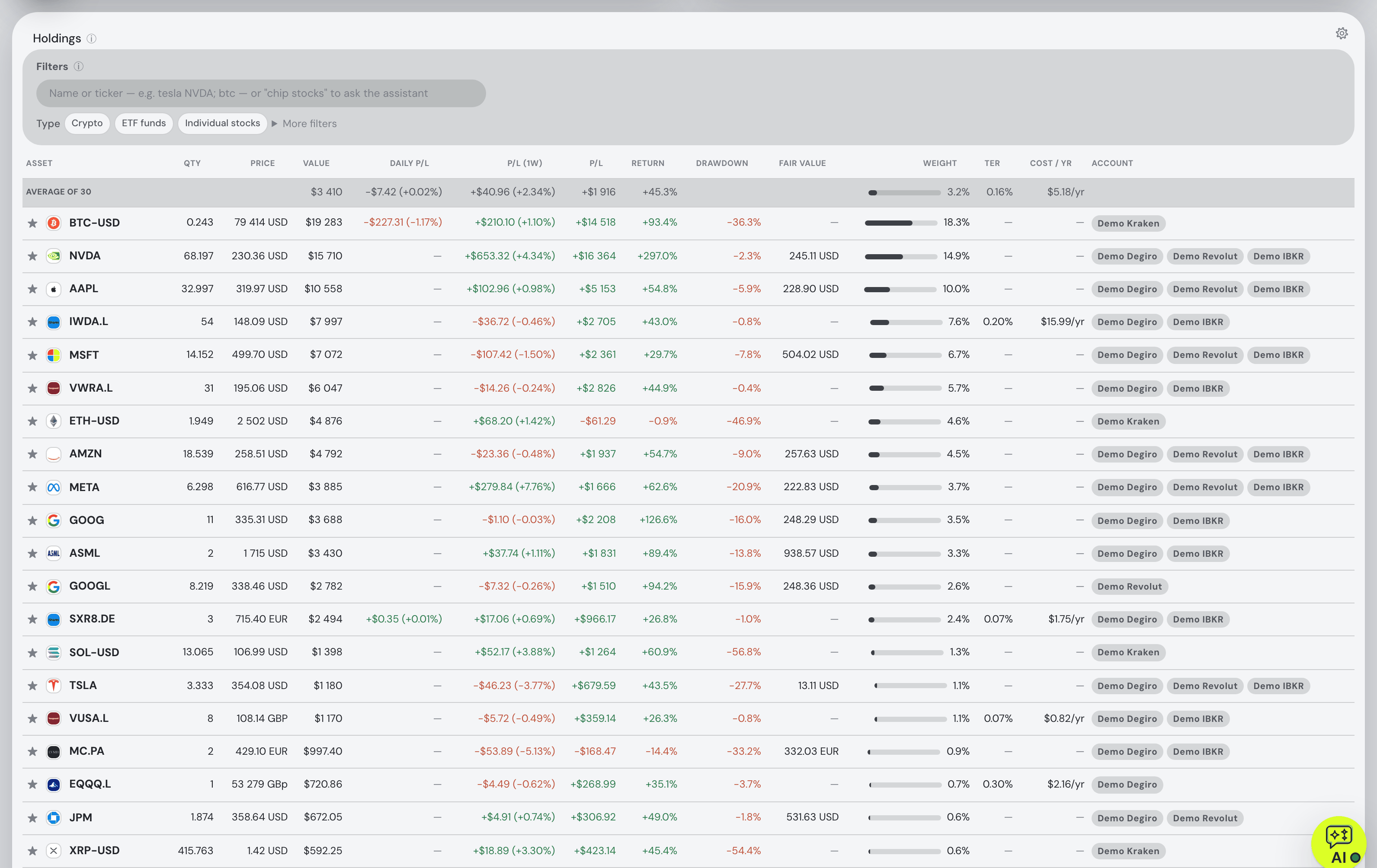
- One view across brokers and exchanges. Add another broker the same way, upload the CSV of a broker that exports one, or connect Coinbase or Kraken directly with a read-only key — every position lands in one holdings table with the account it belongs to as a badge, and transfers between your own accounts are matched so nothing is counted twice.
- In dollars. US dollars are the default display currency; anything you hold in another currency is converted every day at that day's rate, and 29 other display currencies are a setting away.
- Returns that ignore your deposits. Time-weighted return (TWR) and money-weighted return (IRR) side by side, against the S&P 500, the Nasdaq 100, MSCI World, US bonds, gold, the dollar or Bitcoin — each benchmark fed the same deposits on the same dates, so the comparison is like for like.
- Dividends and risk. A monthly income chart with a forward projection per holding (Dividends & income), and volatility, Sharpe, Sortino, max drawdown, beta and correlations on the Risk card.
- An assistant that reads the portfolio. Ask what your Sharpe ratio means, which holdings dragged this year or what a company reported last quarter, and the assistant answers from your own numbers — on the free plan. On Pro the same portfolio opens to Claude Code, Codex or another MCP agent; the MCP guide has the setup.
Read-only, and what that means
Every connection in the app is read-only: Fortunest can see your positions and transaction history, and cannot place, change or cancel an order, and cannot move money. That is the sentence the connect panel shows, and it is built in twice — Fortunest asks SnapTrade for a read connection, and the app has no code that places a trade. SnapTrade's Schwab integration can also place trades for apps that ask for that; Fortunest does not ask. Your Schwab login never reaches Fortunest; what is stored is SnapTrade's per-user secret, encrypted at rest and never sent to your browser. Disconnecting a SnapTrade brokerage leaves the transactions it already brought in place, so you keep the history; revoking the approval at Schwab ends the access itself. Where everything else lives is in the Privacy chapter.
What it does not do (yet)
- The CSV and the connection are not reconciled with each other — for any period, keep one.
- Options are not modelled. They are counted and reported from the CSV, and skipped from the connection.
- The connection is web-only. The desktop app reads the CSV but has no SnapTrade.
- No US tax forms. The Taxes tab (Pro) pairs sales with lots under one configurable rulebook whose defaults are Czech; it does not produce a Form 8949 or reconcile a 1099-B.
- No native phone app yet. The web app is built for phones and can be added to the Home Screen.
How other trackers read a Schwab account
Each cell is what the vendor's own help or product pages say, checked on 21 October 2026. Not described means the page we read does not say. Prices and free tiers for all of them are in the US comparison.
| Fortunest1 | Empower2 | Sharesight3 | Snowball4 | Stock Rover5 | Kubera6 | Ghostfolio7 | |
|---|---|---|---|---|---|---|---|
| How Schwab gets in |
|
|
|
|
|
|
|
| What the page says about history and limits |
|
|
|
|
|
|
|
Checked against the sources below on 21 October 2026. Empower's help center and Schwab's own pages could only be read through search results that day, so those statements are the least certain here — check them there. "Not described" is a statement about those pages on that date, not about the product.
How we compared
We read each vendor's own help, import and pricing pages rather than a review site; where a page says nothing about a row, the cell says so. We build Fortunest, so we are not neutral: the table is meant to be checkable rather than impartial, and our own limits are listed above.
Questions people ask
Does Fortunest work with Charles Schwab?
Yes, two ways. Sign in at Schwab's own site through SnapTrade and approve read-only access — that needs a free Fortunest account — or upload the Transactions CSV from Accounts → History → Transactions, which works without an account and in the desktop app too.
Sign-in or CSV — which should I use?
The sign-in keeps itself current; the CSV is the complete record of the range you export, with every corporate action spelled out. For any stretch of time keep one of the two: a Schwab CSV and a Schwab connection do not yet know about each other, so a period both cover would be counted twice.
Is it free?
Yes, up to 3 accounts and 50 assets: the free plan is the whole dashboard and the AI assistant, with no card. Pro is €6.99 a month or €69 a year, VAT added at checkout, and lifts both limits.
Can Fortunest trade in my Schwab account?
No. Fortunest asks SnapTrade for a read-only connection and has no code that places an order: it can see your positions and transaction history, and cannot place, change or cancel an order, and cannot move money. Your Schwab password goes to Schwab only.
What about my old TD Ameritrade history?
TD Ameritrade accounts moved to Schwab in 2023 and 2024, and Schwab shows their history under the Schwab account number, so the Schwab export and the Schwab sign-in are the routes. Fortunest has no TD Ameritrade importer of its own.
Does it work with Vanguard too?
Vanguard is not on the list: SnapTrade reaches Vanguard only by having you type your Vanguard password into its portal, and Fortunest offers only connections you approve at the broker's own site. A Vanguard statement PDF can go through Read with AI, or you add the funds by hand.
Sources
- Fortunest — the Charles Schwab walkthrough, every supported platform, how a SnapTrade connection works, the Portfolio chapter and the Privacy chapter.
- Empower — terms of use and TD Ameritrade accounts moving to Schwab (21 October 2026).
- Sharesight — Charles Schwab partner page (21 October 2026).
- Snowball Analytics — importing from Charles Schwab and pricing (21 October 2026).
- Stock Rover — connecting to brokerage houses, portfolio management and plans (21 October 2026).
- Kubera — security (21 October 2026).
- Ghostfolio — project page on GitHub (21 October 2026).
- Charles Schwab — TD Ameritrade clients and welcome to Schwab; SnapTrade — Schwab integration, Vanguard integration and account data (21 October 2026).
Signals, analyses and assistant answers in Fortunest are informational — not financial or tax advice.