Documentation
Getting your data in
Your portfolio is rebuilt from raw transactions, and there are three ways to hand them over: connect the platform directly with a read-only key, connect your broker through SnapTrade, or upload the transaction-history CSV your platform already lets you download. Every route ends in the same place — the same importer, the same rebuilt history.
IBKR Flex imports include commissions in each account's fee total, converted from the recorded commission currency. Existing stored exports are upgraded automatically when the updated backend starts; you do not need to upload them again.
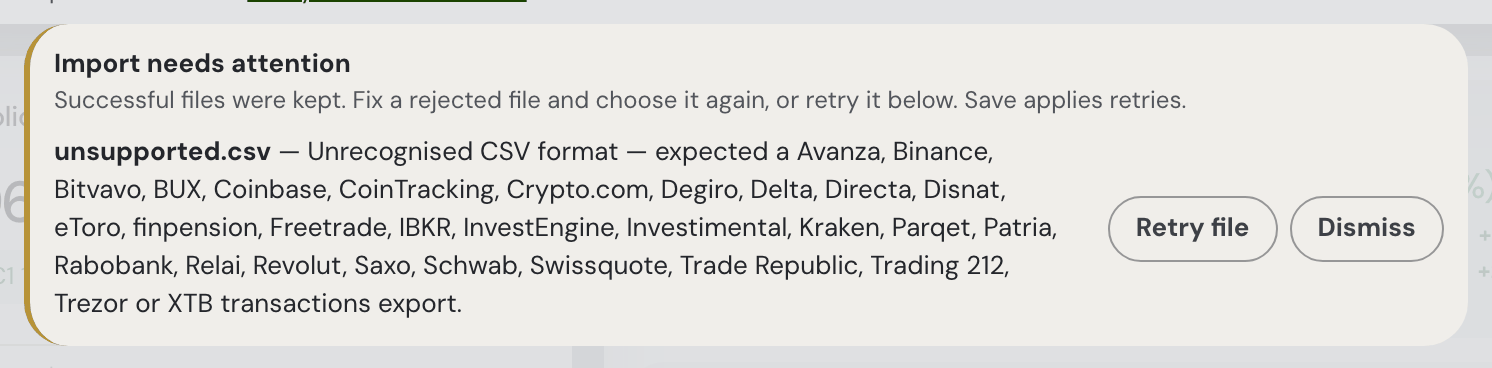
Recovering a failed import: Settings keeps each rejected filename and reason until it succeeds or you Dismiss it. A mixed Save keeps successful files and stays open on Data for failures. Retry stages only that file; Save applies the retry. Receipt metadata survives reload in the same browser tab/session, while file contents stay only in memory. After reload, Choose file again asks for one matching filename and keeps the original folder path. Account changes and session reset clear earlier receipts. The Skipped: … line under a drop area names only files that are still not imported: once a file imports — from that drop area, from Settings or through Retry — or its receipt is dismissed, it leaves the line. A file turned away by a free-plan limit stops quoting the old numbers after you remove or untick data (it may fit now — add it again), and stops offering the upgrade once your plan has no such limit.
Every supported platform
One alphabetical list: find your platform, and the mark says how it comes in — Direct API, SnapTrade or CSV, explained just below. The SnapTrade mark carries a second half because that route has two flavours and they ask different things of you: SnapTrade sign-in is an approval at the broker’s own site, SnapTrade API key a read-only key you mint there and paste into SnapTrade. Where a row carries two marks they are alternatives, not steps. A platform is never offered both Direct API and SnapTrade: where we can talk to it ourselves, the direct key reaches further back, syncs faster and hands nobody else access, so it is the only one shown.
As the list stands today all twenty-two SnapTrade brokers are the SnapTrade sign-in kind — there is no key to mint for any of them right now — so that half of the mark reads the same down the whole column. It is there rather than said once in a sentence because the roster is SnapTrade’s and not ours: they add and remove integrations, a key-flavour broker can reappear, and the mark will say so on the row rather than in a caveat you have to remember. The live list is always the searchable one in the app under ⚙ Settings → Data → Connect an account.
| Platform | How it comes in | What you need |
|---|---|---|
 Alpaca Paper Alpaca Paper | SnapTrade sign-in | A sign-in at Alpaca’s own site — these are their paper (practice) accounts, not a funded one. |
 Avanza Avanza | CSV | The Transaktioner export. Avanza has no API for private accounts and is not offered by SnapTrade, so the file is the only route. |
 Binance Binance | Direct API or CSV | A read-only API key and secret created in Binance’s API management — or a Transaction History export from the Data Download Center. |
 Bitvavo Bitvavo | CSV | The Transaction history export from the Dutch exchange. |
 BUX BUX | CSV | The account statement from Profile › Statements in the app. |
 Chase Chase | SnapTrade sign-in | A sign-in at Chase’s own site — the J.P. Morgan investment accounts. |
 Coinbase Coinbase | Direct API or CSV | A read-only CDP API key (key name plus private key) from the Coinbase developer portal — or the retail Transaction history CSV, saved without the title block some downloads put above the header. |
 Coinmate Coinmate | Direct API | Client ID, public key and private key from Account → API, with only the Account balance and Transaction history read permissions ticked. |
 CoinTracking CoinTracking | CSV | An export from Enter Coins → Export, with the date format set to DD.MM.YYYY or YYYY-MM-DD. It is a tracker rather than a venue, so one file can carry several exchanges. |
 Crypto.com Crypto.com | CSV | The App’s export from Accounts → Transaction History. The separate Crypto.com Exchange writes a different file, which is not read. |
 DEGIRO DEGIRO | CSV | The Transactions export, or the Account statement. Degiro has no API for private accounts and is not offered by SnapTrade, so the file is the only route. |
 Delta Delta | CSV | Delta’s own CSV export — crypto, shares and cash from every account the tracker follows, in one file. |
 Directa SIM Directa SIM | CSV | The Movimenti export from Portafoglio → Movimenti → Esporta, banner lines and all — leave them in. |
 Disnat Disnat | CSV | The transaction export from Comptes → Opérations → Exporter — Desjardins’ online brokerage, French column names. |
 Edward Jones Edward Jones | SnapTrade sign-in | A sign-in at Edward Jones’s own site, approved there. |
 Empower Empower | SnapTrade sign-in | A sign-in at Empower’s own site, approved there. |
 eToro eToro | SnapTrade sign-in or CSV | A sign-in at eToro’s own site — but SnapTrade lists eToro without transaction-history reporting, so that route brings holdings without the trades behind them. The Account Activity sheet of the Account Statement brings the trades. |
 E*Trade E*Trade | SnapTrade sign-in | A sign-in at E*Trade’s own site, approved there. |
 Fidelity Fidelity | SnapTrade sign-in | A sign-in at Fidelity’s own site, approved there. |
 finpension finpension | CSV | The Portfolio → Transactions → CSV export. One importer reads both the pillar 3a file and the vested-benefits (BVG) one. |
 Freetrade Freetrade | CSV | The activity export from Account → Activity → Export in the app. |
 Interactive Brokers / Lynx Interactive Brokers / Lynx | Direct API or CSV | A Flex Web Service token and the ID of an Activity Flex Query — or, as CSV, the yearly Activity Statement or the same Flex query run by hand. (SnapTrade’s Interactive Brokers integration is this same Flex token, handed to a third party, so it is not offered separately.) |
 InvestEngine InvestEngine | CSV | The transactions export from the UK ETF broker. |
 Investimental Investimental | CSV | The order-book export from Orders → Export — the Bucharest broker’s whole audit trail; only the fills are imported. |
 Kraken Kraken | Direct API or CSV | An API key and private key with query-only permissions — or the Spot ledger statement export. |
 moomoo moomoo | SnapTrade sign-in | A sign-in at moomoo’s own site, approved there. |
 Parqet Parqet | CSV | The Export → CSV from a Parqet portfolio. It is a tracker rather than a broker, so one file can carry several brokers’ histories. |
 Patria Finance Patria Finance | Excel | Two exports from Transakce — Obchodní pokyny for the trades and Cash flow for interest and dividends, both as Excel. The Czech broker in the ČSOB group offers no CSV at all, and its export dialog defaults to one month. |
 PNC PNC | SnapTrade sign-in | A sign-in at PNC’s own site, approved there. |
 Public Public | SnapTrade sign-in | A sign-in at Public’s own site, approved there. |
 Questrade Questrade | SnapTrade sign-in | A sign-in at Questrade’s own site, approved there. |
 Rabobank Rabobank | CSV | The beleggersrekening export from Beleggen › Transacties. |
 Relai Relai | CSV | The transactions export from the app — the Swiss bitcoin-only service, one purchase per row. |
 Revolut Revolut | CSV | The brokerage account statement (Excel format, which downloads as CSV) — and, separately, the crypto transactions export. |
 Robinhood Robinhood | SnapTrade sign-in | A sign-in at Robinhood’s own site, approved there. |
 Saxo Bank Saxo Bank | CSV | The Transactions export from Account → Historic Reports → Transactions. |
 Schwab Schwab | SnapTrade sign-in or CSV | A sign-in at Schwab’s own site, approved there — or the Charles Schwab Transactions export from Accounts → History → Transactions, saved without the account-header line some downloads put above it. |
 Swissquote Swissquote | CSV | The account Transactions export. The English-language version only — the German, French and Italian ones are not read. |
 tastytrade tastytrade | SnapTrade sign-in | A sign-in at tastytrade’s own site, approved there. |
 TIAA TIAA | SnapTrade sign-in | A sign-in at TIAA’s own site, approved there. |
 Trade Republic Trade Republic | CSV | A CSV written by pytr, the community downloader — Trade Republic itself has no export button. |
 Trading 212 Trading 212 | Direct API or CSV | An API key generated in the Trading 212 app or web platform, live or practice account — or the history export from Menu → History. |
 Transamerica Transamerica | SnapTrade sign-in | A sign-in at Transamerica’s own site, approved there. |
 Trezor Suite Trezor Suite | CSV | A transactions export per account, taken in Trezor Suite itself — it is a wallet, not a platform with an API key. |
 Upstox Upstox | SnapTrade sign-in | A sign-in at Upstox’s own site. SnapTrade lists Upstox without transaction-history reporting, so expect holdings without the trades behind them. |
 U.S. Bank U.S. Bank | SnapTrade sign-in | A sign-in at U.S. Bank’s own site, approved there. |
 Webull Canada Webull Canada | SnapTrade sign-in | A sign-in at Webull’s own site — the Canadian entity. |
| Webull US | SnapTrade sign-in | A sign-in at Webull’s own site — the US entity. |
 Wells Fargo Wells Fargo | SnapTrade sign-in | A sign-in at Wells Fargo’s own site, approved there. |
 XTB XTB | CSV | The xStation Cash Operations export. XTB discontinued client API access on 14 March 2025 and is not offered by SnapTrade, so the file is the only route. |
 Zerodha Zerodha | SnapTrade sign-in | A sign-in at Zerodha’s own site, approved there. |
How the three methods work
- Direct API — a read-only key you create at the platform yourself and paste into Fortunest, with nobody in between. The connect form walks you through making the key and gives you the IP address to whitelist where the platform offers one — and says nothing about whitelisting where it does not. The key is checked live and nothing is stored unless it works; it is then encrypted at rest, never sent to your browser and never logged. The first sync fetches as much history as that platform’s API will serve; later ones are incremental and run in the background. Needs a signed-in Fortunest account — a key has to outlive the browser session.
- SnapTrade — a read-only brokerage partner for the brokers we cannot reach directly. It comes in two flavours, and the app tells you which one you are about to get before the portal opens:
- OAuth (a sign-in) — you sign in at the broker’s own site and approve read-only access there. Your login never reaches Fortunest or SnapTrade, and you can revoke it from your broker account at any time.
- API key (a token) — you create a read-only key inside your broker account and paste it into SnapTrade. Grant read permissions only, never withdrawal or trading — and if your broker lists reading your own trades as a separate permission, grant that too, or the connection imports what you hold but none of the trades behind it.
- CSV — you export a transaction-history file from the platform and drop it in. The format is detected automatically, no Fortunest account is needed, and any number of files can be loaded — overlapping exports are de-duplicated. It is a snapshot you repeat by hand: a connection keeps itself up to date, a file does not.
Every connection is read-only. Fortunest can see your positions and transaction history; it cannot place, change or cancel an order, and it cannot move money — there is no order-placing code in the app, and a test asserts it. The step-by-step of connecting, and what a connected row shows afterwards, is in Connecting an account instead of uploading below; the per-platform export walkthroughs start at Revolut.
What each CSV export contains
Twenty-nine platforms, alphabetically. Every one of these was written against a real export rather than a specification, and each row says what that file actually carries — a transaction type not named here is one the importer counts and reports rather than guesses at, and you will see the count on the Portfolio tab.
| Platform | Export | What's understood |
|---|---|---|
| Avanza | Transaktioner export (CSV) | Köp/Sälj, Utdelning and the foreign withholding tax booked against it, Insättning/Uttag, Ränta — and the Övrigt rows sorted by what they actually are: fee refunds, tax charges and fund share-class conversions. Belopp is already net of the courtage, so the brokerage is never subtracted twice. Avanza's own Resultat column is kept for reference and feeds nothing. |
| Binance | Transaction History statement (CSV) | Deposits, withdrawals, trades, Earn/staking, airdrops, token swaps and redenominations, margin transfers. The Spot trade-history format also works. |
| Bitvavo | Transaction history (CSV) | Buys and sells with their fiat leg, deposits and withdrawals, staking payouts. Fees are already inside the amounts and are never subtracted again; a fee charged in a coin is recorded but not valued. Pending, cancelled and failed rows are counted, not imported. |
| BUX | Account statement (CSV) | Buy and Sell trades, cash dividends, corporate actions including splits, deposits, withdrawals, trading and subscription fees, interest and promotional credits. BUX's own profit/loss and exchange-rate columns are kept for reference and applied to nothing. |
| Coinbase | Transaction history (CSV) | Buys and sells at the spot price, Convert rows read as two legs, Send and Receive as transfers, staking and every reward kind as income. The currency comes from the Price Currency column rather than the € or $ printed in the cell. A non-English export loses the received leg of a Convert and says so. |
| CoinTracking | CoinTracking export (CSV) | Trades as up to three legs — bought, sold, fee — plus every income type (mining, staking, minting, airdrops, lending, dividends), deposits, withdrawals, spends, gifts and losses. Margin and futures profit/loss rows are counted, not guessed. Rows are filed under CoinTracking, not under the exchange they name. |
| Crypto.com | App Transaction History (CSV) | Conversions as two priced legs, card top-ups and crypto deposits, and every reward, cashback, referral and interest kind. Moves between the App and the Exchange, and lockups, are netted out instead of counted as flows. A kind that is not recognised is still imported as a plain quantity change, and counted. |
| Degiro | Transactions export, or the Account statement (CSV) | The blotter's trades, including Czech-locale files (comma decimals, DD-MM-YYYY); splits, ISIN changes and exchange moves net out correctly. The account statement reads too: fills recovered from the description in five languages, GBX quotes converted to the pounds they settle in, dividends and the tax withheld from them, fees as their own rows. |
| Delta | Delta CSV export | Buys, sells, deposits, withdrawals and dividends across crypto, shares and cash in one file, each row's fee as its own entry. A crypto-for-crypto leg carries no cash and is priced later from the coin it was swapped against. Rows are filed under Delta, not under the exchange they name. |
| Directa SIM | Movimenti export (CSV) | Acquisto/Vendita, ETF and bond distributions with the ritenuta booked against them, bank transfers in, capital-gains withholding, fees, stamp duty and interest. The nine-line account banner above the table is skipped. There is no price column, so the unit cost is derived from the amount and flagged as derived. |
| Disnat | Transaction export (CSV) | ACHAT/VENTE, dividends and distributions, interest, fees, GST and Québec sales tax, contributions, transfers received, RESP grants and Québec incentives. CAN and USA are read as CAD and USD; a dual-listed -C ticker folds onto its underlying so trades and dividends meet. |
| eToro | Account Statement, the Account Activity sheet (CSV) | Stock and crypto positions opened and closed, dividends, interest, deposits, withdrawals, withdrawal and conversion fees, overnight and weekend fees with their refunds, stamp duty and financial transaction tax. eToro's own realised-equity column is kept for reference and feeds nothing. |
| finpension | Portfolio → Transactions CSV (3a and BVG) | Buys and sells, dividends and distributions, interest, the flat-rate administration fee, and contributions or vested benefits transferred in. Both products write the same header, so one importer reads either file and records which it was. Everything is in Swiss francs. |
| Freetrade | Activity export (CSV) | Orders both ways, free-share promotions, dividends and REIT/PID distributions, top-ups, withdrawals and interest on cash. Stamp duty and the FX fee count as costs of the trade; withholding tax does not. Monthly statements and tax certificates are counted apart, as documents rather than unread rows. |
| Interactive Brokers | Activity Statement (CSV), or a Flex Query "Trades" (CSV) | The Activity Statement: stock and ETF trades keyed by ISIN (an older statement's CUSIPs included), currency conversions as two cash legs, dividends and payments in lieu, withholding tax, fees, interest, deposits and withdrawals, splits, ISIN changes and share transfers — a move between two of your accounts that you have uploaded both of keeps the original purchase date. Options, futures and bonds are counted, not imported. The Flex Query: equity/ETF trades keyed by ISIN, commissions folded into the cash amount, multi-level exports de-duplicated. |
| InvestEngine | Transactions export (CSV) | Buys and sells keyed by ISIN, with the stated trade value believed over price × quantity. There is no fee column and no cash rows — this is a trade-only export. A £ is read as pounds; a $ or a kr names more than one currency and is counted rather than assumed. Dates are read day-first, always. |
| Investimental | Order-book export (CSV) | The fills, and only the fills. Each one's size is the drop in the order's remaining volume, so a partly filled order counts once rather than once per amendment; placements, repricings and expiries are counted as order events. The account currency is read out of the file itself. |
| Kraken | Spot ledger statement (CSV) | Paired trade rows, staking rewards net of fees, deposits/withdrawals, wallet auto-allocations, delisting conversions (e.g. MATIC→POL). |
| Parqet | Transactions export (CSV) | Buys and sells, dividends, deposits, withdrawals and interest, with the cash worked out from the gross value, the fee and the tax rather than read from a column. In-kind transfers in and out are counted, not guessed — their amount is a book value, not money. Rows are filed under Parqet, not under the broker they name. |
| Patria Finance | Obchodní pokyny and Cash flow (XLSX) | Executed orders only — a cancelled order keeps its quantity, its limit price and a gross price, and is skipped and counted rather than imported as a purchase that never happened. Quantity and price come from the realised columns, not the ordered ones, so a partial fill counts what filled; the market and Patria fees are folded into what the trade cost; the date is the trade date, not the settlement date. From Cash flow, interest on the cash balance — its trade and fee rows repeat the order export and are counted rather than imported twice. The range the export was made over is reported back to you. |
| Rabobank | Beleggen › Transacties export (CSV) | Koop and Verkoop, cash dividends with the 15% dividendbelasting derived from the gross and the net, deposits and withdrawals, service charges and interest on the beleggersrekening. Koers is a share price on a trade and a per-share rate on a dividend, and is read as each. |
| Relai | Transactions export (CSV) | Every buy and sell as a bitcoin leg and a fiat leg, with the fee added to what a purchase really cost — the file's fiat column excludes it. A fee paid in bitcoin comes off the coins instead. Recurring buys arrive as ordinary purchases and repeats are never de-duplicated. |
| Revolut | Brokerage account statement, and the crypto export (CSV) | Statement: buys/sells, dividends, stock splits, custody fees, top-ups, withdrawals and transfers — cash is reconstructed from them, and a euro-locale file with comma decimals reads (it used to fail the upload outright). Crypto: buys, sells, sends, receives and staking rewards; stake and unstake move no coins and are ignored. |
| Saxo Bank | Transactions export (CSV) | Trades read out of the Event sentence ("Buy 3 @ 139.74 USD"), deposits and withdrawals, custody fees and other charges, interest, and dividends arriving as corporate actions. A corporate action that is not a dividend moves units the file never states, so it is counted rather than guessed. Localised exports read. |
| Schwab | Charles Schwab Transactions export (CSV) | All twenty-seven Action values a real export carries: buys, sells and reinvested shares; twelve dividend and capital-gain spellings; splits, reverse splits, spin-offs, mergers, name changes, conversions and stock distributions; journalled shares and wire, MoneyLink and internal transfers; credit interest, advisor and ADR fees, foreign tax paid, and cash in lieu. Option contracts are counted, not imported. |
| Swissquote | Transactions export (CSV) | Buy and Sell, dividends, custody fees, interest, Debit and Credit, and the paired Forex credit/debit legs. Net Amount already has the Costs taken off it. Several currencies live in one file, each with its own running balance, so there is nothing to pick at upload. |
| Trade Republic | pytr export (CSV) | Aankoop/Buy, Verkoop/Sell, dividends, deposits, withdrawals and interest, with the per-share price reconstructed from the net value, the fee and the tax. The decimal separator and the date format change from row to row and are read per row. A savings-plan execution looks exactly like a manual purchase, so identical rows are kept rather than merged. |
| Trading 212 | History export (CSV) | Market/Limit/Stop buys and sells, dividends, interest, deposits, withdrawals, currency conversions, stock splits, stock distributions and share transfers. Fractional shares to ten decimals; withholding tax and conversion fees counted once. |
| Trezor Suite | Account export (CSV) | On-chain received/sent/self transfers with network fees, netted against your exchange withdrawals and deposits. |
| XTB | Cash Operations report (CSV) | Buys and sales read out of the comment text, dividends and their withholding tax, spin-offs, free-funds interest and its tax, deposits, withdrawals and transfers. Localized operation names are understood; FX/CFD results and swaps are kept as cash so the balance still reconciles. |
Pick the widest date range available — "all time" or "since account opening" — so the dashboard sees your full history. You can load any number of files, and overlapping exports are de-duplicated automatically.
Connecting an account instead of uploading
A CSV is a snapshot you repeat by hand. With a Fortunest account you can link the account itself and let it keep up with you. ⚙ Settings → Data → Connect an account opens one searchable list of every platform from the table above, each marked Direct API, SnapTrade or CSV — some carry two marks, and then they are alternatives, not steps. Direct connections are listed first, SnapTrade brokerages next, upload-only platforms last; typing filters the whole list at once.
Picking a direct connection opens a form that walks you through making the key at the platform, including the IP address to whitelist — but only on the platforms whose key form actually asks for one, so you are never sent looking for a box that does not exist. Every platform offered here currently takes one, Trading 212 included. The key is checked live before anything is kept, and nothing is stored unless it works — a refusal appears in red under the Connect button, saying which of three things went wrong. Picking a SnapTrade brokerage opens their connection portal instead. Brokerages connected through SnapTrade before a direct connector existed for them keep working untouched.
You never hand over a broker password. Every connection is read-only: Fortunest can see your positions and transaction history; it cannot place, change or cancel an order, and it cannot move money — there is no order-placing code in the app, and a test asserts it.
Your keys are encrypted at rest, never sent to your browser, never logged and never passed to a third party. A connected row shows only the public half of the key — eight characters of the identifier, click to read it whole and copy it — because that half authenticates nothing on its own. The secret half is sealed when you save it and cannot be read back by anyone, us included.
Naming the connection. A new connection is named after its platform and numbered — Binance API 1, then Binance API 2 beside it, Coinbase API 1 — and the moment a direct connection connects, a small dialog offers that name to keep or to replace with your own. A SnapTrade account is numbered after its broker when its data first comes in, with no dialog — rename it from its row. Connections made before names existed keep the name they always had.
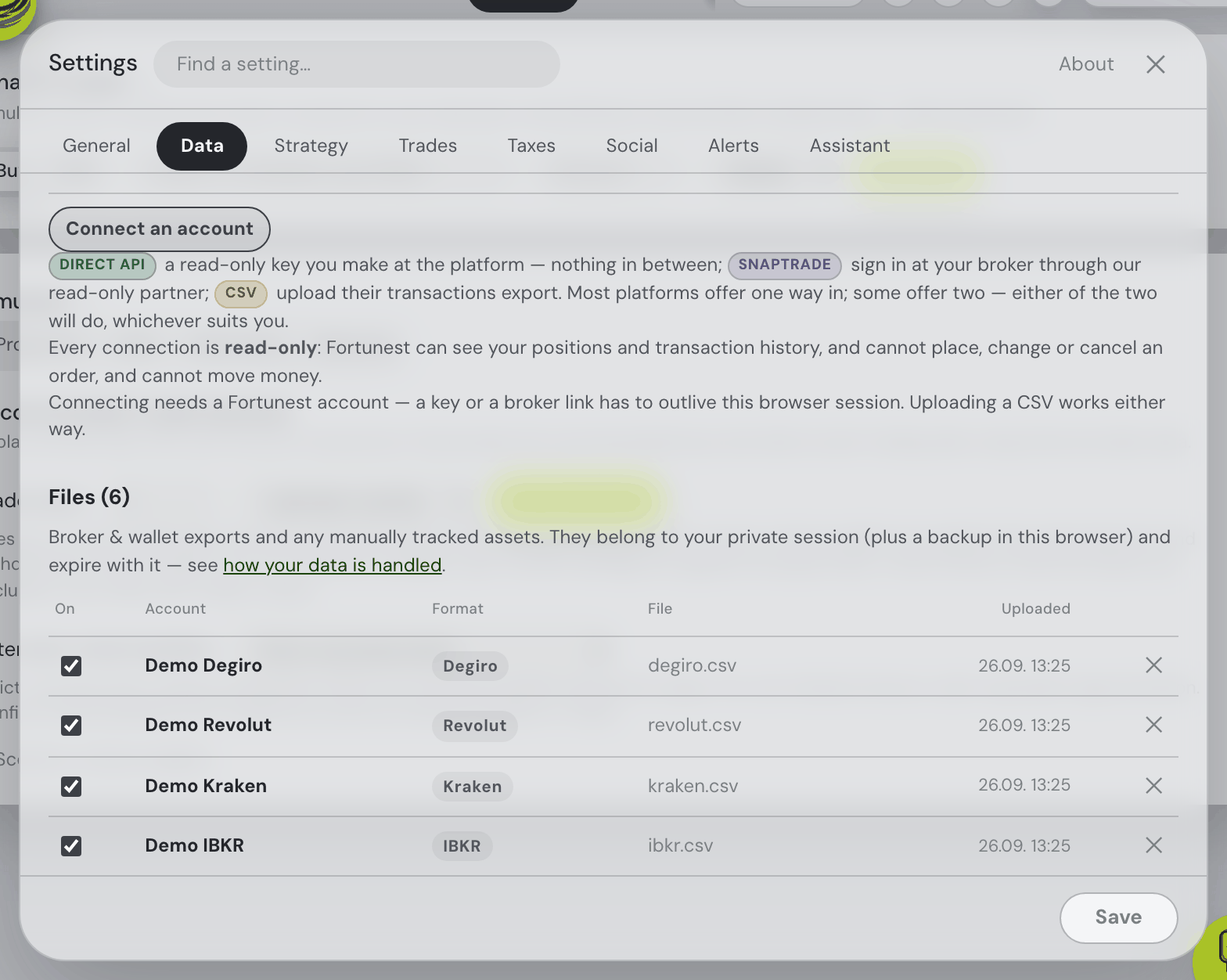
Everything you have linked appears under Connected accounts in ⚙ Settings → Data, sorted by platform: the account’s name — click it to rename it — the platform it connects to in a column of its own, the route mark, a health dot, when it last brought anything in — or plainly Never synced — plus an include tick, Sync now and, at the far right of the row, the ✕ that disconnects it — the same ✕ a file has below (staged until Save, with ↩ to keep it). Each account is one line, and the rows line up in columns with the Files table: the tick over its On boxes, the name starting where its account names start, the ✕ over its ✕s — and, while there is room, the platform right above its Format chips. When a long account name in the Files table (or a long broker name) would push the row onto a second line, the name and the platform chip shorten instead, ending in …; hover either for the whole of it. Only a narrow window moves the rest of a row to a line under the name, still in columns. The first sync fetches as much history as the platform's API will serve; later ones are incremental and run in the background. Disconnecting a direct connection deletes the stored key and the data imported through it; disconnecting a SnapTrade brokerage leaves its transactions in place.
Connecting needs a signed-in account — a key has to outlive the browser session — and a new connection uses one of your plan's account slots, the same three a CSV file uses on the free plan — which also holds up to 50 assets across all of them, manually tracked and market-priced ones included. Pro lifts both caps. Neither is ever applied to reading: a portfolio that is over a limit still loads in full, and only the next thing you add is refused. Both caps count only what the app is actually tracking for you: an account you have unticked spends neither a slot nor asset room, and the demo portfolio spends nothing at all — press Try with demo data and all three of your account slots are still yours. The desktop app connects directly too: the keys live in its local database and the calls go straight from your machine to the platform. SnapTrade is not part of the desktop build.
Adding & managing files
- To add files: drag them onto the Portfolio value tile (it's a dropzone while the dashboard is still empty) or open ⚙ Settings → Data and drop them on the Data sources card. Dropping a whole folder walks it recursively and picks up every CSV and Excel (.xlsx) export inside.
- Files that aren’t CSV or Excel: a drop is sorted before anything is named or uploaded. CSV and Excel (.xlsx) files go on as usual; any other type is named in one line under the drop area, grouped by type — “The PDF and DOCX file types are not supported. Upload CSV or Excel (.xlsx) files.” A file with no extension has no type to name, so it is named itself: “A file without an extension (README) is not supported.” When nothing in the drop was supported, nothing uploads and no naming dialog opens; in a mixed drop the supported files carry on through the naming dialog and the upload, and the line stays up listing the rest. The clutter a folder carries along — .DS_Store, Thumbs.db, desktop.ini, a __MACOSX folder, the ~$ lock file Excel leaves beside an open workbook, any hidden file — is passed over without a word. The browse dialog offers CSV and Excel files and the archives below, and a file picked under All files is sorted the same way. Older binary Excel files (.xls) are not read: re-save them as .xlsx or CSV. A CSV or Excel file the server then can’t read is a different case: it is reported after the upload, with the server’s reason.
- Zipped exports: drop or pick a .zip, .tar, .tgz / .tar.gz or .gz and the CSV and Excel files inside are taken out and go on exactly as if you had dropped them loose — sorted by the same rules (the __MACOSX folder a Mac zip carries is passed over), named in the same dialog, uploaded one by one. The archive is opened in your browser, before anything is sent; the server only ever receives the files inside. The naming dialog shows where each file came from (exports.zip/2024/trades.csv), so two files called trades.csv in different folders are told apart — proposed as Trades and Trades 2. Whatever can’t come through is named in the line under the drop area: a file type inside (“In exports.zip, the PDF file type is not supported.”), an archive type nothing here can open (“The 7Z archive type is not supported — use ZIP.” — likewise RAR, BZ2, XZ and tarballs compressed with them), a damaged archive (“exports.zip could not be opened — it is damaged or is not a ZIP file.”), a password-protected file, one compressed with a method the browser can’t read, or an archive inside the archive — only one level is opened; unzip the inner one and drop its files. Limits: an archive of up to 8 MB, unpacking to at most 64 MB and 1000 items, and no file inside may expand more than 100-fold past its first megabyte — checked while it is being read, so a “zip bomb” is stopped part-way rather than unpacked first. Opening compressed archives needs a current browser (Chrome, Edge, the desktop app, Firefox 113+, Safari 16.4+); an older Safari still opens a zip saved without compression and a plain .tar.
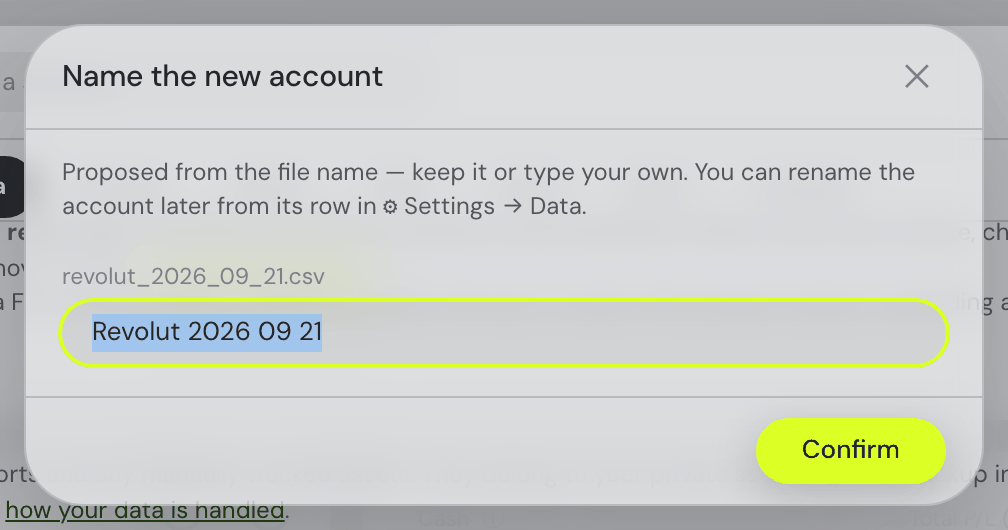
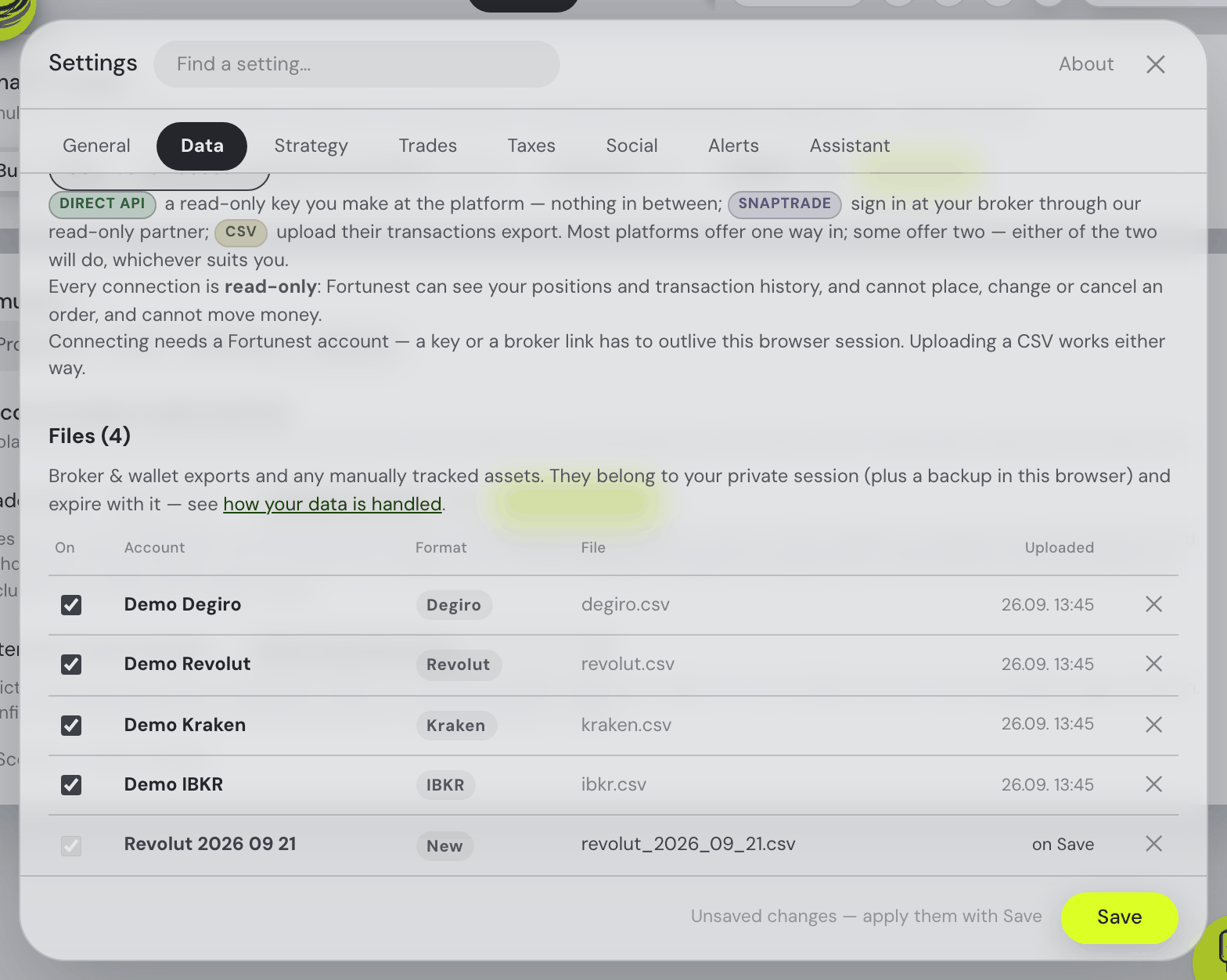
- Naming an account: every file you add is named before anything is staged or uploaded. A small dialog proposes the name the file has always given its account — revolut_2026_09_21.csv becomes Revolut 2026 09 21, or Revolut 2026 09 21 2 when a file of that name is already here — to keep as it is or replace with your own; a folder drop asks about every file in one dialog, one row each, and cancelling it adds nothing. Later, click an account’s name in the Account column to rename it in place: Enter or clicking away keeps the new name, Esc puts the old one back, and like every edit here it applies on Save. A name can be up to 60 characters; two accounts may share one — you are warned, not stopped — because what identifies an account is the file it came from, never its name. So a rename moves nothing: include ticks, tax lots, history and chart lines stay attached to the account, and the new name simply shows wherever the account does — the Portfolio value tile, the Cash tile, the chart’s account lines and its table view, the Holdings table’s Account column (which sorts by the name), an asset’s details panel, the Taxes tab’s lots and what the assistant calls it. Names travel with web–desktop synchronization and a guest’s browser backup.
- To temporarily exclude an account: untick the checkbox next to its file. It stays saved but is left out of the portfolio until you tick it again — and while it is off, on the free plan, it stops counting against both your limits: its assets leave the asset count, and the account itself gives its account slot back, so unticking something you are not using really does make room for the next file you add. The same goes for an unticked Other asset or Market-priced asset.
- To remove a file: use its remove button — the row is struck through until Save applies it, and ↩ keeps it after all; Remove all files, the button beside the drop area — the two share one row at one height, the button at the right under that column of remove buttons — marks the whole set the same way in one click. With a single file there is nothing to remove all of, so the drop area has the row to itself.
- How big a file can be: up to 8 MB per export on the hosted app. That is roughly eighteen times the largest export we have ever seen — five years of a heavy crypto trader’s Binance history comes to 454 kB — so a real file will not meet it; anything over answers “File too large” straight away rather than being read. The hosted app also paces uploads by the minute, generously enough that dropping a folder of two dozen exports goes through in one run. Neither limit applies to a local install or the desktop app, where the files never leave your machine.
- Everything applies on Save. Inside the Settings dialog every data edit is staged: files you drop appear as pending rows and only upload and parse when you press the dialog's Save button, which also applies removals and ticks in a single rebuild (only the accounts that changed are repriced). A freshly connected brokerage imports its data on Save too, and the Other-asset and Market-priced rows stage every change the same way — adds wait as pending rows, value edits arm Save instead of growing per-row buttons, ticks queue, and a ✕'d row is struck through until Save removes it (↩ takes it back). Closing the dialog with staged changes raises an Unsaved settings prompt — Apply or Discard. (The empty-tile dropzone lives outside the dialog and imports immediately.)
Revolut
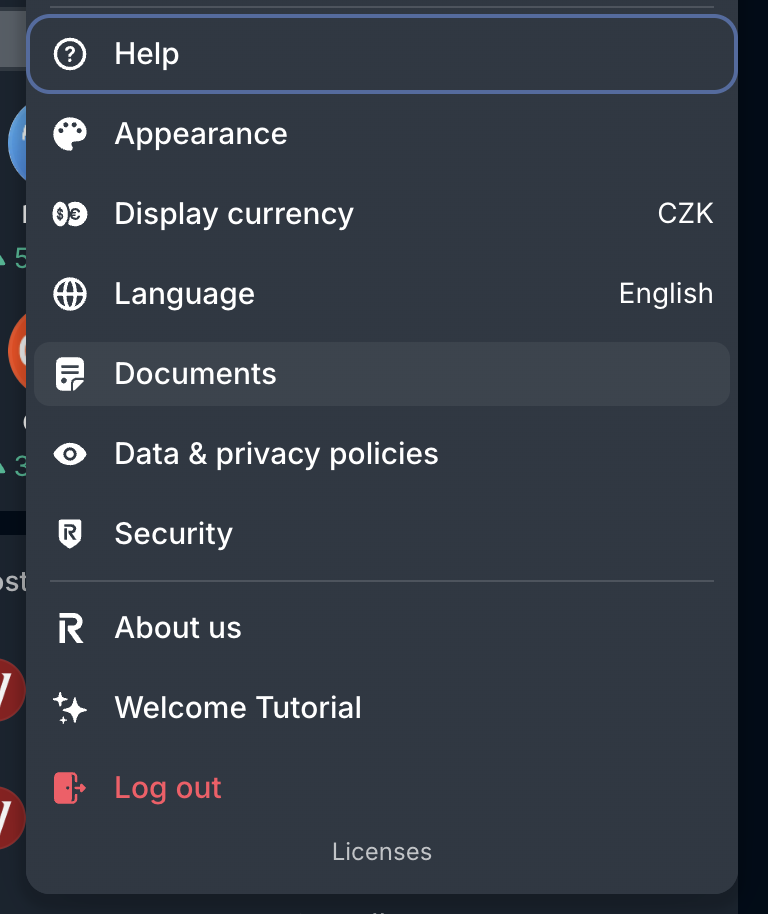
On invest.revolut.com click your profile icon (top right) and choose Documents:
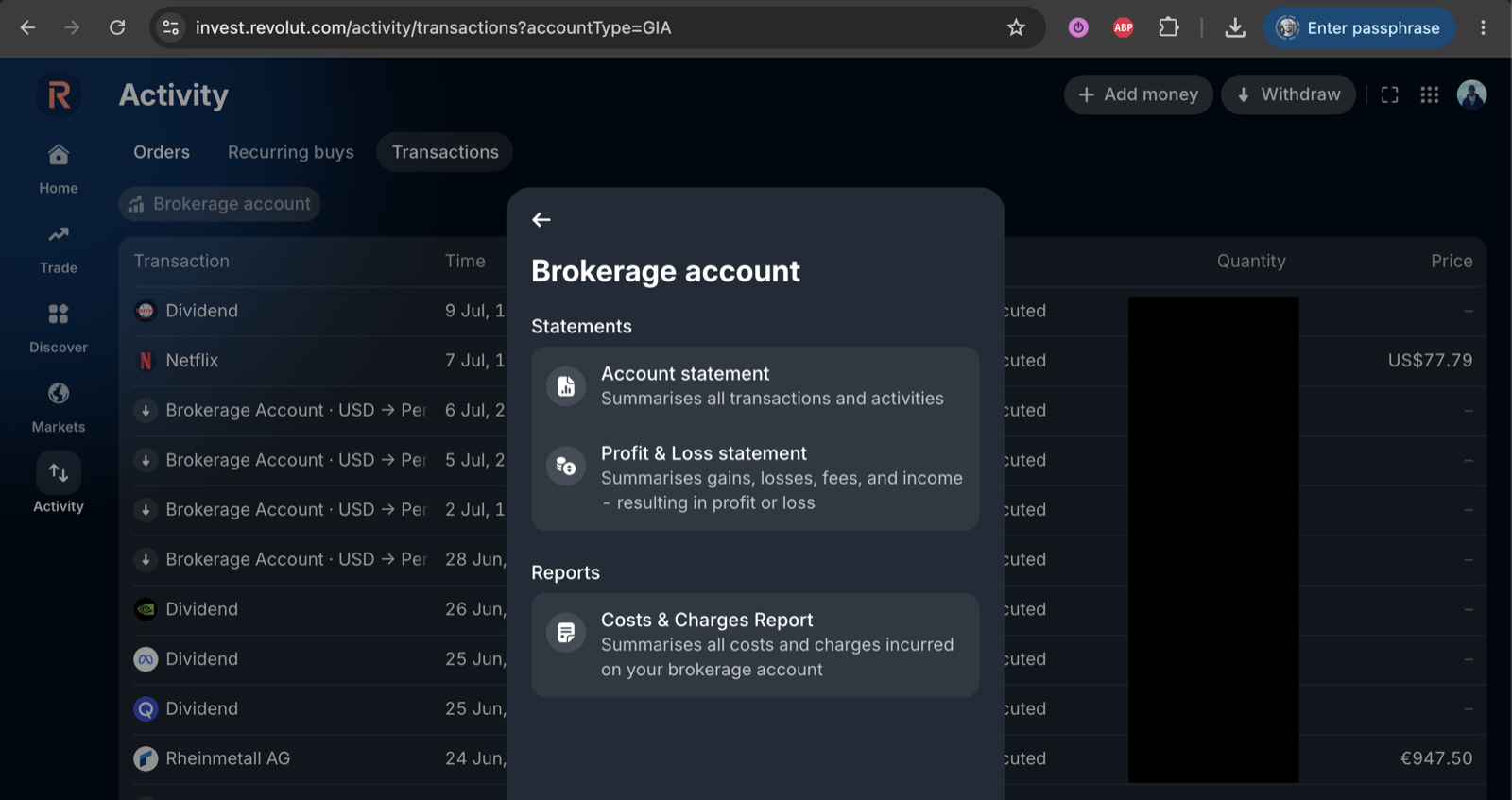
Select Brokerage account and choose Account statement under Statements:
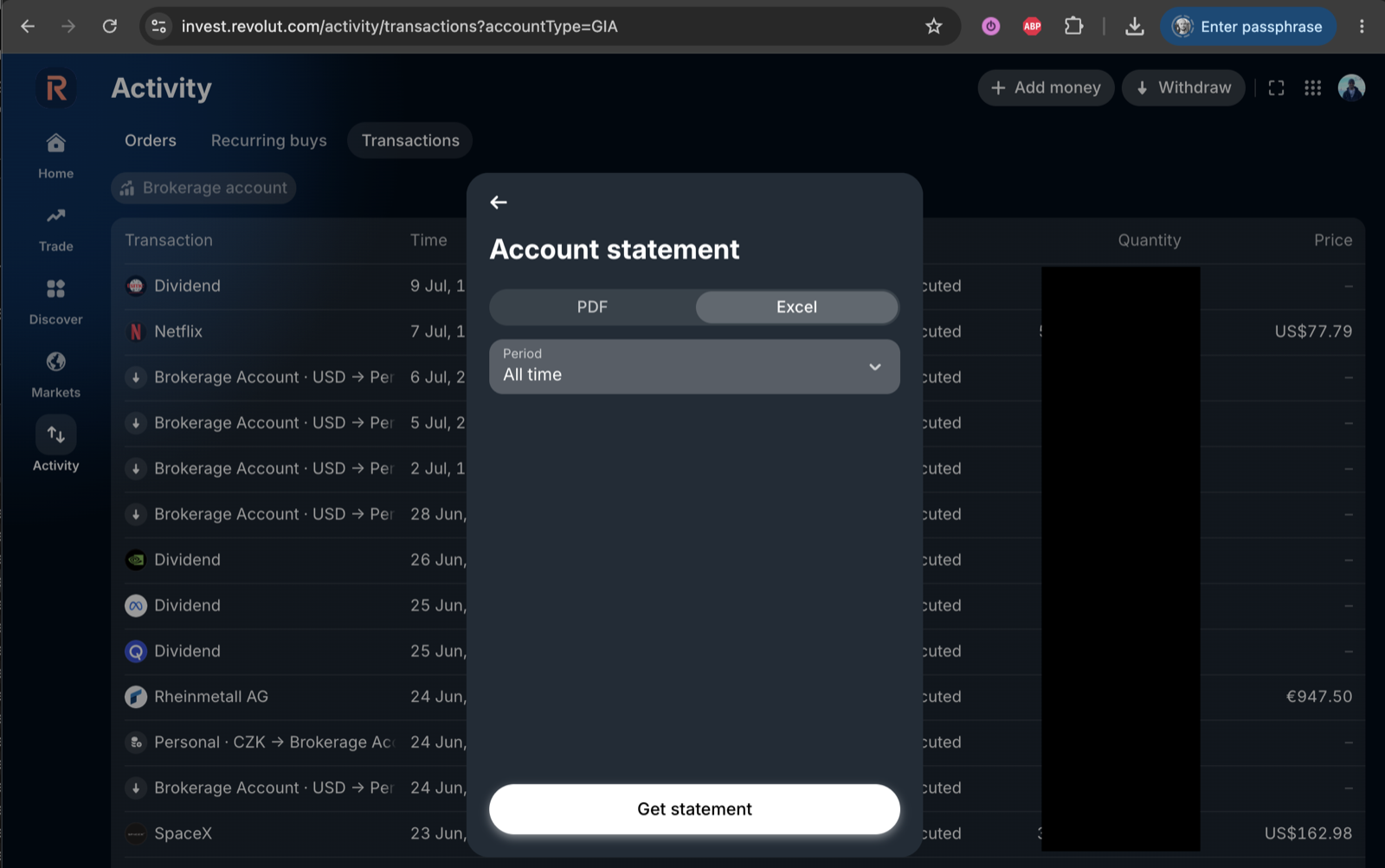
Then pick the Excel format (it downloads as CSV), set Period to All time and hit Get statement:
Crypto is a second file. Revolut’s crypto wallet writes its own export — seven columns, one row per buy, sell, send, receive or staking reward — and it shares no column name with the brokerage statement above. Upload both; they are recognised separately and land under the same Revolut account. Stake and Unstake rows are read and then deliberately ignored: staking ETH does not change how much ETH you own, and crediting their quantity would invent coins on top of the purchase that acquired them. One file can carry several currencies over its life — SEK early, EUR later — and each row keeps its own.
Euro statements used to fail, and no longer do. A brokerage statement written in a euro locale mixes comma decimals with dollar amounts in the same row, and that combination used to refuse the whole upload with an error about converting text to a number. Numbers are now read cell by cell rather than once per file; where a number is genuinely ambiguous (“1,234” is two readings) the row’s own arithmetic settles it, and where it cannot, the cell is counted in the import notes instead of being coerced into a guess.
Degiro
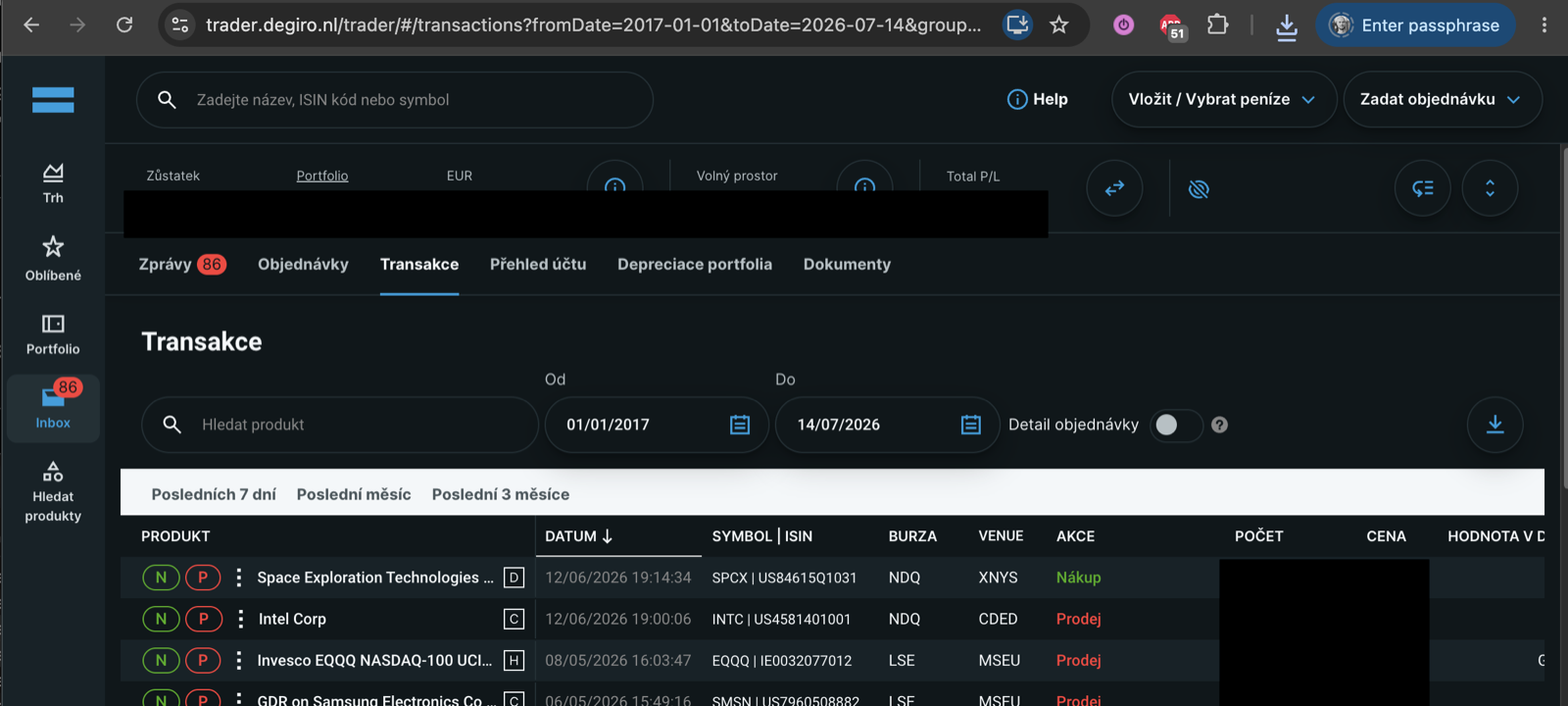
On trader.degiro.nl open Inbox → Transactions, set the from/to dates to cover your whole history and click the download icon on the right:
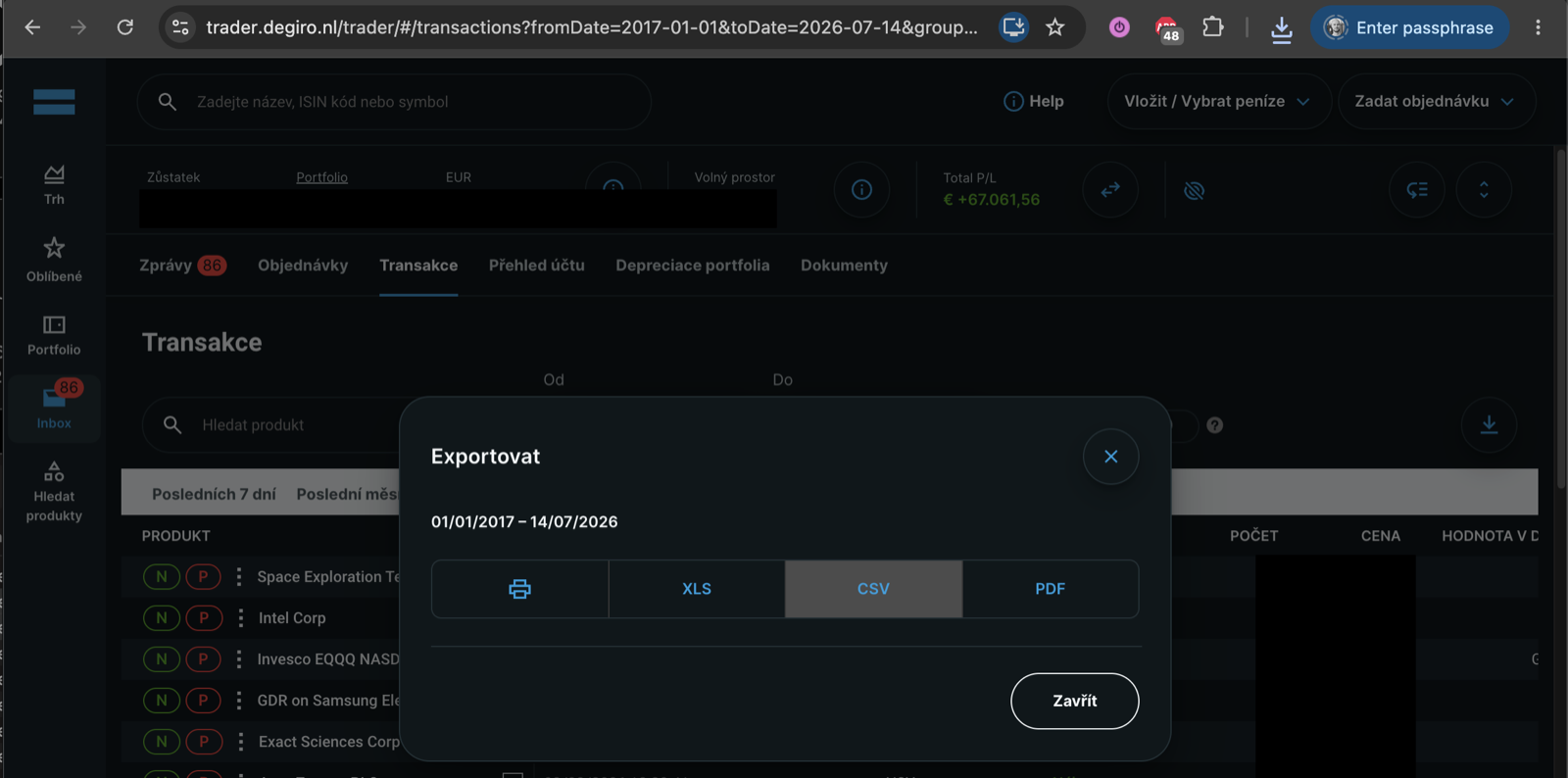
In the Export dialog choose CSV:
The Account statement works too now. Degiro’s other export — Inbox → Account statement, the twelve-column Account.csv rather than the seventeen-column blotter — used to be accepted and then import nothing at all, in silence. It is read properly: the fills are recovered from the description sentence in five languages, London prices quoted in pence are converted to the pounds they settle in, dividends arrive with the tax withheld from them, fees become their own flagged cash rows, and a prefix in front of the verb (PRODUCTWIJZIGING, STOCK DIVIDEND) is kept as the corporate action it names. The statement also carries the cash side of every trade, so its foreign-currency legs balance instead of leaving a phantom dollar balance behind each US purchase.
Either file is fine, and you can upload both. The Transactions blotter is the cleaner record of what you bought; the Account statement is the only one of the two that contains cash.
Interactive Brokers
Two IBKR files are read, and Lynx accounts produce the same two — Lynx clients log into the same Client Portal. The Activity Statement is the one you most likely already have: it is the yearly statement tax advisers and Czech tax tools ask for. The Flex Query is a report you design yourself. Pick one of the two for any stretch of time rather than uploading both: a trade counts once only where both files describe it the same way, and they often do not — the statement lists each order with its fills added up, while a Flex query exported per execution lists every fill on its own line, so a partly filled order would be counted twice.
The Activity Statement
In Client Portal open Performance & Reports → Statements, choose the Activity statement, set the period to Annual (or a custom date range), the format to CSV, and download it. Do that for every year you want in the dashboard and drop all the files in together: each year is its own file in ⚙ Settings → Data (the free plan holds three files; Pro has no limit), and rows two files share — a consolidated statement over several accounts repeats each account’s own rows — are counted once.
What comes in: stock and ETF trades, keyed by ISIN (older statements print a North American security’s CUSIP instead; it is converted using the listing exchange — a US exchange gives a US ISIN, a Canadian one a Canadian ISIN — so a 2019 purchase and a 2022 sale are one holding. A Canadian company quoted only on a US over-the-counter market is the one case this cannot tell apart); currency conversions as the two cash movements they are; dividends and payments in lieu; the withholding tax taken from them; fees and commission adjustments; interest, including the borrow fees for a short sale; deposits and withdrawals; splits, reverse splits, ISIN changes and mergers (a merger paid partly in cash moves the shares and books the cash as cash; one paid only in cash is a sale); and shares transferred in or out.
Moving to a new account number. When Lynx or IBKR moves your positions to a new account, the old account’s statement shows every position leaving and the new one’s shows it arriving. Upload the statements of both accounts (or one consolidated Activity Summary covering both) and the move is read as what it is — your own shares changing account: the Taxes tab keeps each lot’s original purchase date and price, so the 3-year time test still runs from the day you bought, and the value chart shows no withdrawal and no deposit. The two sides are matched by symbol, quantity and the two account numbers, up to ten days apart. With only one side uploaded the shares simply leave or arrive, because from the dashboard’s point of view they did — and the Taxes tab then dates them at the transfer and says so.
Not imported: options, futures, bonds and CFDs (counted, and reported on the Portfolio tab), and the statement’s own summaries — net asset value, performance, open positions — which would double the events they sum. The running cash balance is not tracked from this file, and a short position is not modelled: its sale and buy-back are imported as the trades they are, and a sale below zero shares shows up as an assumed opening balance.
The Flex Query
In Client Portal open Performance & Reports → Flex Queries and create an Activity Flex Query with the Trades section, covering your whole history, then run it from the same page and download it as CSV. The dashboard reads the trades keyed by ISIN and folds commissions into the cash amounts; exports with multiple detail levels are de-duplicated automatically. The same query, saved as XML, is what a direct connection syncs from.
Trading 212
In the Trading 212 app or on app.trading212.com open Menu → History, click the export icon, pick the widest period, tick every category and download the CSV. Invest and Stocks ISA accounts only — the CFD export is a different file and is not read, because the dashboard models no CFDs.
Everything in the export is understood: Market, Limit and Stop orders both ways, dividends (however Trading 212 spells them), interest on cash and lending interest, deposits, withdrawals, currency conversions, stock splits, stock distributions, and shares transferred in or out. Fractional holdings keep all ten decimals.
Two details worth knowing, because they are where other importers go wrong. Each row carries two currencies — the Total is the cash that actually moved in your account's currency, while Price / share is the quote in the share's own currency — and the dashboard uses each for what it is rather than multiplying them together. And withholding tax and the currency-conversion fee are already inside the Total, so they are shown as fees but never deducted a second time.
Connecting Trading 212 with an API key instead. In the app open Settings → API (Beta), accept the risk warning and tap Generate API key. Give it the read permissions only — account, portfolio and history — and leave orders off. The form offers Restrict access to trusted IPs, which takes the address Fortunest shows you (or a CIDR range); use it. Submitting shows an API key and an API secret, and the secret appears only once, so copy both. If you made your key some time ago it may have come without a secret — that kind still works: paste it as the key and leave the secret box empty. A practice-account key works too; pick demo as the environment.
If you also connect Trading 212 with an API key, keep the connection on files first: the file and the key describe the same trades in different currencies, so the cutover date — not row matching — is what stops them being counted twice. The app suggests the right date for you.
XTB
In xStation 5 open Account history → Cash operations, set the period to cover your whole history, choose the Cash Operations report type and export it as csv. That is the one XTB export that is a ledger — the Open and Closed positions views are snapshots of a moment, not a transaction history.
Pick your account currency when you upload it. The file has no currency column: every amount in it is in whatever currency your XTB account is denominated in, and nothing in the file says which. So XTB files — and only XTB files — get a currency picker in the upload panel, starting from your dashboard’s own currency. What was used is shown beside the file afterwards, so a wrong pick is easy to spot and fix by re-uploading.
The dashboard reads the quantity and price out of the comment text XTB writes them into, so partial fills, fractional shares and sales all land correctly, and it understands the operation names in more than one language — an export can carry them in your platform language. Dividends keep the per-share amount and the instrument’s own currency alongside the cash you actually received, and the withholding tax on them is imported too. FX and CFD results, swaps and index positions (the *.cash symbols) move cash on your account but are not something a portfolio can hold, so they are kept as cash movements only. Anything a row cannot be read from — XTB has been known to write a malformed timestamp — is counted and reported on the Portfolio tab rather than quietly dropped.
There is no XTB connection to make. XTB switched its client API off on 14 March 2025 (“API access is no longer available. The service was discontinued on March 14, 2025”), and no brokerage partner covers it, so this export is the only way an XTB account gets in.
Kraken
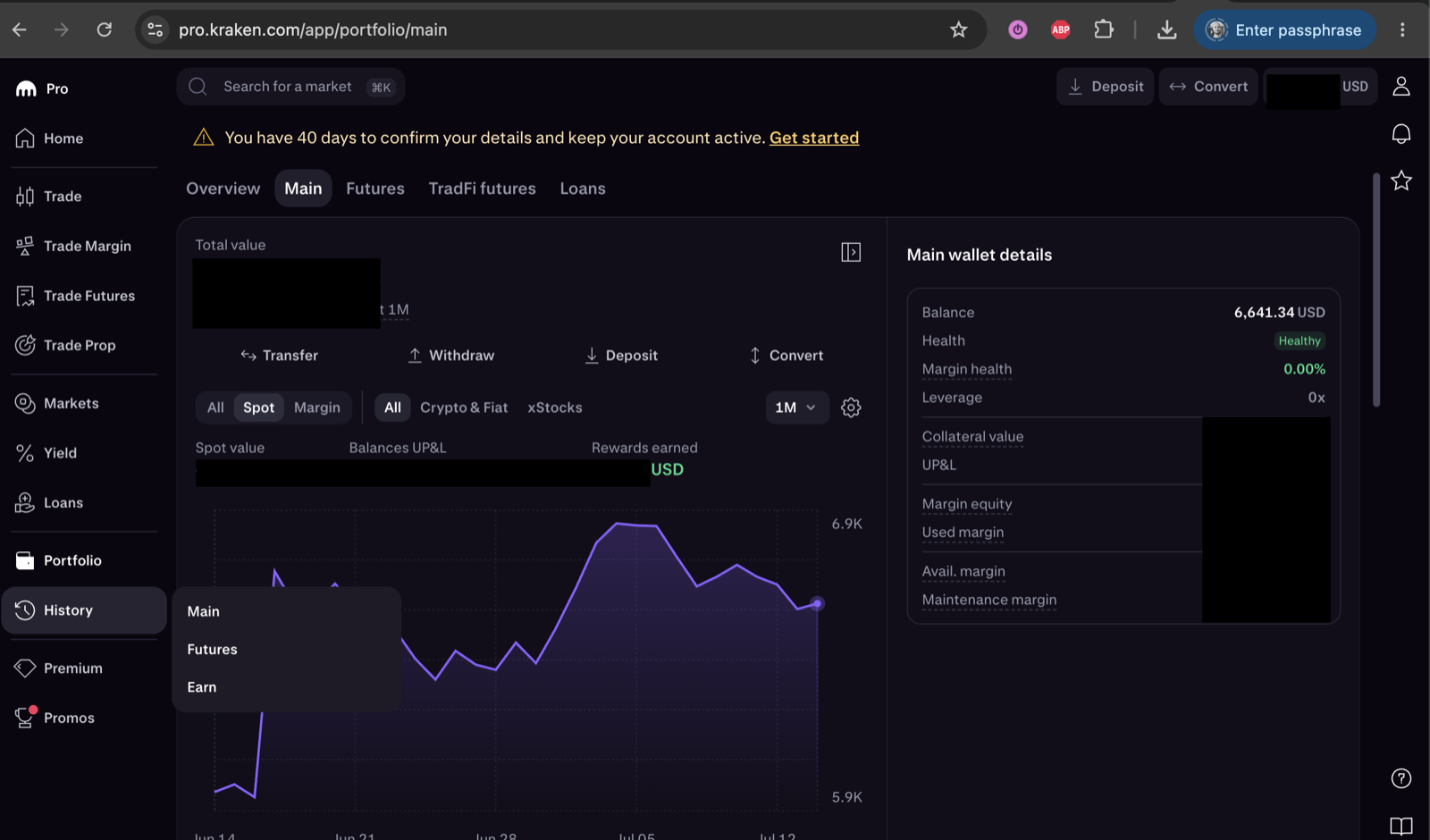
On pro.kraken.com open History → Main, then use Export to create a statement of the Spot ledger for all time and download the generated CSV. The ledger export contains the paired trade rows, rewards, deposits and withdrawals the dashboard expects:
Binance
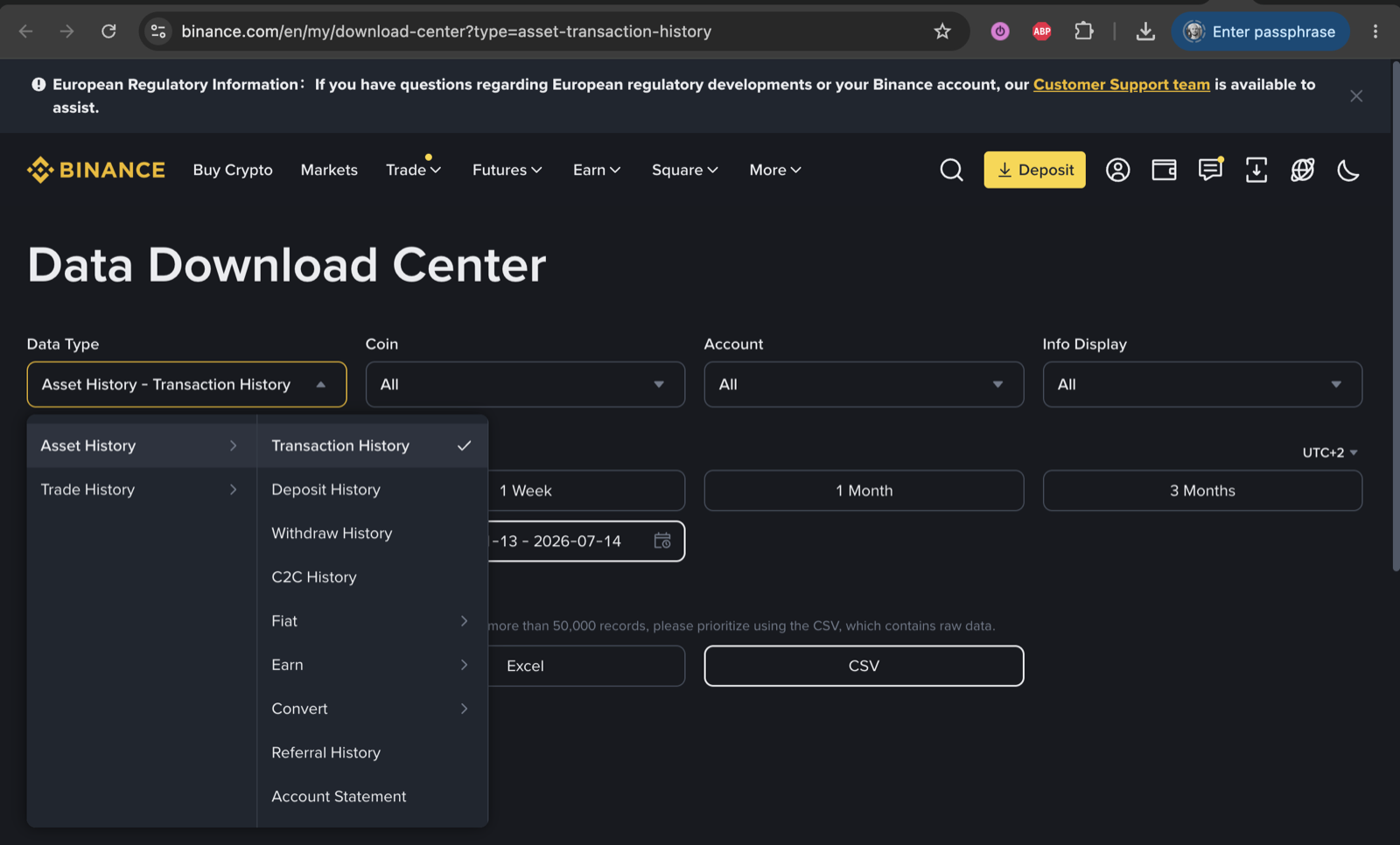
Open the Data Download Center (profile icon → Export data), set Data Type to Asset History → Transaction History, Coin All, Account All, choose your date range and generate the CSV. Large histories may take a while to prepare — Binance emails you a download link:
Trezor
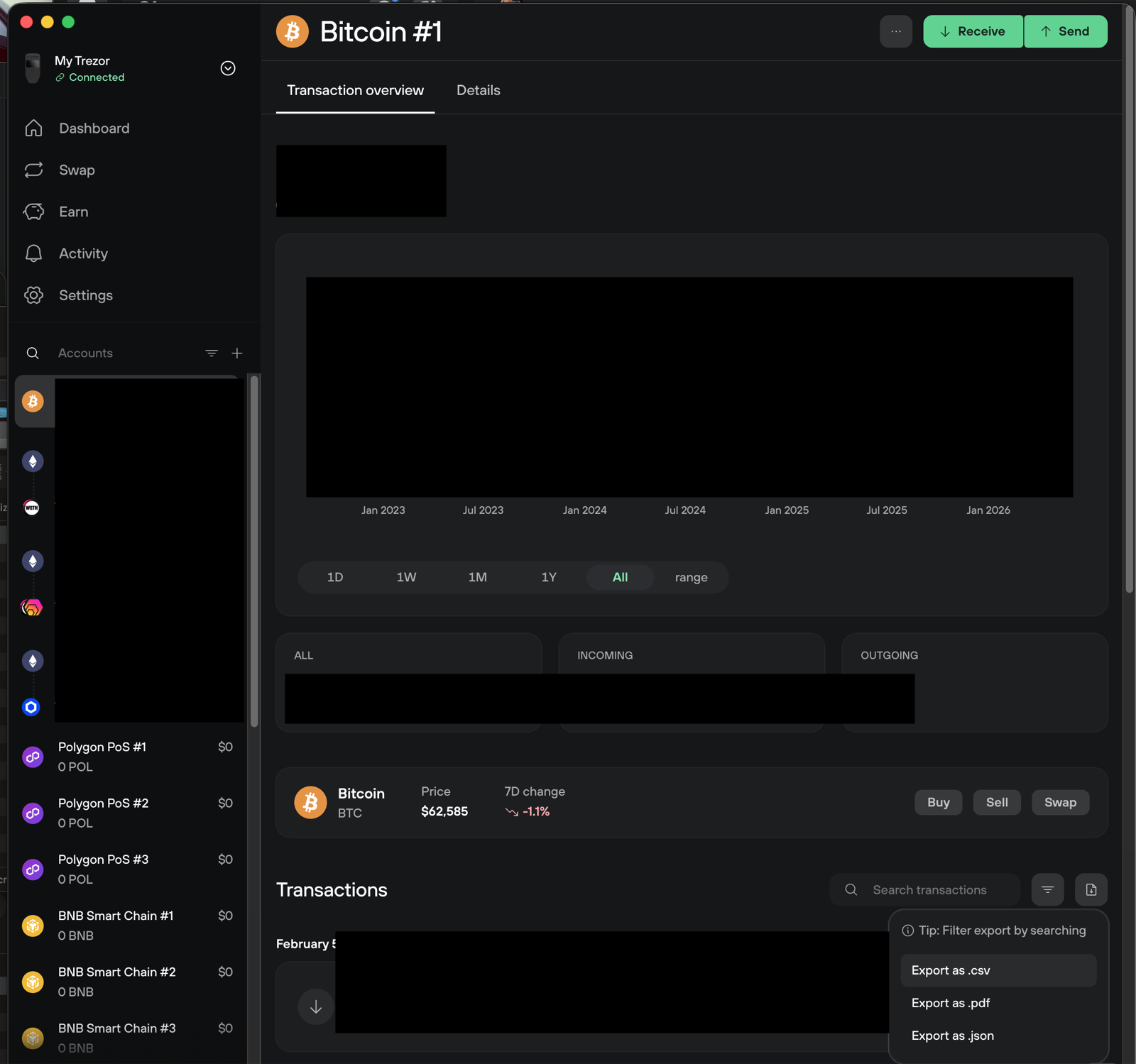
In Trezor Suite, for each account: open Transaction overview, scroll down to Transactions, click the export icon on the right and choose Export as .csv:
Avanza
Avanza’s export is called Transaktioner — thirteen semicolon-separated columns with Swedish headings. Take the widest period it offers and upload it exactly as it downloads: a re-save through a spreadsheet can silently change both the dates and the decimal separator, and the file is then refused rather than read wrong.
Three currencies can meet in a single row, and the file names them separately: the price is quoted in the instrument’s currency, the amount is the cash that moved in the settlement currency, and the courtage is fixed in whatever currency its own column heading carries — usually Courtage (SEK). Multiplying the price by the number of shares therefore gives a figure in none of them, and the dashboard never does it. Belopp is already net of the courtage, so the brokerage is reported as a cost and never deducted a second time.
Köp, Sälj, Utdelning, the foreign withholding tax charged against a dividend, Insättning, Uttag and Ränta all import. Övrigt is not one event — the same word covers fee refunds, Avkastningsskatt charges and fund share-class conversions, and it is the row’s other columns that decide which. A dividend row’s Kurs is a per-share rate rather than a share price, so it is kept as a rate and never used as a cost. Avanza’s own Resultat column — its realised profit and loss — is kept for reconciliation and feeds nothing: the dashboard works P/L out from its own lots.
Bitvavo
Export the Transaction history from the Dutch exchange and upload it as it downloads. The file runs backwards — newest row first — and rows from the same day only make sense in the order its clock column gives them, so it is re-sorted on date and time together before anything is computed. Left alone, a buy followed by a withdrawal on one day reads as a withdrawal from nothing and invents an opening balance.
Buys and sells arrive with their fiat leg, deposits and withdrawals as transfers, staking payouts as income. Amounts here are changes in your balance with the fee already inside them, so the fee is reported and never taken off again — and a fee charged in a coin is recorded but not valued, because valuing it would need that coin’s price and the file does not carry one. Rows whose status is anything other than Completed or Distributed — pending, cancelled, failed — are counted and reported, never imported.
BUX
In the BUX app open Profile › Statements and export the account statement. Twenty-one comma-separated columns, with English headings whatever language the app itself is in.
Everything the statement carries imports: Buy and Sell trades, cash dividends, corporate actions (a split is recognised as one), deposits and withdrawals, trading and subscription fees, interest payments, and promotional or correction credits. Direction always comes from the transaction type rather than from the sign in the amount column — BUX’s own file has a sale carrying a negative amount evidently copied from the purchase above it.
One known defect is repaired rather than refused. Some SEPA deposit rows have every column from the amount onwards shifted one place to the right, so the currency cell holds a number. Where the shift can be proven from the row itself it is corrected, and the correction is counted in the import notes; where it cannot, the row is counted and dropped rather than guessed at. BUX’s own profit-and-loss and exchange-rate columns are kept for reference and applied to nothing — the file already states the answer that applying them would compute.
Charles Schwab
In Schwab open Accounts → History → Transactions, set the range to your whole history and use Export. If the file you get opens with a line naming the account above the column headings, delete that line: a format is recognised from the first line of a file, and an account banner there makes it unrecognisable — which is a complaint you can act on, rather than a silent misread.
A real Schwab export carries twenty-seven distinct Action values and all of them import: Buy, Sell and Reinvest Shares; twelve spellings of dividend and capital-gain income, prior-year restatements included; stock splits, reverse splits, spin-offs, mergers, name changes, conversions and stock distributions; journalled shares alongside wire, MoneyLink and internal transfers; credit interest, advisor and ADR management fees, foreign tax paid, and cash in lieu. A reinvested dividend is two real rows — the income and the purchase it paid for — and they are never netted into one.
Option contracts (Buy to Open, Sell to Close) are counted and reported rather than imported: the dashboard has no model for a contract, which is the same reason the Interactive Brokers importer keeps equity rows only. Everything is in US dollars, read from the file’s own $ — there is no currency column and nothing to pick at upload. A Schwab CSV and a Schwab brokerage connected through SnapTrade do not yet know about each other, so for any period they both cover, keep one.
Coinbase
Coinbase can be connected directly with a read-only key, which reaches further back and keeps itself up to date. The retail Transaction history CSV is the alternative, and it is read now: if your download opens with a Transactions title block above the column headings, delete those lines first, or the file is refused as unrecognised.
Buys and sells import at the spot price the file states rather than at total divided by quantity, because that total includes Coinbase’s spread. Convert rows are read out of the note — “Converted 0.5 ETH to 1 200 USDC” — and become both legs. Send and Receive are transfers; staking, rewards, interest, Learning and Earn payouts are income at zero cost. Older exports spell four of the columns differently and read the same way.
The currency comes from the file’s own Price Currency column, never from the € or $ printed inside the amount — a $ names half a dozen currencies. Where the symbol disagrees with the column, the column wins and the disagreement is kept for audit. A localised export loses the received half of a Convert: that note is prose and is only read in English, so the sold leg still imports while the received one is counted and reported. Uploading the CSV alongside a live Coinbase connection is safe — the two are separated by a cutover date so the same fills are never counted twice.
CoinTracking
CoinTracking is a tracker rather than a venue, and one export can carry several exchanges. Take it from Enter Coins → Export, and set the date format there to DD.MM.YYYY or YYYY-MM-DD before you do. A slashed American date is refused outright rather than read: 03/04/2024 is two different days depending on who wrote it, the file says nothing about which, and a wrong guess moves a trade by up to eleven months.
Trades arrive as up to three legs — what was bought, what was sold, and the fee. Every income type imports as profit at zero cost: mining, staking, minting, masternode, airdrops, lending and interest, dividends, gifts and bonuses. Deposits, withdrawals, spends, donations and losses import as movements with no cost claimed. Margin and futures profit-and-loss rows are counted and reported instead — they need a model this importer does not have, and guessing one would book performance that never happened.
Rows keep CoinTracking as their source, not the exchange they name. That is deliberate: CoinTracking folds a trade into one line where Kraken’s own ledger writes two, so tagging the row “Kraken” would claim a match that does not hold — and would switch this whole file off, other exchanges included, against one unrelated live connection. The cost is that no overlap warning appears if you hold both, so for any period they share, keep one.
Crypto.com
In the Crypto.com App open Accounts → Transaction History and export. This is the App wallet only: the separate Crypto.com Exchange writes a different file, which is not read at all.
Conversions come in as two priced legs, card top-ups and crypto deposits as movements, and every reward, cashback, referral, rebate, airdrop and interest kind as income. Moves that never left your own accounts are netted out — App-to-Exchange transfers, and lockups both ways — because counting them as flows would read as money arriving and then leaving. A kind that is not recognised is still imported, as a plain change in quantity, and counted so that you can see it.
Two consequences worth knowing. The file stamps everything to the second and its internal rows carry no reference, so two conversions inside one second cannot be paired and arrive unpaired. And a CRO lockup that began before the export window is invisible until it unlocks, so that principal reads low until then.
Delta
Delta’s own CSV export is the whole tracker in one file: crypto, shares and cash, from every account it follows.
Buys, sells, deposits, withdrawals and dividends all import, and each row’s fee becomes its own entry in whatever asset it was charged in — cash, a stable coin, or the coin itself. A deposit whose source names a reward, staking, mining, interest, an airdrop or a fork is counted as income rather than as your own money arriving. A crypto-for-crypto trade moves no cash at all, so both legs arrive as quantities and are priced later against the coin they were swapped for.
Rows are filed under Delta rather than under the exchange each one names. That keeps a live connection to one of those exchanges from switching off the whole aggregated file, at the cost of no overlap warning between them — so where a period is covered by both, keep one.
Directa SIM
In Directa open Portafoglio → Movimenti → Esporta. Upload the file exactly as it downloads. It opens with nine lines of banner — the account holder, the extraction time, the filter and the date range — before the real column headings, and both that file and one whose banner you deleted in a spreadsheet are recognised. The banner also says that the export stops at the first 3 000 movements; if you are over that, narrow the date range and take several files.
Acquisto and Vendita import as trades, ETF and bond distributions as dividends with the ritenuta booked against them as a negative dividend rather than as a fee, and the cash rows — bank transfers in, capital-gains withholding, fees, stamp duty, the account charge and interest — as what they are. Anything that moves units without being a purchase or a sale (a bond redemption or a split among them) is counted and reported rather than guessed at.
There is no price column. The unit cost is worked out from the amount and the quantity and flagged as derived, which makes it an all-in cost: the commission sits inside the amount and cannot be separated out, so no fee figure is reported for a Directa trade at all.
Disnat
Disnat is Desjardins’ online brokerage. The export lives under Comptes → Opérations → Exporter and its thirteen column names are French; empty cells arrive as a bare hyphen, which is read as empty rather than as a value.
ACHAT and VENTE import as trades; dividends, distributions, investment income and bond interest as dividends; and the rest as cash of the right kind — fees, GST and Québec sales tax, interest including late-payment interest, contributions, transfers received, plan terminations, RESP grants and Québec incentives. CAN and USA are Desjardins’ own currency codes and are read as CAD and USD.
Two details. A dividend row’s quantity is the position the dividend was paid on, not shares arriving, and is recorded as such. And a Canadian dual listing ending -C is folded onto its underlying so that its trades and its dividends meet on one holding — a US listing ending -U is left alone, because those really are separate lines.
eToro
In eToro open Portfolio → History, use the ⚙ icon to request an Account Statement, and save its Account Activity sheet as CSV. That sheet is the ledger; the rest of the workbook is summary. Connecting eToro through SnapTrade instead brings your holdings but not the trades behind them, so this file is worth having either way.
CFD rows import as cash, never as holdings. eToro’s “units” on a CFD are exposure rather than shares — 200 USD across 65.36 units of a stock trading near 87 is not a share count — so CFD, currency, commodity and index rows move the cash they moved, are marked as derivatives, and keep their unit figure for reference only. Only Stocks and Crypto rows with a readable pair in the Details column become positions.
Everything else the sheet carries imports: positions opened and closed, dividends, interest payments, deposits, withdrawals, withdrawal and conversion fees, overnight, rollover and weekend fees with their refunds, and stamp duty or financial transaction tax. Every eToro account is denominated in US dollars, so there is nothing to pick at upload — the currency on the right of a pair like KER/EUR is the quote currency, not the account’s. eToro’s own realised-equity column is kept for reconciliation and feeds nothing, and anything that would move units and is not recognised — a split, a staking credit, a corporate action — is counted and reported rather than guessed at.
finpension
Take the export from Portfolio → Transactions → CSV. The pillar 3a file and the vested-benefits (BVG) file have identical headings, so one importer reads either, records per row which product it came from, and asks you nothing — upload both if you have both.
Buys and sells, dividends and distributions, interest, the flat-rate administration fee, and money arriving (a 3a contribution, or vested benefits transferred in) all import. The two products name some of these differently — a BVG trade is a Portfolio Transaction, a phrase that states no direction, so its direction comes from the sign of the row’s own figures — and both vocabularies are read. Everything is in Swiss francs. The running balance the file carries is kept for reference and never reconciled against, because the dashboard derives its own positions.
Contributions and vested-benefits transfers are counted as money arriving, even though it is locked-in pension money rather than free cash. That is the right answer for a return figure, which asks only whether the money came from outside the portfolio.
Freetrade
In the Freetrade app open Account → Activity → Export.
Orders both ways import, along with free-share promotions (which arrive at zero cost), dividends, REIT and property distributions, top-ups, withdrawals and interest on cash. Every row carries two currencies for the same trade — the account-currency figures and the instrument-currency ones — and they are never multiplied by the same share count: one trade in the reference file is 617.44 USD and 484.46 GBP a share, and only one of those belongs beside a sterling total.
Stamp duty and the FX fee count as costs of the trade. Withholding tax on a dividend does not — it is kept separately, because it is tax rather than a trading cost. Monthly statements and tax certificates appear as rows in this export and are not transactions; they are counted apart from real skips, so a long-standing account is not told at every rebuild that dozens of rows went unread.
InvestEngine
InvestEngine’s transactions export is a trade-only file: buys and sells keyed by ISIN, and no cash rows at all. Where it states a total trade value, that figure is believed rather than recomputed from price × quantity — the two differ by a penny or so from rounding, and the broker’s own number is the one that settled.
There is no fee column and no fee: a DIY account is commission-free and the file never states one, so no cost is reported rather than a zero. Money is written with a £ and there is no currency column, so a £ is read as pounds while a $ or a kr — each of which names several currencies — is counted and reported instead of assumed. Dates are read day-first, always: 12/23/24 out of an American re-save is counted as unreadable rather than quietly taken as some other day.
Investimental
Investimental’s export comes from Orders → Export, and it is an order book rather than a transaction list: every placement, reprice, resize, fill and expiry writes its own row. The reference file is 56 rows for 8 orders.
Only the fills become trades. Placements, amendments and expiries are counted as order events and reported separately, so they are visible without being mistaken for rows that could not be read. Within the fills, the volume column is what is left of the order rather than what traded, so each fill’s size is the drop from the row before it — and the closing fill, which leaves the volume undecremented, takes the whole remainder. Read naively, the same file would show roughly three and a half times the position you actually hold.
The account currency is read out of the export itself, so there is nothing to pick at upload. A fill whose order began before the file’s window has nothing to measure its drop against, so it is counted and reported rather than derived from the value — deriving it would invent a cost basis.
Parqet
Parqet is a tracker, so one export can carry several brokers’ histories. Take it from your portfolio’s Export → CSV; it is semicolon-separated with German number formatting.
Buys and sells, dividends, deposits, withdrawals and interest import. The amount column is the gross value rather than the cash that moved, so the cash is worked out from it together with the fee and the tax on the same row. Transfers in and out are counted and reported rather than imported: an in-kind transfer’s amount is a book value, not money, and treating it as cash would misstate what you put in. Parqet’s own realised-gains column is kept for reference and feeds nothing.
Where the file’s local date and its UTC timestamp disagree — they do on about a fifth of the reference rows, occasionally across a tax-year boundary — the local date wins, because that is the one your broker’s own statement shows. Rows are filed under Parqet rather than under the broker each names, for the same reason as the other trackers here.
Patria Finance
Patria is the Czech broker in the ČSOB group, and it is the one platform here whose exports are Excel rather than CSV — its WebTrader offers XLSX and PDF and no CSV at all. Drop the .xlsx on the same dropzone as everything else; nothing has to be converted first.
Take two files, not one. In WebTrader, open Transakce and export each of these to Excel:
- Transakce → Obchodní pokyny — your orders. This is the one that builds your positions: it is the only tab that records how many shares an order actually bought and at what price.
- Transakce → Cash flow — money in and out. This adds interest on your cash balance and, once your account has any, dividends.
The two overlap on purpose: every trade and every fee in Cash flow also appears in Obchodní pokyny, and one order can arrive in Cash flow split across several payment rows. Those rows are recognised, skipped and counted, so uploading both files never counts the same money twice — whichever order you upload them in.
Widen the date range before you export. The Splatnost filter defaults to one month, and one month of a portfolio is not a portfolio: the first real export we tested left the account’s opening deposit outside the window entirely, so the money that paid for every position in it was simply missing. The export writes its own range into the file, so a short one is reported back to you on the Portfolio tab — but it is far easier to set the range wide once than to notice the notice.
Cancelled orders are not purchases. A cancelled order still carries a quantity, a limit price and a gross price, all of which look exactly like a real trade. Only orders marked Realizovaný import; anything else is counted and reported so you can see how many were skipped. The quantity and price come from the realised columns rather than the ordered ones, so a partly filled order counts what actually filled.
Dates: the trade is dated by Datum obchodu, the day it happened, rather than by Datum vypořádání — that is what a holding period runs from, and the settlement date is kept alongside it. Cash flow only carries the settlement date, which is one more reason the order export is the authoritative one.
Below the five tabs, Patria offers one more export: Peněžní zůstatky v čase, your cash balance per day. Fortunest reads it and tells you what it says, but does not import it yet — it is a balance rather than a list of transactions, and using it to fill in the deposits your export window misses is still to come. Two things about that file are worth knowing when it does: its numbers are written the Czech way (20 001,06), and the last columns are a forecast — an export made on the 25th carries the 27th, showing what your balance will be once that day’s trades settle, not what you hold now.
The other three tabs — Cenné papíry, Měnové konverze and Peníze — are recognised but import nothing. They log instructions to move cash and securities between your own portfolios, and an internal transfer is not a purchase, a sale, a deposit or a withdrawal; uploading one tells you so by name rather than leaving you with an empty account. Deposits and withdrawals from outside Patria are not yet mapped, so an import that misses them is incomplete rather than wrong — see When your history doesn’t reach back far enough. The PDF version of the same view is not read; export to Excel.
Nothing that names you leaves the file: the client name and account number in the export’s header are never stored or sent anywhere.
Rabobank
The beleggersrekening export lives under Beleggen › Transacties: fourteen semicolon-separated columns, Dutch names, comma decimals.
Koop and Verkoop import as trades, Contant dividend as income on a holding, Storting / opname as money in or out, Tarieven en services as a charge and Rente beleggersrekening as interest. Koers means two different things by row type — a share price on a purchase, a per-share rate on a payout — and reading it uniformly would book a 1.33 share price and a sixty-share purchase out of a payout row, so it is read as each.
There is no tax column. The 15% Dutch withholding tax is derived from the gap between the gross value and the net amount on the same row, and recorded as tax rather than as a fee. The account number in the first column is not copied anywhere, and neither is anything else that names you.
Relai
Relai is the Swiss bitcoin-only app, and it has one CSV export. Every readable row becomes two entries: the bitcoin leg and the fiat leg.
The file’s fiat column excludes the fee. A 271.05 CHF purchase with a 2.45 CHF fee actually cost 273.50, so the fee is added back into what the purchase cost rather than reported beside it; a fee charged in bitcoin comes off the coins instead, and is kept out of the fee totals. Recurring and instant buys are read as ordinary purchases, and repeats are never de-duplicated — a standing weekly order is a year of real purchases, not one row seen many times.
The export is a window rather than a whole history: the reference file sells more bitcoin than it buys, because the buys predate its start. Rather than let a holding go negative, an opening balance is assumed and flagged — the same treatment a Trezor or Binance export gets, explained in When your history doesn’t reach back far enough. The destination address and the counterparty are deliberately not stored.
Saxo Bank
In Saxo open Account → Historic Reports → Transactions and export. The file is localised to your account’s own language and that is read — the reference export is Dutch, down to the lowercase month abbreviations in its dates.
There is no quantity column and no price column. Both live inside the Event sentence — “Buy 3 @ 139.74 USD”, “Koop 1.5 @ 110.01 EUR” — and are read out of it. A trade whose sentence cannot be read yields no row at all and is counted and reported, because inventing a share count out of the amount would corrupt the cost basis of every later sale.
Deposits and withdrawals, custody fees and other charges, interest, and dividends arriving as corporate actions all import. A corporate action that is not a dividend — a split, a merger, a delisting swap — moves units the file never states, so it is counted rather than guessed. No fee figure is reported for a Saxo trade: the amount is net of commission on a purchase and gross on a sale, with no column saying which, so a fee derived from the gap would be wrong as often as right. Instruments are keyed by ISIN, which keeps two share classes of the same fund apart.
Swissquote
Swissquote’s account Transactions export is semicolon-separated with English column names, whatever language the rest of your account is in — and only that English version is read. If yours comes out in German, French or Italian, switch the language before exporting.
Buy and Sell, dividends, custody fees, interest, Debit and Credit, and the paired Forex credit and debit legs all import. The net amount already has the costs taken off it, so a charge is reported and never subtracted again. Several currencies live in one file, each with its own running balance, so there is nothing to pick at upload: every row names its own.
A dividend row carries a quantity of 1 and a unit price equal to the amount; both are filler and neither is read as a share count or a price. Two fills of one order arrive as two rows and stay two rows.
Trade Republic
Trade Republic has no export button. The CSV that is read is the one written by pytr, the community downloader — so when something is wrong with a file, the fix is to run pytr again rather than to open the file in a spreadsheet.
Aankoop/Buy, Verkoop/Sell, dividends, deposits, withdrawals and interest import. The file states the net value of a trade rather than a price, so the per-share price is reconstructed from that value together with the fee and the tax — the fee is already inside the net and is never taken off twice. The decimal separator and the date format change from row to row in the same file, because pytr translates the column names but passes some of the values through untouched, so both are read per row rather than once per file.
A savings-plan execution and a manual purchase are the same word here, with nothing to tell them apart, so identical rows are kept rather than merged: de-duplicating them would silently halve a year of saving. There is no currency column at all — Trade Republic is euro-only, which is a fact about the broker rather than about the file, so it is assumed here rather than asked at upload. The note column is copied only on rows that carry an instrument; on a cash row it is the account holder’s own name.
When your history doesn't reach back far enough
Two things are always kept apart. How many units you hold today is known — a connected exchange states it, and the imported history is forced to end on exactly those numbers. When those units arrived, and what they cost, is inferred wherever the record does not contain the purchase. That inference is what you are looking at when the value chart shows a holding on a date you know you didn't own it.
Why the record is incomplete. No source hands over everything you ever did:
- An exchange API serves trades for a limited window back and no further. On one real Binance account it returns nothing before 14 September 2022 — while the same account's deposits, withdrawals and rewards reach back to its first day in 2017.
- A CSV export covers the date range you asked for, and nothing outside it.
- Coins held in an exchange's Earn, staking or locked products sit outside the spot account, so a spot statement never mentions them at all.
So a coin can be in your account today with no purchase anywhere in the record. Rather than drop it or invent a trade, the dashboard writes a correction — a bookkeeping row that credits the units and is flagged in the Portfolio warnings as an assumption. All that is left to decide is its date. Cash gets the same treatment when a file spends money it never shows arriving — with one tolerance: a gap under 1 unit of your display currency or 0.01% of the portfolio is rounding (an FX cent, a truncated fee), so the balance is made whole but no notice is raised.
How an unexplained holding gets dated
- The record mentions the coin at all — the missing units are dated the day before that coin's own first appearance. The coin's, not the account's: any row naming it — a transfer or a reward as much as a trade — is evidence you already held it then.
- The record never mentions the coin — the units are dated at the last moment they could have arrived unseen: the day before the earliest trade the import can see. If the import's trades begin on 14 September 2022, a coin it never mentions is dated 13 September 2022.
- The record contains no trades at all — then there is no window to be late to, and it falls back to the account's first day.
The principle is never to claim you held something for longer than the data can support. Units that appear from nowhere are dated as late as the rules allow. Units that vanish into nowhere — where your history implies more than the exchange says you hold — are written off as early as allowed. Both shrink the stretch of time the dashboard is guessing about.
Why it matters. 4 241 LUNC, bought for pocket money on 12 May 2022 as Terra collapsed, used to be dated to the account's opening in 2017. The chart then valued them as pre-crash Terra all the way up: a phantom 10.9 million CZK at the April 2022 peak, for a position worth about 6 CZK today. Dated by rule 2, the same coins can only be wrong by what they were worth over a few weeks.
The honest cost. Rule 2 can go the other way. A genuinely old holding no export mentions is dated late, so your earliest years show too little rather than too much. That is deliberate — understating is a smaller lie than inventing millions — and the Portfolio warnings name the holdings it applies to, so you can see where the dashboard is guessing.
What an API-only account's early years mean
Before the trade window opens, a connection can only see money moving in and out — never what you traded inside the account. That stretch of your chart is built from deposits, withdrawals and corrections: an approximation of what the account was worth, not a record of it. From the first day the trades reach, it is exact. An export covering the earlier years turns the approximation back into a record.
Closing the gap yourself
- Upload an export that covers the missing years. Once a file contains the purchase, rule 1 applies instead of rule 2 and the coin is dated from its real trade. The Portfolio warnings name the ranges you are missing, split into 12-month windows because that is what a Binance statement export answers at a time — a file starting August 2020 on an account whose first deposit was Christmas 2017 is three requests, and they are spelled out for you.
- Or add the purchase by hand. The Opening-balance lots card on the Taxes tab takes a symbol, a date, a quantity and a unit cost. What you enter there is a fact you supplied rather than an inference, so it wins over every rule above: your sells pair against the real purchase, at the real price, instead of against a lot dated and priced for you. (It is your cost basis it corrects — the quantities you hold still come from the exchange.)
- Some gaps no export can close. Coins in Earn, staking or locked products are outside the spot account a statement covers, so re-exporting will never produce them — the connection is the only thing that sees them, and the warning says so instead of asking you for a file.
Manual assets (what no export covers)
To track real estate, physical gold, collectibles or anything else without a CSV: scroll to Other assets at the end of ⚙ Settings → Data and enter a name, acquisition date, price, currency and an approximate yearly growth rate (APY — use a negative value for depreciating assets).
The asset joins the portfolio valued at its acquisition price compounded daily at that APY. It counts in the account of its group in the Portfolio value card, as an "Other assets" allocation category and in the portfolio history.
An asset of type Cash is cash. Savings, a term deposit, money under the mattress: pick Cash as its type and it is not a holding but a deposit into its group’s account, so the moment Save applies it the Portfolio tab’s Cash tile includes it — in the amount, in its share of the portfolio and as a row under the group’s name — and so do the value chart’s Cash line, the Allocation card’s Cash slice, the What-if and the trade plan’s available cash. The portfolio total does not change: the money was already counted once, through its group. It is worth the same as before — the amount you typed, compounded at its APY, in a foreign currency converted at each day’s rate like the rest of the portfolio — and on a past day in time travel it counts only from its date. Like a broker’s cash balance it stays out of the holdings table and the securities’ return and risk figures. An unticked one counts nowhere.
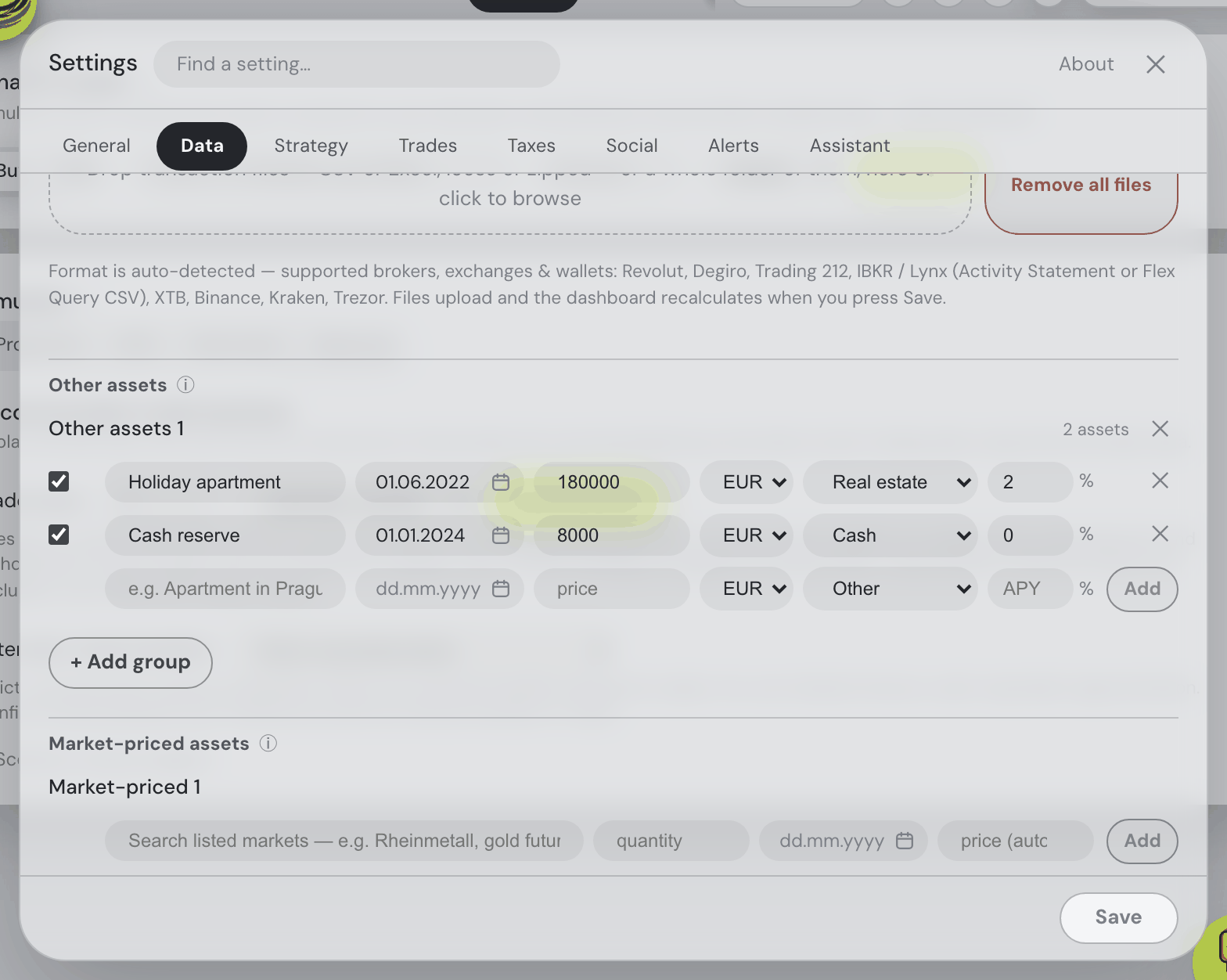
Each entry can be edited in place, excluded via its checkbox without deleting it, or removed via its ✕ (which strikes the row through — ↩ takes it back) — every one of these changes is staged and applies when you press Save.
The rows of a group line up in columns — name, date, price, currency, type, category, APY % — with each row’s ✕ at the end, under the Add button. At the Settings dialog’s full width each row is one line: the category (empty means Other) sits right after the type, and the Market-priced rows below use the same columns, so their date and price line up under these. In a narrower window the category moves to a second line. An asset you have just added keeps those same fields until you press Save, marked new: change anything in it and Save adds it as it now reads, or drop it with its ✕. The date is typed as dd.mm.yyyy or picked from the calendar that opens under the field — the same date field as the Portfolio value chart’s from. On a phone each row folds into three lines under its name.
Market-priced assets (search & add)
For a position in something the market-data feed can price — a stock, an ETF, crypto, an index fund, a future like gold — you don't need a broker export either: use the Market-priced assets search bar in ⚙ Settings → Data. Type a ticker, a company name or free text ("gold futures"), pick the listing from the results (symbol, name, exchange and type are shown for each), and give the quantity — fractions are fine. Clicking Add only stages the position: it appears as a pending row — its quantity, date and price still editable, in the same columns as the positions above it — and joins the portfolio when you press the dialog's Save. The row's ✕ drops it before then, and closing without saving discards it.
The acquisition date and per-unit price are optional: an empty date means today, and an empty price is filled with the market close on the acquisition date, in the instrument's listing currency. Unlike a manual asset, a market-priced asset is then valued from live market data — it appears in the holdings table with real P/L against its cost, daily moves, portfolio weight and risk figures, joins Allocation and the portfolio history, and counts in Explore’s Owned % column, exactly like a holding from an uploaded export.
A currency is cash. A currency pair from the search is money, not a holding. EURCZK=X is euros. A bare EUR=X is Yahoo’s “USD/EUR”, which is US dollars priced in euros. Like an Other asset of type Cash, the quantity becomes a deposit in the pair’s first currency into the group’s account. After Save, the Portfolio tab’s Cash tile includes it in the amount, the share and a row under the group’s name. The Allocation card’s Cash slice and the value chart’s Cash line include it too. It is no longer in the holdings table. Its value is the same as the priced position’s, and its category is kept.
Each entry can be edited (quantity, date, price, category), excluded via its checkbox without deleting it, or removed via its ✕ (struck through until Save; ↩ takes it back) — like the adds, all of it staged until you press Save. The assistant chat can add these too — from plain text, an attached file or a brokerage screenshot.
Named groups — your hand-added assets as accounts
Both sections keep their assets in named groups, and each group is an account: in the Portfolio value card’s list of accounts it is one row under the group’s name, with its own value and day change, and the Holdings table, the chart’s account lines and the Taxes lots name it the same way. A section starts with one group — Other assets 1 and Market-priced 1; everything you added before groups existed is in that one — and each group is a block of its own with its assets and its own add row, so a new asset goes straight into the group you add it from.
- Rename a group by clicking its name (its tip reads … — click to rename group), typing, and pressing Enter. Two groups of one section can’t share a name. A group called the same in both sections — say “Gold” for a gold bar under Other assets and a gold ETF under Market-priced assets — is one account.
- + Add group under the last block adds an empty group, named Other assets 2 (or the next free number) until you rename it. A group with no assets in it is not kept when you press Save.
- Move an asset by dragging it by its ⠿ handle onto another group, or with the Move to… list on its row.
- Delete a group with its ✕: it asks first, then strikes the group through with the assets in it — they are removed when you press Save, and ↩ keeps the group. To keep an asset, move it out before deleting.
All of it is staged with the rest of the Data tab and applied in one rebuild when you press Save. If the save is refused, your group edits stay on the sheet — the assets already added standing in the groups you put them in — and Save reads Couldn’t save: Other assets — retry (or Market assets); pressing it again sends only the group layout. A group is renamed only here — its account name is the group name. Groups travel with web–desktop synchronization and a guest’s browser backup, and a group’s name is never shared with friends as a broker. When the assistant adds an asset it puts it into a group you already have, or names a new one that fits.
Good to know
- Instrument matching is automatic. ISINs and broker tickers resolve to live market symbols, with curated overrides for tricky cases; ISIN migrations collapse onto one position. Anything unresolvable is valued from its own trade prices and flagged "est." in the UI.
- Crypto specifics: stable coins are valued 1:1 in USD; crypto-to-crypto swaps at the counter-coin's price that day; renamed and redenominated tokens (LUNA→LUNC, MATIC→POL, old→new QUICK/STRAX) are handled so an old price never applies to a new quantity. A coin sold beyond your export window gets an assumed pre-existing balance and is flagged, since its cost is unknown — when your history doesn't reach back far enough explains how such a holding is dated.
- Not every export contains cash. Degiro's Transactions blotter has no cash rows — its Account statement does, and so does a Rabobank or Swissquote file. Revolut cash is reconstructed from top-ups, withdrawals, trades and dividends. InvestEngine's export is trades only. Where a file has no cash in it, the account shows holdings without a balance rather than a balance of zero.
- A tracker's export stays a tracker's export. CoinTracking, Delta and Parqet each carry several venues in one file, and every row in them is filed under the tracker rather than under the exchange or broker it names — otherwise one live connection would switch the whole file off, other venues included. The cost is that no overlap warning appears between such a file and a connection to a venue inside it, so for any period they both cover, keep one.
- Quotes refresh automatically on a cadence you can set in ⚙ Settings → Data (default: every 10 minutes; the dialog also shows the last-updated time).
Failed XTB import receipts retain the account currency you selected, including after reload. When an older receipt has no saved currency, choose it explicitly before staging the replacement file; the dashboard display currency is not assumed.