Documentation
The Assistant
A chat pane that lives beside the dashboard on every tab — and, once connected to a language model, becomes an analyst that sees your holdings, your screen and your last actions, and can drive the dashboard for you. You choose the model: a cloud API or local inference on desktop.
Ask to backtest the recommended trades over the last year to open
Simulation's historical strategy. The backtest_trades action accepts
an optional month/day interval, local criterion weights, and
transferPolicy: strict|cashEquivalent. Strict is the default;
the assistant uses the cash-equivalent approximation only when you explicitly
choose it, and states that original acquisition dates and tax costs are unknown.
The assistant sees
the completed summary and excluded criteria; it must describe coverage rather
than claim exact historical recommendations where inputs were never archived.
Trade explanations receive the allocator’s actual limiting reason and order counts. A small eligible holding is a per-position constraint: increasing the total sell budget does not make that holding larger. The assistant can distinguish this from a budget that cannot fund the requested number of orders at the minimum.
Connecting a provider
On the hosted app you do not have to: a new session starts already answering, on gpt-5.6-luna and a small free budget carried by our own key, with a donut beside the chat showing how much is left (what that means for your data). The budget is metered on what the call actually costs us, and cached prompt tokens — the large, unchanging part of the context that OpenAI serves from its own cache on a follow-up question — are charged at a tenth of the normal rate, so a conversation goes much further than its first question suggests. Connect your own provider when you want a different model, a bigger budget, or the conversation kept entirely on your machine — and on the desktop app, where there is no free budget, from the start.
Open ⚙ Settings → Assistant and pick one of five providers:
| Provider | Setup |
|---|---|
| OpenAI | Paste an API key; the five latest models are offered. |
| Anthropic | Paste an API key; the Claude models via Anthropic's native API. The main slot offers claude-opus-5 (the default), claude-fable-5-1, claude-fable-5 and claude-sonnet-5; the fast slot claude-haiku-4-5 with Sonnet as the upgrade option. Prompt caching is built in — the unchanging portfolio context is marked cacheable, so follow-up questions are billed at the provider's cached rate — and the Thinking switch and effort selector map straight onto Claude's reasoning controls. |
| OpenRouter | Paste an API key; any of its 300+ models. The model field suggests the whole catalogue once a key is saved — before that it is free text with an example, since the catalogue is only fetched for a session that has a key to spend on it. |
| Ollama | Local inference on the same computer as the desktop app, with no per-token charge. A running server is auto-detected on localhost (URL configurable); installed models appear in a dropdown, and new ones can be downloaded right from the dialog with a progress bar, from a curated list with disk sizes. The in-dialog download is a local-install and desktop app feature: on the hosted app the models would land on our server rather than on your machine, so the button is not offered there. |
| LM Studio | Also local and auto-detected — loaded models appear in the dropdown. |
Local-server detection is live: while the Assistant tab is open with Ollama or LM Studio picked, it re-probes the server every few seconds — load a model in LM Studio and it appears in the dropdown without reopening Settings. On the hosted app the backend calls the LLM server-side and cannot reach localhost on your machine; connecting a local model there needs a tunnel — see Local models with the cloud app for the full setup and the risks.
API keys you enter are not mirrored to your browser: the hosted app stores them encrypted for your session or account, and desktop stores them encrypted in its local database (see Privacy & your data). When Fortunest desktop and Ollama or LM Studio run on the same computer, model inference stays there. A hosted Fortunest session still stores portfolio data on the hosted service, and reaching your model through a tunnel sends context through that tunnel. Cloud AI, tax calculations, sharing and hosted sync remain separate outbound services.
Press Save and the assistant arms itself — the chat pane's header is titled AI Assistant, and the red/green status dot beside that title shows the live state (hover it for the reason when it's red), re-checked every minute. Nothing calls an LLM and no tokens are spent while it's red. A session token counter (in/out) sits in the pane's corner, next to the context: figure. That heading is one compact band at any pane width: the four controls (⇩ ⟲ ↘ –) stay one row, top-right, and when the two counters no longer fit on one line they stack into a two-line block beside the controls — never onto rows of their own under them — and past that each shrinks to an ellipsis (hover it for the figure).
The free budget, and what it buys
There are three sizes, each double the one below it, and only the last one refills. A brand-new account sits on the first size until it confirms its email address — nothing else about the account is held back, and confirming is what starts the second one:
| Who | Budget | Refills? |
|---|---|---|
| Guest — no account | The base amount, once per browser session | Never |
| Free account, address not confirmed yet | The guest amount | Never. Opening the confirmation link emailed at sign-up moves you to the row below. |
| Free account | Double the guest amount | Granted once, when you confirm your email address. It is a fresh budget, not a top-up: whatever you already spent before it does not follow you. Accounts created with Continue with Google start here — Google has already confirmed the address. |
| Pro | Double again — four times the guest amount | Every month, on the day of the month you subscribed. A plan bought on the 14th refills on the 14th; ⚙ Settings → Assistant shows the next date under the bar. |
How many questions that is depends entirely on which model you pick, because the models differ in price by more than twenty-five times. The figures below assume the app’s measured context, conversations of about ten questions each (the first question pays full price, the rest reuse the cached prefix), and roughly a five-hundred-word answer:
| Model | Guest | Free account | Pro, per month |
|---|---|---|---|
gpt-5.6-luna — the default | ~100 | ~200 | ~400 |
gpt-5.6-terra | ~10 | ~20 | ~40 |
gpt-5.6-sol — the most expensive | ~4 | ~8 | ~16 |
Estimates, not an allowance in questions: the budget is metered in what the calls actually cost, and these figures come from a real session — four accounts of demo data, three reports and eight questions — not from a model. Two things move them more than anything else. Thinking: the assistant thinks before answering by default, at the High level, and that thinking is charged like any other answer — turning it down or off under ⚙ Settings → Assistant stretches the budget several times further. Portfolio size: a question about fifty holdings costs more than one about five. A long conversation is also cheaper per question than a series of one-off ones, because everything but the current prices and your latest question is reused from the cache. The gpt-5.6-luna row is the default model: it is what you get without changing a setting and it answers ordinary portfolio questions well. Plan cards summarize whether the budget is granted once or refills monthly; this table gives the detailed estimates. Any model stays selectable on the free budget; the pricier ones simply drain it faster, by roughly ten times on gpt-5.6-terra and twenty-five on gpt-5.6-sol.
One more limit: how fast you can ask
Separate from the budget, and much easier to stay under: the assistant answers up to twenty requests a minute without an account, and thirty once you are signed in. That covers every request the assistant makes on your behalf — your questions, the proactive tips, the ✨ insight pills and the one-click report cards — and it exists so that nobody can script the free assistant hard enough to use up the day’s shared capacity for everyone else.
Clicking around normally will not reach it. If you do, the chat says so in a line of its own and the same question works again a few seconds later — nothing is spent, and it is not the budget running out. The two messages are deliberately worded differently so you can tell which one you are looking at. Signed-in sessions get their own separate allowance, so sharing an office or campus connection with other Fortunest users cannot slow you down.
Locking your API key down
An API key you paste into Settings works only for your own portfolio's calls — but for extra security you can restrict the key itself at your provider, so it is useless anywhere else even if it ever leaked:
- Spend caps and usage limits. Both the OpenAI and Anthropic consoles (and most OpenRouter-style aggregators) let you cap a key's monthly spend or rate — set one that matches your expected assistant usage.
- Scoped keys. Where the console offers project- or scope-restricted keys, create a dedicated key for Fortunest rather than reusing an account-wide one.
- IP allow-listing. Where the provider supports restricting a key to caller addresses, whitelist the app server's egress IP. The hosted app shows the current address right where you need it: it sits directly under the API key field in ⚙ Settings → Assistant, with a Copy button — paste it into the provider's allow-list as-is.
One nuance: the IP applies to the hosted app only, where the server makes the LLM calls. The desktop app in local mode talks to the provider straight from your own computer — there is no server in between, so an IP allow-list would have to cover your own network instead (usually not practical on a home connection; prefer spend caps there).
The two model slots
- The conversation model answers your chat questions and writes the one-click reports. Thinking/effort controls appear where the model supports them (thinking on, high effort by default). The effort you pick applies to every message, tool-using ones included: on OpenAI those turns are sent over the Responses API, because chat completions refuses function tools and a reasoning effort in the same request.
- A subordinate fast model — background insights & search (same model list, thinking off by default for speed) runs everything else: proactive comments, the ✨ AI insights, ✨ smart search in the finder and Explore, the semantic holdings filter, and article/filing summaries. Metric and top-N holdings filters (
"top 5 holdings","my best PEG holdings","7 of my highest free cash flow holdings") are answered locally without calling any model.
Both picks persist per provider; changing either model (or its thinking settings) clears the AI caches so one model's output is never served as another's.
What each message carries
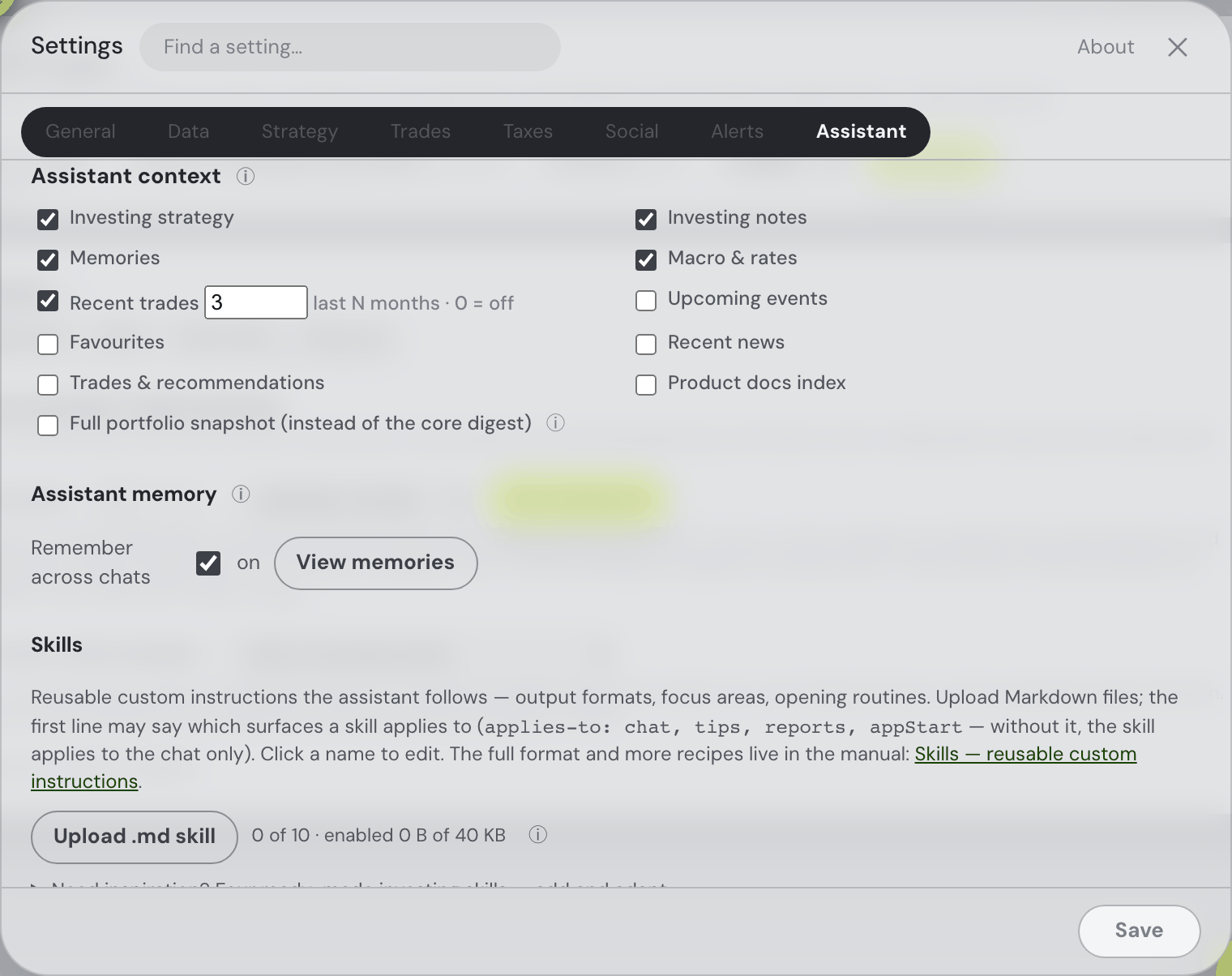
Every question you ask travels with what the assistant needs to answer it. ⚙ Settings → Assistant → Assistant context is a checkbox per part of that: checked rides along with every message; unchecked is left for the assistant to read on demand with a focused read when a question actually needs it — so it costs nothing until then. There are no modes to choose between any more (the old Auto / Full / Tools picker is gone, 11.09.2026): the tools are simply always active whenever the model can call them.
- Checked to begin with — Investing strategy, Investing notes, Memories, Macro & rates, Recent trades. They are short, they are standing, and nearly every question is better for having them.
- Unchecked to begin with — Upcoming events, Favourites, Recent news, Trades & recommendations, Product docs index. Each is a read away; tick one if you ask about it constantly and would rather not spend the round trip.
- Full portfolio snapshot — the complete snapshot instead of the compact core digest. It already includes every section above it, so while it is checked the other boxes have no effect. The most context per question, and by far the most tokens per question.
- The trade window sits on the Recent trades row: how many months of your own buys and sells travel (3 by default). Setting it to 0 and clearing the box say the same thing — no trades.
Under the list, one line says what the model in play can do. If it can call tools, anything unchecked is a question away. If it cannot — an older or smaller model — there is nowhere to fetch from, so everything is sent with every message regardless of the boxes. With a model on your own machine that answer comes from the model server itself: Ollama and LM Studio both report whether a model was trained to call tools, and that is believed over any guess from its name. Only a server that says nothing about it (an older build, or one that isn't running when you pick the model) falls back to recognising the family by name.
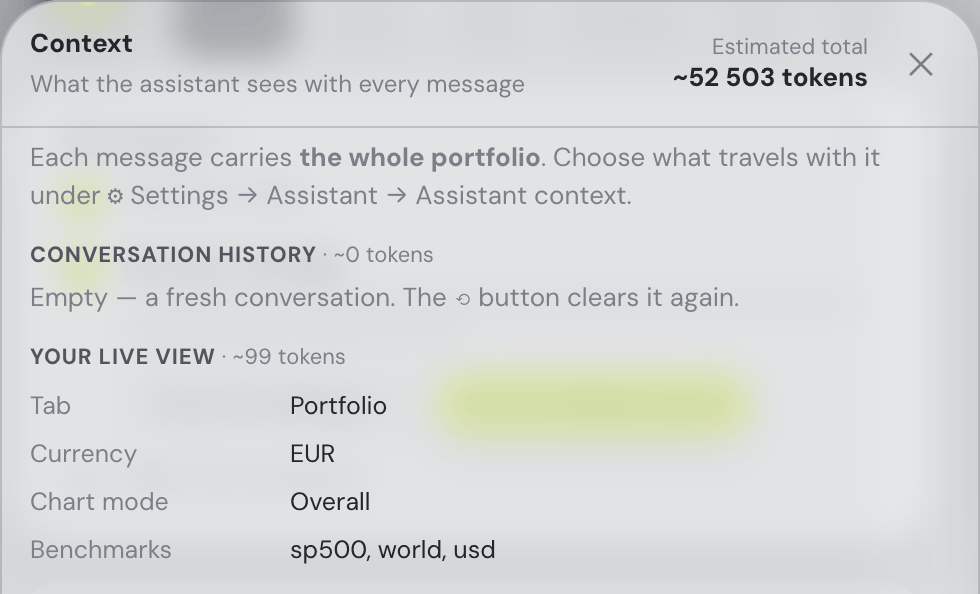
It is one setting for the whole app, the same on every plan — a performance choice, not a paid feature. The Context window behind the chat header's context: figure says what a message carries and, once one has been sent, breaks the last one's input into instructions, portfolio core, tool results and conversation history, so you can see where the tokens actually went.
With the full snapshot left unchecked the message carries the core digest in place of it — the current totals and day change, your ten largest positions, the allocation, the plan totals, what is coming, your strategy, the central-bank rates and risk regime, your own trades of the context window, and your notes and memories in full — and the assistant fetches whatever else the question needs through the focused reads. It is told the policy along with the list: reach for the small, focused read first, ask for what the question needs and nothing more, and treat the everything-at-once read as a last resort. A model that cannot call tools is not left out: the same reads are available to it as ordinary in-chat actions, so it can ask for your holdings or your news and answer from what comes back, whatever the boxes say. And nothing goes stale — the digest that travels with a question is cut from the same valuation the rest of the answer is, so the day change it quotes is the one on your screen. In the Context window, the sections the digest replaces are shown at zero tokens with the note that they are available on demand and what they would cost if the assistant asked for them; a zero there means “not sent with this message”, never “empty”. The rows the digest carries — your investing strategy, your notes, the macro & rates line and your recent trades — read differently on purpose: they show one figure, carried in the digest and their share of it, in place of the zero they used to print first. Their tokens are billed on the digest’s own row, and a zero beside a section that rides every message read as “empty”. A carried section that is genuinely empty is the exception: its share of the digest is zero too, so there is no other figure to show and the row still reads ~0 tokens · carried in the digest.
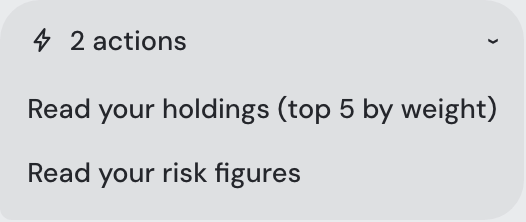
That fetching happens on our server, inside the same request — nothing leaves the answer half-finished waiting for your browser. Everything the assistant asks for in a single reply is fetched at the same time, and you watch it happen: a row appears for each read as it starts and fills in with what it found — holdings · 5 rows of 29 — before the first word of the answer. A question that needs a second look gets one, up to three rounds, and then the assistant answers with what it has rather than reading forever. Every result is capped — the portfolio summary gets twice the room of an ordinary read, because it is the one that has to carry a whole picture — and a list that had to be cut says how to ask for the rest, so a big portfolio slows nothing down. One answer may make at most twenty-four of these reads, however it splits them up. It may only read this way: a request that would spend or change anything is refused and it is told why. The things that change your dashboard — switching the chart, filling the filter, opening a drawer — still happen in your browser exactly as before.
Leaving the Product docs index unchecked also keeps the assistant's own instructions short, because on a small local model they are what fills the window: it leaves out the index of manual sections (the manual is searchable, so the assistant looks a page up instead of carrying a menu of every section title) and sends the list of things it can change on your dashboard in a compact form — every command and every value it accepts, without the explanations. On a demo portfolio that is about 10,300 tokens of instructions instead of about 27,300, which is most of what a 32k local model has to work with. Check the box and the index rides along as it always did.
The reads themselves are listed further down, one per surface of the app, with what each one can be asked for: Focused reads. That chapter also covers what you see in the conversation while one runs, and the head start that answers most data questions in a single round.
Setting up a local model from scratch
With Fortunest desktop and the model running on the same computer, local inference has no per-token charge and that model request stays on the device. Hosted access through a tunnel is different; it does not make the hosted portfolio local. The separate online services are listed in desktop privacy. You need three things: a server app (LM Studio or Ollama, both free), a model your hardware can hold, and a large enough context window — the last one is the step most guides skip and the most common reason a local setup "connects but fails".
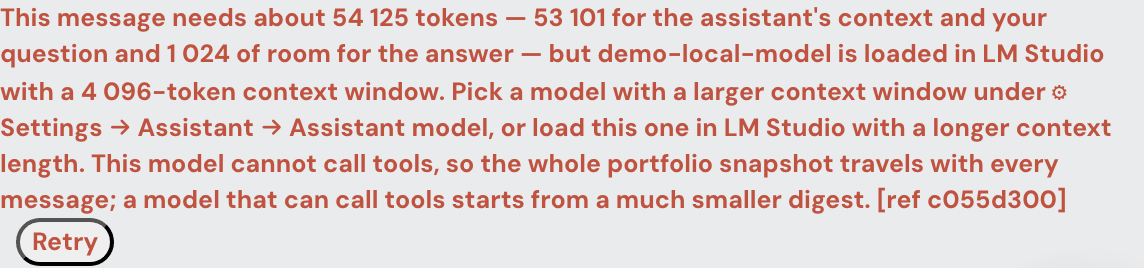
Context window: at least ~32 000 tokens, comfortably 50 000+. Every question travels with your portfolio snapshot, the action spec and the conversation so far — around 30 000 tokens before you've typed a word (the context: figure in the chat header shows your own number live). Many tools load models with a 4 096 or 8 192 default; that's far too small — the header's context figure turns red, and the assistant refuses the message in a red line that says what to change rather than handing the model a prompt it cannot hold. Longer conversations and attachments want the extra room, hence 50 000+ when the model and your RAM allow it.
LM Studio, step by step
- Download LM Studio from lmstudio.ai (macOS, Windows, Linux) and open it.
- Get a model: the 🔍 search tab lists them with download sizes. Good starting points:
openai/gpt-oss-20bon a 16 GB+ machine, or an 8B-class model (Llama, Qwen) on 8–16 GB. - Load it with a bigger window. When loading the model, open its load settings and raise Context Length — the pane shows what the model supports (often 131 072); set at least ~32 000, ideally 50 000+. This is a per-load setting: reloading the model with a new length is what actually applies it. The app notices a reload within a minute — the header's
context: … / Nfollows the live value. - Start the server: Developer tab → toggle Status: Running. The address next to Reachable at —
http://127.0.0.1:1234by default — is the server URL. Running the app on the same machine, you don't need to enter it anywhere: that's exactly where Fortunest looks. - In Fortunest: ⚙ Settings → Assistant → LM Studio. Your loaded model appears in the dropdowns (detection is live — no reopening needed); pick the conversation and fast models yourself and press Save.
Ollama, step by step
- Install from ollama.com (macOS, Windows, Linux;
brew install ollamaalso works). After install it runs quietly in the background athttp://localhost:11434— again the default the app probes, nothing to configure on the same machine. - Get a model either right from Fortunest — Settings → Assistant → Ollama offers a curated list with disk sizes and downloads with a progress bar — or on the command line:
ollama pull llama3.1:8b. - Context is handled for you: the app requests a 32 768-token window on every Ollama call, so there's no slider to remember — but your machine still needs the memory to serve it.
- Pick the models in ⚙ Settings → Assistant and press Save.
A hardware reality check
The model file has to fit in memory (RAM, or GPU memory where you have it), and a big context window adds to that. Rough quantized-model guide: an 8B model wants ~6–8 GB free, a 20B-class model ~13–16 GB, 30B+ upwards of 20 GB. If loading with a 50k context fails or answers crawl, try a smaller model before a smaller window — the window is load-bearing for this app.
The Server field in Settings → Assistant exists for the exceptions: a non-default port, the model running on another machine on your network, or the hosted app reaching your machine through a tunnel — that last one is its own chapter below, risks included.
Local models with the cloud app — advanced
Advanced users only — at your own risk. Everything in this chapter exposes a server running on your computer to the public internet for as long as a tunnel is up. Read the risks before you start. The safer way to use local models is to run Fortunest itself on your machine — then the app and the model share localhost and no tunnel exists at all. The desktop download is the packaged option; check its supported release and system requirements.
Why this needs anything at all: the hosted app calls your model server-side. When app.fortunest.ai asks for localhost:1234 it reaches itself, never your machine — so the app must be given a public address that forwards to your computer: a tunnel. When you pick Ollama or LM Studio on the hosted app, a confirmation dialog first makes sure you know what you're opting into; the Server field then takes the tunnel URL. The hosted app accepts only publicly routable Server URLs — a private address could never reach your laptop from the cloud anyway, and allowing one would let visitors aim the backend at its own internal network.
Option A — ngrok
- Create a free account at ngrok.com and install the agent:
brew install ngrokon macOS,winget install ngrok.ngrokon Windows, or the download on their site. - Connect the agent to your account (one-time):
ngrok config add-authtoken YOUR_TOKEN— the token is on your ngrok dashboard. - In LM Studio, load a model and start the server (Developer → Start server, port 1234).
- Start the tunnel:
ngrok http 1234. It prints ahttps://…ngrok-free.appaddress. - In the app: ⚙ Settings → Assistant, pick LM Studio, confirm the warning, paste the address into Server and press Save. Detection follows within a few seconds and your loaded model appears in the dropdowns.
- When you're done, stop the tunnel (Ctrl-C). The address dies with it; the next start mints a fresh one — just paste the new one over the old.
Option B — cloudflared (no account needed)
- Install the agent:
brew install cloudflaredon macOS,winget install Cloudflare.cloudflaredon Windows, or the package from Cloudflare's downloads page. Quick tunnels need no account or sign-in. - Start LM Studio's server as above, then:
cloudflared tunnel --url http://localhost:1234. It prints ahttps://…trycloudflare.comaddress. - Paste that address into Settings → Assistant → Server (after picking LM Studio and confirming the warning) and press Save.
Using Ollama instead of LM Studio
Same idea, port 11434 — but Ollama refuses requests whose Host header isn't local (its protection against DNS rebinding), so tell the tunnel to rewrite the header:
ngrok http 11434 --host-header=localhost:11434, orcloudflared tunnel --url http://localhost:11434 --http-host-header localhost:11434
Skip the OLLAMA_HOST=0.0.0.0 OLLAMA_ORIGINS=* advice you may find elsewhere for this setup. 0.0.0.0 binds Ollama — which has no authentication — to every network interface, so anyone on your Wi-Fi can use it; ORIGINS=* additionally lets any website you visit call your local Ollama from your own browser. The host-header rewrite above needs neither: Ollama stays bound to 127.0.0.1, reachable only through your tunnel.
The risks, honestly — and how to shrink them
LM Studio's and Ollama's servers have no authentication: while a tunnel is up, the URL is the credential.
| Risk | What it means — and how to shrink it |
|---|---|
| Compute theft | Anyone who learns the URL gets free inference on your GPU — heat, battery, and contention with your own use; LM Studio's management endpoints even let a stranger load or eject models. Keep tunnels short-lived: start when you sit down, stop when you're done. Both vendors mint a fresh random URL per start, so yesterday's leak is worthless today. |
| URL leaks | The random addresses aren't practically guessable; the realistic leaks are yours — screenshots, screen shares, pasted logs. Treat the URL like a password. It's also stored in your app session's settings, where the deployment's operator could see it. |
| Traffic visibility | TLS terminates at the tunnel vendor's edge, so ngrok/Cloudflare can technically see the traffic — which includes the portfolio context sent to your model. If that bothers you, don't tunnel: run the app locally instead. |
| Server bugs | These are development-grade servers, not hardened internet services — Ollama has had remotely exploitable bugs (CVE-2024-37032). Keep LM Studio and Ollama updated, and keep the exposure window short. |
| Watch the door | LM Studio's server console prints every request it gets. Traffic you didn't cause means someone found the URL: stop the tunnel — that alone ends their access. |
For calibration, what a URL-holder cannot get: your portfolio data, your chat history, your app session, or files on your disk (short of an unpatched server vulnerability). The exposure is your compute, its availability, and the server's own attack surface — for exactly as long as the tunnel runs.
Two closing notes: putting basic-auth on the tunnel (ngrok http 1234 --basic-auth …) does not work — the app's backend sends no credentials and refuses URLs with credentials embedded in them. And once more: the setup with none of these trade-offs is running Fortunest locally, with a model on the same computer, so inference needs no public tunnel. Other online-service choices retain the data flows described in Privacy.
Chatting
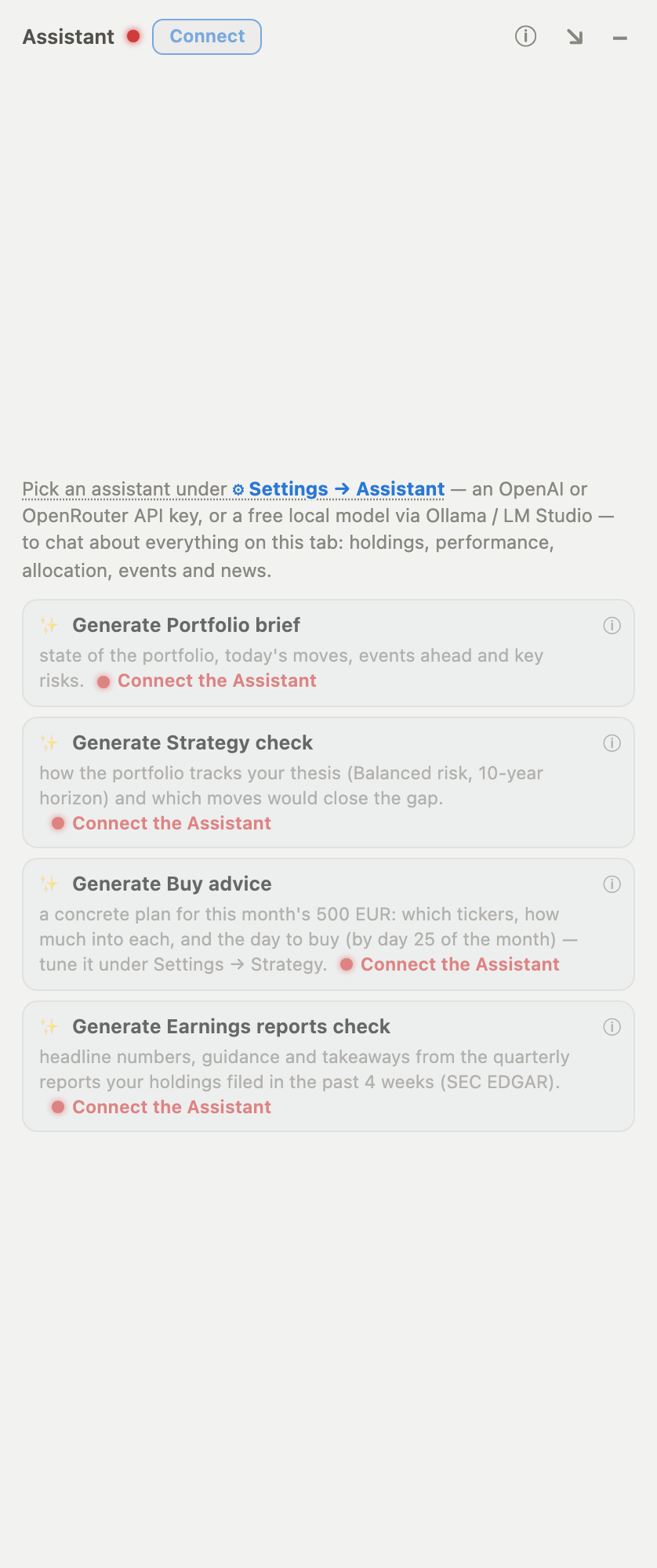
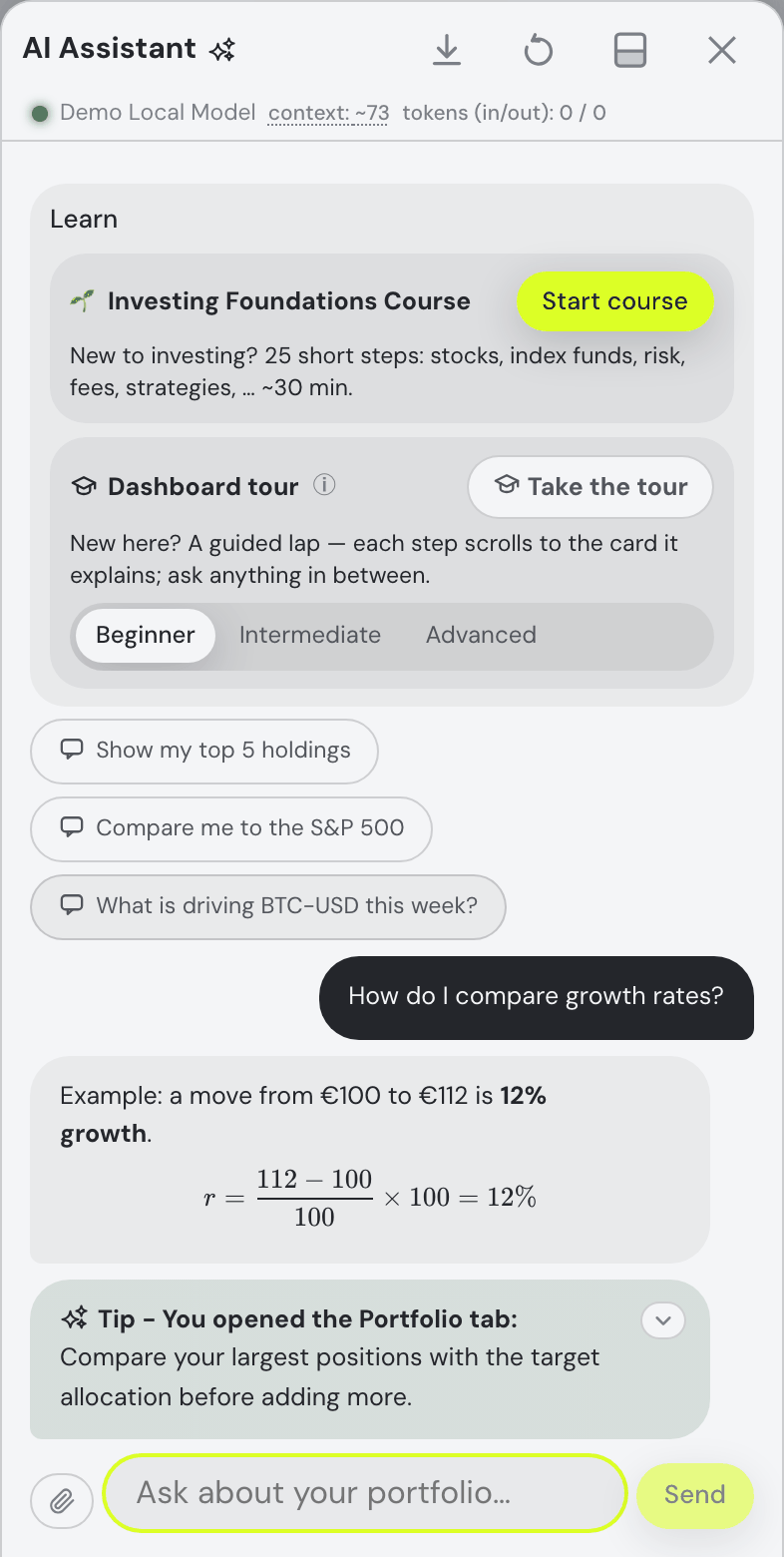
Below the report cards sit example questions, one click each, there to show the range rather than to be the only way in. Since 04.09.2026 they follow the tab you are on — one or two per tab, each phrased for something the assistant can actually do there: on Portfolio "Show my top 5 holdings" and "Compare me to the S&P 500"; on Explore "Show the biggest movers this week"; on Trades "Why is the top buy candidate scored that way?"; on Simulation a what-if and the goal seek; on Taxes "Which lots become tax-free within 12 months?" and a sell plan; on Social your friends and the investors you follow. One more chip is built from your own data: once the portfolio has loaded, "What is driving NVDA this week?" names your largest holding (on Simulation it becomes "What if I bought €1 000 more of NVDA?"), lit a shade differently from the standing ones. With no holdings there is simply no such chip.
Before a model is connected the pane says why — the same sentence the status dot beside the title carries ("No assistant configured — add an API key or a local model under ⚙ Settings → Assistant", "Assistant disabled — switch it back on…", "Free budget used up — …") — printed once, with one Set up the assistant button that opens ⚙ Settings → Assistant. Nothing asks you to hover the dot (the phone drawer has no hover). Until a model exists the report cards and the example questions are not shown at all, only the Learn card, whose walkthroughs play without one; a model that is merely off right now (switched off, budget spent, server down) keeps the cards, dimmed, under that reason line.
Three small hand-offs on every reply. Copy appears at a reply's top-right corner on hover — always visible on a phone — and puts the reply's raw markdown on the clipboard. It keeps that corner to itself: the reply's first line wraps short of it, so even a one-line reply in a narrow bubble is never covered, and the chip stays solid while you point at it; a fenced code block in a reply has its own Copy for just the block, so a command line lifts out as it would be typed. Click a reply and its generated-at line now ends with what that one reply cost, "· 4 210 in / 380 out" tokens, whenever the provider reported it (the header's counter is the whole conversation); click one of your own questions and a "Sent 9 Sep 2026 16:20" line appears the same way. The report cards and example questions always open the conversation, and everything after them — connected-agent activity, your questions, replies — sits in the order it happened. And typing / into an empty question box opens the verb list — every dashboard action the assistant is prompted with (whatif, toggle_favourite, sell_plan…), with its parameters and one line of what it does, narrowing as you keep typing; Enter or a click fills the box with verb {parameters} straight from the assistant's own instructions, for you to complete in words. The list is read from those instructions on the server (GET /api/assistant/verbs), so it can never disagree with what the model was told. A slash anywhere else in a sentence ("sell 3/4 of it") is just a slash.
Walkthrough Continue waits for the current step’s actions and explanation. Stop or restarting prevents late continuation; it cannot undo an action already started. A chapter requiring unavailable Taxes or Social access shows Guidance only, clears its spotlight and performs no hidden-panel action. Taxes requires Pro; Social works with a free signed-in account. The completion message distinguishes guidance-only chapters from performed actions.
The chat also plays the guided walkthroughs (see Take the tour for the three app-tour levels). Beside the tour sits a different kind of tutorial: 🌱 Investing Foundations — 25 steps about investing itself, for people who haven't made their first trade. It needs no data and loads none: unlike the tour, it never seeds the demo portfolio, because an empty dashboard is exactly where its reader is standing. The course opens by asking where you're starting from — the answer tunes what it skips, every pick is answered with a short reply of its own, and "I have a plan already" (which jumps past the pre-flight chapter) hears a one-breath recap of what it skipped: emergency buffer, expensive debt first, only money that can stay. Step numbers count your route, so a skipped chapter drops out of the [n/N] counter. Straight after the pre-flight checks — and on both routes, since the plan-haver’s jump lands on it — comes the “Why invest at all” chapter: three steps with real charts drawn in the chat bubble from 30 years of genuine market history bundled inside the app (they work offline, over an empty portfolio) — $1,000 from 1996 in stocks, gold and bonds against mattress cash; what inflation quietly took from that cash; and the same $1,000 started ten and twenty years later, the compounding head start. The copy states the end values, points at the crashes on the lines, and says the next 30 years aren’t promised. Every course chart shows a hover crosshair — a vertical line at the year under the cursor with each line’s value there — and the costs step draws a fourth chart: the same $1,000 with a 0%, 1% and 2% yearly fee, thirty years out. It then teaches what an investment actually is and the four things that decide your outcome — with the Simulation tab doing the arithmetic on your own numbers — treats risk honestly (including the 2008 "would you have sold?" question, whose answer is remembered for the assistant), and names the common approaches without recommending any: the arithmetic is stated as fact, the contested choices are shown from both sides, and the app takes no house view. It ends with your plan written into ⚙ Settings → Strategy and Investing notes, then offers the Beginner tour of the app. Like every walkthrough it is pregenerated — it runs with no model connected, and only questions asked along the way need one.
Once you have finished it, the course collapses onto the Learn card's own title line. Its tile folds into a small chip beside the Learn heading — Investing Foundations ✓, the tick green — and the Dashboard tour tile takes the whole width and the card's one lime button. The chip is not just a label: click it and the tile comes back in full, with a quiet Restart course that begins again at step 1; click it a second time and it folds away. The same happens to the tour once every level is done — Dashboard tour ✓ beside the title, clickable back open to a Retake — so a card with both walkthroughs finished is one line: Learn, and two ticked chips. A tour with levels left keeps its whole tile; a ✓ on a level's own pill in the Beginner / Intermediate / Advanced control is what marks the levels already walked. Nothing reopened from a chip is ever lime: it is a retake, not a new offer. The course is reachable by asking too, as it always was — type "restart the investing course", "I want to do the Foundations course again" or anything that plainly means it, and the assistant runs tutorial {op: start, level: foundations}, which begins at step 1 exactly as on a fresh account and never refuses on the grounds that you already finished.
The assistant sees everything on the Portfolio tab — holdings, performance, allocation, insights, events, dividends, recent news, your strategy and watchlist, benchmark returns, per-holding fundamentals — and what you're doing: your live view (tab, currency, filters, whatever drawer or dialog is open on top, the simulation you ran) plus a log of your last 50 actions travels with every message. Ask about "this position" without any further context.
- To see exactly what it knows, open the Context window (click the
context:indicator in the assistant's header): every section — live view, strategy, recent actions, portfolio snapshot, favourites, simulations, news, events, instructions — with its token estimate. - Ticker symbols in replies are live — known symbols render as chips: click to open the asset's details from any tab, hover for the asset card: a one-week mini chart headed by the company’s full name — “STX · last week” on its own never said that STX is Seagate — with what one share or coin costs in the asset’s own trading currency (Tesla in dollars, a Frankfurt listing in euros) and two moves in the same money: today’s — or the last session’s when the market has not traded today — and the week’s, each with its percentage. For symbols you hold, a last line gives the position’s value in your display currency and its share of the portfolio (“187 737 CZK 5.32% of portfolio”). The ticker, full name and “last week” share one heading line in live cards and saved snapshots; long names shorten visually to fit, with their full text retained. The name is shown even when there is no price data to draw; a symbol the market feed has no name for shows the ticker alone. A line the data cannot support is left out rather than guessed: no trading currency, no price line; a week holding only one trading day, no day line. The same card opens over a holding’s bar or slice in Value per asset and over the assets on the Trades tab; it opens after a short pause at the pointer, and not on a touch screen, where a tap opens the asset’s details.
- Company names chip too, written the way you write them — not only
NVDAbutnvidiaandTesla, in your own messages as well as the replies, resolved through the names of your holdings and the Explore rows. A name is matched in full and by its short form, so Amazon finds “Amazon.com, Inc.”, Meta finds “Meta Platforms” and Nebius finds “Nebius Group N.V.”; a few everyday trade names that are no shortening at all resolve as well — Google, Facebook, Disney, TSMC, Exxon — each only for an asset you actually hold or watch. Ordinary English is left alone: a lower-case word that reads as a normal sentence (“a low P/E”, “open the settings”) never sprouts a chip, and where two companies would answer to the same short name neither one takes it. A one- or two-letter ticker that is also a word — A, I, IT, ON, SO, GO, BE… — stays a word even in capitals (“A negative figure means…” opens a sentence, it does not name Agilent); it chips only where the text marks it as a ticker: in parentheses after a name (“Agilent (A)”), or after an exchange or the word ticker (“NYSE: A”, “ticker ON”). - It can draw charts — interactive Vega-Lite charts render inline, expand to a modal and download as PNG or JSON.
- Answers render as markdown — when structure genuinely helps, replies come back with real tables (ask for "the values driving each pick's scores in one table"; long cells wrap to fit the pane, and a genuinely wide table grows a ⤢ that maximizes it over the whole window, like a chart), short headers, nested lists, italic, inline code and code blocks — and the live ticker chips keep working inside table cells and list items. Formulas are typeset, not shown as code: one written between
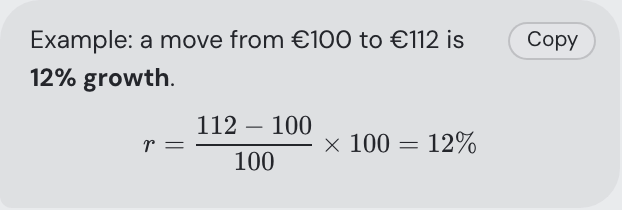
\[ … \]or$$ … $$becomes a centred formula on its own line (a long one scrolls sideways in a narrow pane), one between\( … \)sits inside the sentence, in prose, lists and table cells alike. A single dollar sign is always money — “$100 and $200” stays text. The typesetting is fetched from the app the first time a reply holds a formula, and a formula it cannot read shows its source in the code style. Simple questions still get simple prose. - It knows this manual — ask how something works ("how do I export my Revolut history?") and it looks up or fulltext-searches the documentation you are reading right now before answering, then grounds the reply in it. Answers can cite the docs with real links — hover one for a thumbnail preview of the page — and include the manual's screenshots (like the broker export walkthroughs) right below the answer.
- Attachments: 📎, paste from the clipboard, or — on desktop — drag & drop files onto the question box or the 📎 button (they light up while the files hover; a dropped file follows the same rules as a picked one). A dragged link is caught too and typed into your question where the caret is — left to the browser, dropping a link on the app navigates the whole tab to it and your half-written question goes with it; text dropped inside the box is still the browser's own, so dragging a word around within the box moves it as always. One bad file costs only itself: drop four files with an unreadable PDF among them and the other three attach, with one line naming what was skipped and why (Skipped: locked.pdf (Could not read the PDF — is the file valid?)). Pasting follows the same rules, with one of its own: a paste from a spreadsheet keeps the cells rather than the picture of them — a spreadsheet puts both on the clipboard, and the tab-separated text is the half a model can actually read. Images go to multimodal models (marked by a picture-frame badge next to the model name) and are downscaled client-side; PDF and text files work with any model — their text is extracted and travels inline. Switching to a text-only model mid-conversation silently drops earlier images instead of erroring. An attached document may be up to 20 MB, and PDFs of up to 200 pages are supported; a scanned PDF with no text layer says so rather than arriving empty. Once sent, an image in the conversation opens full-window when you click it — the thumbnail in the bubble is a couple of hundred pixels wide and a screenshot of somebody’s dashboard is not readable at that size. It is the same viewer a posted picture opens: the wheel or a pinch zooms about the pointer, dragging pans, double-click toggles between fit and 2.5×, ← → step between several pictures in one message, and Escape, the × or a click on the backdrop closes it. On a phone, two fingers pinch, one pans, and a downward swipe closes.
- You can keep the conversation — the ⇩ button beside ⟲ saves what is in the chat window as a self-contained HTML file (
fortunest-chat-2026-08-13.html), or opens your browser's print dialog so you can Save as PDF. Both are produced in your browser: nothing is uploaded, the file needs no internet connection to open, and it carries only what the bubbles show — the messages, their formatting, their tables and code blocks, the charts and docs screenshots as pictures, the attachment chips, and the asset chips with their marks — every logo embedded as bytes, so the saved file looks like the conversation you were reading and still needs nothing from the web. The colours come with it, in print too, so Save as PDF keeps the chips and marks rather than flattening them to plain text. Hover or focus a saved ticker for its company name, last-week chart, price, change and displayed holding details, captured when the file was prepared. Preparation fetches each unique ticker once and shows progress; unavailable data is labelled. The saved cards never refresh, and printing reveals them. No hidden portfolio context, model or provider name, token counts, account details or keys are included. - You can rewrite a question you already sent — hover it and a ✎ appears beside the bubble. Click it and the message opens for editing in place; send the changed wording and the conversation restarts from there, dropping that answer and everything after it (Send stays greyed until the text actually differs, and Escape or Cancel leaves the history exactly as it was). While the editor is open the bubble takes the whole width of the chat column and the field opens five lines tall — a sent message is a narrow right-hand bubble, but the one you are rewriting is a form, and a paragraph is hard to edit through a two-line porthole. Drag the field’s bottom-right corner for more room still. Closing the editor hands the width back and the message is a bubble again.
- A half-written question is kept. Type something, don’t send it, and then close the chat sheet on your phone, minimize the dock, switch it between the floating window and the side pane, or move to another tab — the text is still in the box when you come back, with the cursor at the end of it. Only sending it clears the box. It even survives reloading the page in the same tab; files you had staged beside it survive the close but not the reload, and are asked for again.
- Enter sends, Shift+Enter breaks a line; the box grows with long questions. ⟲ resets the conversation.
Ask AI — from a tooltip or an alert
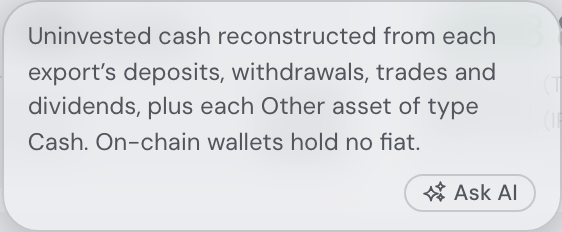
You rarely have to type the question. Every ⓘ tooltip that explains something (and the other explanations that open on hover, such as the Fair value card’s model names and bars), and every row of the Insights & alerts list, carries a small Ask AI button — the assistant’s three sparks and the two words; hover it and it says “Ask the AI assistant more about this.” Press it and the assistant opens (from its launcher disc or as the phone’s sheet if it was folded away), the question lands in the current conversation as your own message, and the answer starts at once — there is no second click. The question quotes what you were reading: for a tooltip, the thing it is attached to and its full text — Explain more about this: “Cash — Uninvested cash reconstructed from each export’s deposits, withdrawals, trades and dividends…”; for an insight, its sentence and when it appeared; for a delivered alert, its title and the digest’s own words (the row shows only the title), with the day and time it arrived. The exceptions are the social and consensus-shift digests: they carry other people’s words — your friends’ posts and replies, the names in their shared holdings — and the question goes out as yours, so those are asked about by their title and time alone. Asking does not tick the insight off or mark the alert read. Press Ask AI again while an answer is still coming and the new question waits its turn: up to three are sent one after another, each once the answer before it is finished; a fourth goes into the ask box for you to send when you are ready. If the assistant can’t answer right now — no model set up, the free budget spent, switched off — the chat opens on its usual explanation and nothing is sent.
The tooltip waits for you. Move off the ⓘ (or the label or figure the tip belongs to), across the small gap and onto the tip, and it stays open for as long as the pointer rests there; it closes a moment (about a quarter of a second) after the pointer has left both, and it does not follow the pointer around. By keyboard: Tab to an ⓘ and its tip opens; the next Tab steps onto Ask AI (Enter asks), Shift+Tab or Esc goes back to the ⓘ (Esc closing the tip), and Tab again carries on through the page. On a phone, tap the ⓘ and then the button inside the tip. Tips that only read out a value under the pointer — a chart’s day, a heatmap cell, a sparkline — and the short control hints (“Close”, “Drag to resize”) have no Ask AI: there is nothing in them to explain.
Asking “what should I buy?”
The answer depends on what the assistant already knows about you. With a portfolio and a written strategy (⚙ Settings → Strategy) it answers the way it always has — recommendations grounded in your data, honoring your thesis, horizon and risk tolerance. With a portfolio but no strategy, it first reads your own trading pattern back to you (one fund bought at a steady rhythm looks like passive dollar-cost averaging; many picks and rebalances look like active stock-picking), confirms with a couple of questions, and saves the result as your strategy only once you agree.
On an empty portfolio — or once you have started the Investing Foundations tutorial — it deliberately recommends no tickers at all. Instead it sketches the decision framework (owning vs lending, whole-market index funds vs picking stocks), then asks up to four short profiling questions, one per reply, each with clickable answer chips: click one and it lands in the conversation as your reply, or type your own words instead. Only what you actually answer is saved — through the same settings the ⚙ dialog writes: your horizon, your risk tolerance, a one-sentence strategy in your own words, and a monthly amount for the trade plan. From there it points you at the Explore tab and the simulator with your own numbers; any fund it names along the way is an illustrative example of a category, never advice to buy it.
The dock
The assistant opens maximized by default: a full-height side pane that pushes the dashboard left so nothing is hidden — and nothing ever covers it: drawers, dialogs and maximized charts all stop at its edge. A window control turns it into a small floating window bottom-right (drag its top-left corner to resize); minimize drops it to a launcher disc — a lime circle in the bottom-right corner carrying a speech bubble with the assistant’s three sparks twinkling inside it, over a large “AI”, so it says what it opens rather than leaving the glyph to carry it. The sparks pulse in turn, and faster when a reply is waiting unread; a small light on the corner shows whether the assistant is connected. (If you have asked your system for reduced motion, none of it moves.) Phones get a 💬 bottom-sheet drawer instead, opened from the same disc: there it lives in the bottom control panel’s right-hand column, the biggest target in the row. Float/minimize choices stick for the browser-tab session and reset to maximized on the next visit — except while the Get started card is still showing: a new visitor’s assistant starts each new tab minimized to its disc — the disc opens it any time — until they have met it: sent it a question, started a walkthrough, or pressed the card’s last step, Open the AI assistant chat, which opens it with the caret in the ask box. From then on, or once the card is finished or closed, a new tab opens it docked. The pane holds its dock at every width a window can hold it — narrowing the window squeezes the pane first, down to its own minimum, and then the dashboard column. Below the width where the pane and the header cannot both fit (862 px) it folds into its launcher bubble, and re-opening it there gives you the floating window rather than a pane the window has no room for. Widen the window again and the side pane comes back by itself, at the width that closed it — unless you were the one who minimized it, in which case it stays where you put it. Narrower still and the phone’s bottom sheet takes over.
While the pane is docked, the dashboard is its own scrolling column, so its scrollbar sits between the dashboard and the chat rather than at the far right of the window, past the chat. The keys work as usual — PageDown, Space, End and the arrows scroll the dashboard — and maximizing or restoring the pane keeps you where you were reading. A floating or minimized chat overlays the page instead of standing beside it, so there the page scrolls as it always did. The phone’s bottom sheet overlays it too, but at full height it holds the page still underneath — including a flick that runs past the end of the conversation, which stays in the conversation instead of dragging the dashboard along. Pull the sheet down to its short height (the panel-height button beside ×) and the page behind is yours to scroll again, which is what that height is for. With the on-screen keyboard up the sheet ends on the keyboard’s top edge, so the whole conversation and the question box stay on screen and nothing of the page shows beside them.
Driving the dashboard from chat
The assistant doesn't just describe the dashboard — it can drive it. Type a command like "Go to allocation" and the app switches to the right tab, smoothly scrolls to the card, expands it — and the assistant comments in the same message, using the very numbers the card shows and whatever you discussed before. Three starter buttons under the one-click report cards suggest example commands to try.
| You type | What happens |
|---|---|
Navigate & reveal
|
Switches to the Portfolio tab, smoothly scrolls to the matching card — Allocation, Risk, Dividends & income, the Events card's Upcoming section, the Trading Activity punch card — expands it, and comments on what it shows. |
Filter holdings
|
Scrolls to the holdings table and sets its smart filter, then comments on the result. Top-N and metric filters ("top 5 holdings", "my best PEG holdings") are answered rule-based and come back ordered; semantic ones ("tech stocks") run on the fast model. |
Control the chart
|
Scrolls to the value chart, switches it to Return % mode and turns on the S&P 500 TR benchmark, or presses the matching range button — then summarizes how the portfolio did over that window. |
Run simulations
|
Switches to the Simulation tab, prefills and runs the what-if trade — or fills the Future simulator's goal seek — and summarizes the real simulation output and, for projections, the assumptions behind it. |
Explore the market
|
Switches to Explore, scrolls to the Markets table and its eight lists, and highlights the movers most relevant to your holdings and watchlist — or opens a heatmap on the grid and time window you asked for, switching to whichever tab it lives on: the Market heatmap on Explore (which also paints your starred watchlist or any named list of it, by name), the Portfolio heatmap under the value chart. For an index, ask “show DAX 40” or “show the S&P 500 heatmap”. The assistant selects the list and can sort its loaded rows. A named watchlist you do not keep is answered with the ones you do, rather than an empty map. |
Look up any company
|
Fetches the figures live for a company you don't own, rather than answering from memory: the quote (price, market cap, the valuation / growth / quality / debt ratios, the 52-week range, the analyst target and the app's own score with its reasons — the same row the Explore table shows), the latest news headlines with links, and the earnings picture: upcoming earnings and dividend dates, the last reported quarters with their EPS beat or miss, and the company's own results filing downloaded from the SEC — the earnings press release or shareholder letter inside the 8-K (a 6-K for foreign issuers, the 10-Q otherwise), so an answer about a quarter quotes revenue, margins and guidance as the company wrote them. A company name resolves as well as a ticker, and the reply names the one it landed on. Where one source can be checked against another it is — a silent earnings-dates table is backed up by the quarterly history, and the SEC filing is found from the company's filing history even when no earnings date could be fetched — and whatever is genuinely missing is reported with its reason ("the SEC only covers companies that file with it", which is why European listings, crypto and most ETFs have no filing) instead of guessed at. |
Quick actions
|
Opens the asset's detail drawer with a summary of the position, stars the stock into your favourites with a one-line take, or applies the appearance / currency setting immediately. |
Change settings
|
Adjusts ⚙ Settings values by name, one or several in one request ("set risk to low, horizon to 45 and refresh cadence to 30 minutes" applies atomically) — refresh cadence, data sources on/off, investing strategy text / horizon / risk level, the six trade-plan values, assistant proactivity — through the exact same staged-save path as the dialog's Save button (settings that need it rebuild the portfolio in place — a slim "Rebuilding portfolio…" pill shows while it runs, no page reload). Out-of-range values are refused with the valid range named, and if the Settings dialog is open with unsaved edits the assistant declines rather than saving your half-made changes. |
Ask where something is
The assistant carries a map of the whole app: every tab, card, chart view, heatmap and ⚙ Settings tab, with what each one shows. Ask "where can I see my drawdown for this year?" or "how do I see each account's cash?" and it names the place that fits your question, as a link that takes you there. The same word can mean different places. The drawdown of the whole portfolio is Portfolio value over time › Drawdown, the value chart's Drawdown view. The drawdown of each position you hold is Portfolio heatmap › Drawdown, or the Drawdown column of the holdings table. The drawdown of your favourites or of a market list is Explore › Heatmap › Drawdown. Each account's cash is listed on the Cash tile, and each account's value in the accounts list on the Portfolio value tile.
Say "show me" or "take me there" and the assistant switches there itself: it changes the chart's view, tints a heatmap, opens the Simulation tab at What if I trade? or the Simulator, or opens ⚙ Settings on the right tab, scrolled to the section ("where do I set my allocation targets?" lands on ⚙ Settings → Trades → Allocation targets). Opening Settings never changes or saves anything. For anything the map doesn't cover, it searches this manual.
Custom assets by conversation
You can also create data by talking: ask for "add my apartment in Prague, bought 2019 for 200k EUR" and the assistant collects whatever is still missing — name, purchase date, price, currency, an optional yearly appreciation — asking follow-up questions until the entry is complete, then creates the asset. It appears under ⚙ Settings → Data exactly like a manually added asset: part of your allocation and history, toggleable and editable any time.
Market-priced assets work the same way, live-priced: "add 2 oz of gold futures" or "add 10 shares of RHM.DE" resolves your words through the same symbol search the Settings bar uses and adds the position — priced from live market data in the holdings table, allocation and charts, like any broker holding. An exact ticker adds directly; when several listings match a name, the assistant lists the candidates and asks which one you meant before anything is added. The acquisition date defaults to today and the per-unit price to the market close on that date unless you state them. It also reads positions out of an attached file or a screenshot — paste a brokerage position list and it adds each line as its own asset. A multi-asset add like that recalculates the portfolio once, at the end rather than after every line: each position still shows its own “Adding…” chip and reports its own success or failure, but the “Recalculating summary & analysis” pass runs a single time for the whole batch.
Every added asset lands in a named group — an account in the Portfolio value card. The assistant sees the groups you have and puts the asset into the one that fits ("add my cottage to Real estate"); when none fits, or you have none yet, it names a new group itself, and positions it adds together from one brokerage screenshot share one. Renaming, splitting or deleting a group stays yours, under ⚙ Settings → Data: a group is not a data source with a switch of its own, so the assistant includes or excludes its assets one by one.
What was added can be edited and switched by conversation too. "change the buy date for SOL and AAVE to 2021-09-01" edits the existing positions in place (edit_asset) — quantity (the new total), acquisition date and per-unit price for a market-priced asset; date and the value at that date for a manually tracked one — changing only the fields you name, exactly like the row inputs under ⚙ Settings → Data. A manually tracked asset's value is compounded from its acquisition date at the yearly change you gave it, so “what it is worth today” is date = today and price = that value. A market-priced position whose price you never typed re-prices to the market close on its new acquisition date when the date moves — a price you typed is never touched, and the same holds for the Settings row. Two hand-added lots of the same symbol come back listed with their ids so the assistant can ask which one you meant. And the include/exclude ticks there answer to chat as well: "exclude my Prague flat" or "turn my Kraken account back on" flips one added asset (toggle_asset — every lot of a symbol, unless an id picks one) or a whole data source (toggle_account) in or out of the portfolio without deleting anything; an account name that fits several sources is asked about, never guessed. Several edits or toggles in one reply share a single recalculation, the same way a multi-asset add does. Holdings imported from broker files stay managed by their files — the assistant says so rather than guessing at them.
What you can rely on
- Graceful degradation — if an action can't be performed (an unknown card, an asset you don't hold), the assistant says so in the chat and answers the question textually instead. Never a silent failure.
- Real numbers — the chat commentary always comes from the same data the card on screen displays, and respects the previous conversation.
- Actions become context — every performed action lands in the Recent Actions log, same as your manual clicks, so follow-up questions know what's currently on screen.
- Every action shows its own result (04.09.2026) — each chip carries a ✓ when the action was performed and a ✕ when it was refused, with the reason as the chip's tooltip; the card the action drove flashes once so you can see what moved. Edits to data you already have (a buy date, an asset's or account's include tick) carry an inline Undo that puts the old values back in one click.
A turn that goes wrong
Since 04.09.2026 a turn always ends in something you can act on:
- Retry sits on the error line of a failed turn and sends the same question again — you never retype it, and the conversation keeps one copy of what you asked.
- Send becomes Stop while an answer is being written. Stopping keeps what had already arrived, marked — interrupted, instead of replacing it with a technical sentence.
- A refusal is said in words. If the model declines, the reply reads “The model declined to answer that.” rather than arriving as an empty bubble.
- A cut-off answer says so. When the model runs into its length limit the bubble ends with “— cut off (length limit)” and offers Continue, which asks it to carry on from where it stopped.
- A long conversation is shortened to fit the model. Every request fits the context window of the model you chose — the number after the slash in the header's
context:figure: what LM Studio loaded the model with, the model's maximum in Ollama (up to the 32 768 tokens the app asks it for), 1 000 000 on the current Claude models (200 000 on Haiku 4.5), 272 000 on OpenAI (the band OpenAI prices at its normal rate; less on its older, smaller models), and on OpenRouter the figure its model list gives. Not all of that window is for the conversation: room is kept for the answer, and the assistant's tool definitions take their share, so what a message may fill is smaller than the window. When the conversation grows past that, the oldest turns are left out first, each question together with its answers; the instructions, the portfolio context, your newest question — and the question an action's result answers — always travel. If the data the assistant reads for an answer does not fit, that read is held back (its row says so) and the answer is written from what fits. The figure turns amber as the estimate nears what fits and red once it is more than fits; its tooltip says how much of the window the answer and the tools keep. - A context the model cannot hold is refused in red. If even the smallest request — the instructions, the portfolio context and your question, with room for the answer and the tool definitions — is larger than the model's window, nothing is sent. A red line adds up what the message needs (context and question, tool definitions, room for the answer), says how many tokens the model holds and what to change: pick a model with a larger context window under ⚙ Settings → Assistant → Assistant model; in LM Studio, load the model with a longer context length; with Ollama, which the app always runs with up to 32 768 tokens, move to LM Studio or a hosted provider; with a model that can call tools, carry less under Assistant context (the Full portfolio snapshot is by far the largest part). The line ends with a
ref, like every recorded failure. The header then shows the figure that did not fit, in red. - A provider failure is an error, not an empty answer. When the AI provider fails after it has started answering — overloaded, rate-limited, an upstream model that dropped the connection, a stream that broke off before saying anything — the chat shows its error line with Retry, e.g. “OpenAI error mid-answer (server_error): … [ref 3f9a1c2b]”. Quote the
refwhen you report it: it is the key to the server’s own note of what happened. Every error line from the AI provider carries one — also when the provider turned the request down before answering (a wrong or unfunded API key, a rate limit, an outage) or could not be reached. “The model returned an empty answer.” now means just that — the model finished and wrote nothing. - Those sentences are only ever the chat’s. A proactive tip that came back empty, refused or cut off is dropped — you never get a tip that reads “The model returned an empty answer.”, and if its first words had already appeared, the bubble goes away again — and a quick dashboard command that went that way is answered by the full model instead. A news summary that came back that way tells you so, but is not kept: the next time you open the news, the model is asked again. With Ollama, and for the news summary on OpenRouter and LM Studio, the app can only tell an empty answer apart this way — a refusal or a cut-off there reads like an ordinary answer.
The complete action reference
Everything above runs on a fixed vocabulary of 52 typed chat commands — each with a strict name, parameters and allowed values; a request that doesn't map onto one of them is answered in plain text instead of guessed at. You never type these names yourself — plain English is the interface — but the list below is the authoritative "what can it actually do", and it is how a skill references an action: a skill's text can name one by its action name ("on app start, use the show_card action with card allocation") and the assistant carries it out. Parameters marked ? are optional.
Actions: navigate & reveal
| Action | Parameters | What it does |
|---|---|---|
show_card | card — one of allocation, risk, events, income, holdings, chart, insights, value, cash, pl, fundamentals, drift, assets (Portfolio — drift is the Allocation drift bars at the foot of the Allocation card, inside that card’s “Full breakdowns” expander — which show_card opens for you, and expand: false closes again; assets is the Value per asset card above it), recommendations, trade_plan, recent_trades (the Recent trades table under the plan), trade_flow (the Money flow chart under it), activity (Trades), trades_summary, tax_lots, sell_optimizer, maturing_lots, annual_gains, transfers, manual_lots (Taxes); expand? (false collapses); collapse? — cards to close alongside; section? ("upcoming", events card only); month? ("YYYY-MM", activity card only) | Switches to the card's home tab, scrolls to it and expands its breakdown. insights is the topbar Insights & alerts bell rather than a card: it opens the bell's list wherever you are (no tab switch), and expand: false closes it. |
show_trades | — | Switches to the Trades tab. |
show_taxes | — | Switches to the Taxes tab. |
show_social | pane?: feed | friends; handle? — a friend's @handle | Switches to the Social tab; handle opens that friend's shared-portfolio view. |
show_simulation | card?: whatif | simulator | Switches to the Simulation tab and scrolls to What if I trade? or the Simulator. Only navigates; the simulation actions below run things. |
open_settings | tab: general | data | strategy | trades | taxes | social | alerts | assistant | about; section? — a section's label, e.g. "Allocation targets" | Opens ⚙ Settings on that tab, scrolled to the section with a brief highlight. A section the tab doesn't have is refused, with the tab's real sections named. Only navigates: nothing is changed or saved (set_setting changes a value). |
explore | table: top | movers | favourites | heatmap | macro (the Macro card: central-bank rates, VIX, the yield curve); for the heatmap also mode: market | favourites | portfolio, list: a watchlist name, and range: 1D … 10Y | Pos | Shows an Explore-tab surface: one of the three tables (largest companies, most active today, your watchlist), or a heatmap — mode picks the grid and switches to the tab it lives on: market is the Market heatmap on Explore, favourites is that same card over everything you have starred, list is that card over one named list (which implies favourites; the name is matched however you capitalised it, and a name you do not keep is refused with the ones you do), and portfolio is the Portfolio heatmap under the value chart. Leave mode out and it acts on whichever heatmap you are already looking at. range is the window the colours measure and each grid remembers its own; Pos — since each position was first held — exists on the Portfolio heatmap only, and a window a heatmap does not have is refused rather than guessed at. |
sort_table | table: holdings | top | movers | favourites; column — a column key; desc? | Sorts that table by a column, like clicking its header. |
expand_trades | target: lots_row | lots_all | recs_why | recs_all_buys | recs_all_sells | weights; symbol (required for lots_row and recs_why); on? (false collapses) | Expands or collapses a Trades/Taxes-tab element — a lot detail, the full candidate tables, the criteria-weight sliders. |
open_asset | symbol | Opens that asset's detail panel — a holding, a favourite, or any listed symbol the top-right asset finder can place, held or not. A ticker the finder cannot place is refused with the near misses named (“WD” → WDC.DE, WDC.F). On a wide window the panel stands as a column beside the dashboard, so the rest of the page stays usable while you read it. |
open_breakdown | which: value | pl | Opens the Portfolio value breakdown dialog (deposits → income → profits → today’s value) or the Total P/L views dialog (each reading of the profit and its percentage) — the dialogs a click on the Portfolio value or Total P/L figure opens. |
Actions: chart, holdings filter & the tutorial
| Action | Parameters | What it does |
|---|---|---|
set_chart | At least one of: mode? (overall | companies | returns | drawdown); range? (1D | 1W | 1M | 3M | 6M | YTD | 1Y | 5Y | All); benchmarks_on? / benchmarks_off? (keys sp500, world, nasdaq, bonds, gold, usd, btc; benchmarks_off: "all" clears them all); lines_on? / lines_off? (line names: "total", an account name, "diversification", or an asset-type / sector line such as "type:Crypto", "sector:Technology"); from? ("YYYY-MM-DD", a year, or "all" to clear) | Adjusts the portfolio value chart — mode, range, benchmark and value lines, custom start date. range already sets the day every comparison restarts from, so from is only for a date no range expresses. The two are mutually exclusive, exactly as in the card: a from date replaces the range selection (no range button stays selected) and a range clears the date, so sending both in one call is refused — from: "all" beside a range is fine, since it only clears the date. |
set_as_of_date | date: "YYYY-MM-DD", or null for now | Shows the Portfolio tab as it stood at that day’s close — the Time travel clock on the Portfolio value tile, done from the chat. Switches to the Portfolio tab first; null (or today) returns to the live portfolio. A day before the price data begins is refused, naming the earliest day that works (never the first transaction, which can itself be too early); a future day, naming today. The answer carries the day’s own figures — the total, the cash, that day’s move and how many holdings there were — so “what was it worth then?” is answered from that day, not today. |
filter_holdings | query — natural language; "" clears the filter | Sets the holdings table's smart filter ("top 5 holdings", "technology sector", "biggest losers this year", "most beaten down"). |
tutorial | op: start | next | stop; level?: beginner | intermediate | advanced | foundations (with start) | Drives the guided walkthrough that plays inside the chat — the three app-tour levels, or foundations for the Investing Foundations course. A finished walkthrough is collapsed to a chip on the Learn card, so asking for it in words is the other way back in: this verb restarts a completed course from step 1. |
Actions: search, live market data & this manual
These fetch data for the assistant's answer and leave your view where it is:
| Action | Parameters | What it does |
|---|---|---|
search_assets | query; smart?: true for the finder's semantic mode | Types into the topbar asset finder and opens its results; the hits — symbol, name, exchange and type — come back to the assistant. This is also how the assistant resolves an asset you describe by name: ask it to "simulate 200 a month into an S&P 500 ETF, a global equity ETF and a bond ETF" and it runs one search per asset (exactly what typing into the finder would find), picks the matching tickers itself and carries on with the simulation, instead of asking you for exact symbols. It only asks when the matches are genuinely ambiguous — and then it names the top candidates to pick from. |
market_lookup | symbol — a ticker or company name, or symbols — a list of up to 25 of them (the two are mutually exclusive); parts? — any of quote, news, earnings (default quote) | Fetches live data for any company, held or not — price and ratios, headlines, earnings dates and the company's own SEC results filing. Several companies come back in one action, keyed by ticker, with any that could not be resolved named. |
price_on | date — YYYY-MM-DD, up to 8 of them, or "today"; symbol? — a ticker or name; currency? — the code to price it in; fx? — pairs like USD/CZK | What something was worth on a given date. The assistant’s portfolio context is today’s snapshot plus rolling changes, so “what was Bitcoin worth on 1 August?”, “what did it cost at the beginning of April, and what is the change?” and “what was the CZK rate then?” used to have no answer in it. This reads the close off the same daily price series the charts are drawn from, and converts it at that day’s exchange rate, not today’s. Ask for several dates in one go, and the assistant does the percentage change itself. When the market was shut on the date you named it answers with the last trading day before it and says so; where a split has happened since, it can give both the split-adjusted price (comparable with today) and what the share actually traded at on the day. |
docs_lookup | labels — 1–5 section labels ("page#anchor") | Reads sections of this manual so the answer quotes the real text. |
docs_search | query; limit? 1–8 | Fulltext-searches the manual and website, returning the best-matching sections with links and screenshots. |
Focused reads: asking for one table, not everything
With Full portfolio snapshot ticked in Assistant context the assistant is given your whole portfolio with every question — on a large portfolio that is tens of thousands of characters, most of it irrelevant to what you asked. The focused reads are the alternative, and what every unchecked box is served by: small, named, parameterised reads that fetch exactly the slice a question needs, from the same snapshot the rest of the answer is built on, so nothing is recomputed and nothing can disagree. There are fifteen of them, one per surface of the app, grouped below. They are also offered to agents you connect over MCP, where each one is a read-only tool. Every result says which currency its amounts are in, and a long list comes back one page at a time with a cursor to continue. Several tickers are one read. Anything that answers about a company takes a list of them — up to 25 — instead of being asked once per ticker: one position deep, a market lookup, a historical price, headlines, calendar dates, insider filings, tax lots and trade candidates. The answer is keyed by ticker, and no ticker you asked for can go missing quietly: one with no data behind it is named, and so is one the answer had to shorten to fit. The whole batch stays within one read’s budget. Amounts have always been in your display currency, never euros; since 11.09.2026 every field whose name ends in Eur (amountEur, buyEur, valueEur …) ships beside a plain-named twin (amount, buy, value) and the Eur half is deprecated — it will be removed in a later release, so an agent written against it should read the plain name.
- Warnings — the data-quality notices: what an import could not read, what it had to assume, what could not be priced. Filter by kind (an assumed opening balance, a missing exchange rate, an unpriced holding, skipped rows…) or by symbol; the answer always carries the counts for every kind, so “why is my return flagged?” is one question rather than a hunt.
- Holdings — your positions, the way the question asks for them: sorted by weight, value, today’s move, gain or loss (so “my biggest losers” is one question, not a re-sort), filtered by account, asset class, sector, region, currency or a minimum weight, and returned ten at a time with a count of the whole list. You choose how wide each row is — just the position, or with fundamentals, or with its tax lots. And one holding in depth — the asset drawer as an answer: its fundamentals, tax lots, headlines, insider activity, upcoming dates, what it moves with, the warnings that name it, a price chart over the window you ask for, and the two-sentence description the drawer’s About section shows, with who wrote it — the market-data feed or an AI model, which the panel itself does not print (read from what is already stored, never looked up or written on the spot, and handed to the assistant as third-party background, never as instructions). A ticker you do not own comes back as a question rather than an invention: “not held or watched”, with the closest symbols you actually have.
- Watchlist and news — your favourites as a small table — name, price, today’s move, the month, the app’s rating and the gap to its fair value — sorted by whichever of those you asked about, filtered to one of your named lists, and marked with what you already own. Ask for the full row and every fundamental the app evaluated comes with it. Alongside it, recent headlines for your holdings, your watchlist or symbols you name: the assistant already carries the five newest for each of them, so “anything on my crypto this week?” is answered from what it has, and only a symbol it has no headlines for — or a question that needs dates and sources — goes and fetches. Favourite prices are shown in US dollars, the way market data is compared; the value of what you hold is in your own currency, and each answer says so.
- Allocation and risk — one dimension of the split at a time — asset class, sector, region, currency, size, instrument type or account — with the largest segments first, the small ones grouped, and your own targets beside them. Each answer says what its percentages are a percentage OF: the whole portfolio, or — for the split by account — the accounts’ combined value, since something you track by hand sits in no account at all. A target you hold nothing against is raised rather than left out, so “no bonds against a 25 % target” is part of the answer. Holdings still waiting for their market data are flagged, because the split is not final while they are. The risk side comes in pieces you can ask for separately — the headline numbers, the worst drawdown with its dates, which positions move together, the diversification score, the comparison against your benchmarks, or how much of the return came from the currencies rather than the assets — over the whole history or the trailing year.
- Trades and taxes: read company ratings, their leading criteria, and the plan’s inclusion, omission or cap reason. Ask for a ticker’s breakdown for the inputs. Candidates can be narrowed to several tickers at once, and extra fundamentals asked for by name — forward P/E, PEG, market cap, FCF yield, growth, analyst upside, fair value — which come back on every candidate in the answer, so “forward P/E against PEG for the recommended buys” is one read rather than one per company. Recent trades show executed orders, each with what it cost or raised in your display currency at its own trade date — the same figure the value chart’s trade tooltip prints (a trade that cannot be converted shows its own currency instead). Each card on the Trades tab has its own read: the Trade plan card’s orders with the same Amount, Share, Rating and Tax-free now columns (its Backtest trade plan button is the backtest read); the Recent trades card row for row, asked for in detail with its price, fee and Since trade columns and the card’s total count — sorted by any of its columns and narrowed by name or ticker, asset type and a date range, as the card’s own filters do; and the Money flow card’s weekly, monthly or yearly purchases, sales and net, for as many weeks, months or years back as you ask, with the totals over that window. Agents connected over MCP get the same three reads with the same answers. Tax lots show maturities and estimated tax coverage, for one ticker or several. Planner rules.
- Events and insider activity — what is coming, and who is buying. The first is the forward calendar as a dated list — earnings dates, ex-dividend and dividend-pay days, central-bank rate decisions and data releases, and the lots about to pass the holding-period test and become tax-free — filtered by kind, by symbol or by how far ahead you want to look, with the count of everything else in the same window so one question shows the whole picture (“earnings in the next two weeks”). Ask for dividends and it adds what you received and what is projected for the next twelve months; ask for macro and it adds the policy-rate line. Ask for earnings on their own and the answer turns round: one row per company rather than one per date — when it next reports, when it last reported and whether that beat or missed, and a link to the filed report where one is already to hand. You choose whose: what you hold, what you have starred, or both; and how far back to look for recent reports. Nothing is fetched for it — the dates and the beat/miss figures are the ones the Events card already shows, so a company with no cached filing simply comes back without a link. The second reads the cached SEC Form 4 filings for what you hold: open-market buys and sales by officers, directors and large owners — never awards or option exercises — with the three-month net — in US dollars, taken from the filing’s own price per share rather than converted into your currency — the number of distinct buyers and sellers and who bought recently. Nothing is fetched to answer it, so a company whose insider card you have never opened is named as having no cached filings rather than kept waiting; filings lag the trade by days, and this is context, never a signal to act on.
- Simulation — what the app knows about your simulations, without running any of them: the assistant never starts a projection and never starts a historical replay to answer a question. Because the Simulator’s projection, its DCA rows, the goal seek and the what-if are worked out in your browser and kept nowhere afterwards, this read is careful about the difference between “nothing was run” and “the answer is zero”: it hands over what those calculations start from — what the portfolio is worth now, what it has actually returned and how volatile it has been over its whole history, the horizon and risk tolerance in your strategy, the figures a what-if is measured against, and your saved Trades-tab budget (which is a one-off amount for the current recommendation, not a monthly contribution) — and says plainly that the run itself lives on your screen, where the assistant already sees a one-line summary of it. The historical trade replay is the exception: it is kept for an hour from the moment it was STARTED (the job store prunes on creation time, so a long replay is kept for whatever is left of that hour), so “how did my backtest do?” comes back with its window, its result against the passive comparison, which criteria the past data could not fully cover and any warnings — with the day-by-day tables one further question away.
- Core digest — the whole portfolio in one small answer, and the first thing the assistant reaches for: when it was last valued, the value/cash/day-change/profit totals with the per-account split, the time-weighted and money-weighted returns, the six figures the Risk card leads with (max and current drawdown, volatility, Sharpe, Sortino, worst day), your ten largest positions with weight, value, day change and total gain, the asset-class and sector mix with how far each sits from a target you set, the trade plan’s buy/sell/net totals and order counts, the next five calendar events, how many data-quality warnings there are and of what kind, your strategy profile, your plan’s limits, and your saved memories and standing notes. It is capped at about 4,000 tokens, so it can ride along with every question; when a portfolio is too big for that, the longest lists are shortened and the answer says exactly what it cut. Anything not in it — a position’s fundamentals, the full holdings table, the actual orders, the news — is one focused read away.
You can see them happen. Consecutive focused reads share one bubble marked with the flash action icon above the answer, with one compact line per call — “Read your holdings (top 5 by weight)”, and the asset after a colon when the read named one — “Read one of your positions: NVDA”. Click the header to minimize or reopen the list, or, on a run of eight or more, the small round Collapse actions button floating at its bottom right, in a narrow strip beside the rows so it never covers a line. Internal assistant calls show their status without expandable arguments or JSON; failed reads keep their error message visible. Consecutive in-chat action blocks can also be folded together. The rows stay with the answer, and the conversation you save lists them one line each; they are never sent back to the model, which already had those results when it wrote the reply. Models that cannot call tools — most models you run on your own machine — reach the same reads a different way, by naming one in their reply; the app runs it for them against the same read-only registry and hands back the result, so a local model answers from your real figures too — in the browser and, from the next release, in the desktop app, where a local model is the default.
Most of the time the read has already happened by the time the assistant starts writing. Every message you send is first read by the quick, cheap pass that handles direct commands; where the model can call tools that pass may also recognise a question about your figures and name the reads the answer will need — up to four of them — so the app fetches them and hands the results over with your question. “What are my top 5 holdings” is then answered in one go rather than in two: one round to ask for the holdings and another to answer from them. It is a guess, and a wrong one costs nothing you would notice — the assistant still has every read available and simply asks for what it actually wants, the rows appear in the conversation exactly the same way, and a read that could not run is one the answer works around.
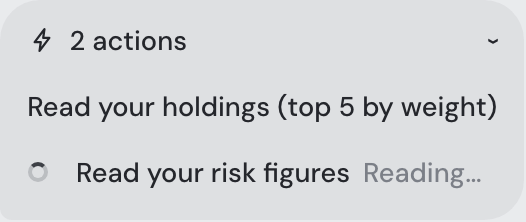
Actions: favourites & watchlist
| Action | Parameters | What it does |
|---|---|---|
toggle_favourite | symbol or symbols (array); on: true | false; list? — one of your list names | Stars or unstars one or several symbols; with list, adds to / removes from that named list (an unknown list is created on add; unstarring removes from every list). |
favourite_list | op: create | rename | delete; name; newName? (rename) | Manages the watchlist's named lists themselves. Deleting a list never unstars anything. |
Actions: simulation
| Action | Parameters | What it does |
|---|---|---|
whatif | symbol; side: buy | sell; exactly one of quantity, amount (cash, in your display currency — also accepted under the deprecated name amountEur, never both at once), fraction (0–1 of the position) | Simulates a trade in the what-if card ("sell half my Tesla" → fraction: 0.5). |
dca_goal | goalAmount; targetYear | targetMonth ("YYYY-MM") | targetDate ("YYYY-MM-DD"); assets? — symbols replacing the plan's list | Runs the Future simulator's goal seek: what to invest to reach the goal by the target. |
set_simulation | At least one of: horizonMonths? (1–360); lookbackMonths? (6–240); mode? (dca | goal | none); assets? ([{symbol, amount?, days?}], replaces the plan's rows); sells? ([{amount, days?}], or false to turn periodic selling off); benchmarks? (chart benchmark keys); diversification? (overlay on/off) | Adjusts the Future simulator's projection. |
backtest_trades | interval?: {unit: months | days, value} (monthly by default); weights? — criterion weights 0–100; transferPolicy?: strict (default) | cashEquivalent | Runs the recommended-trade backtest: last year’s trade-plan recommendations replayed on the Simulation tab’s Historical mode, from dated prices and filed reports only — today’s settings applied in hindsight, not the ones you had then. The answer quotes the actual and passive results, the coverage and the transfer policy. It places no orders and changes no setting. |
Actions: trades & taxes
The tax actions answer with illustrative orientation, never tax advice:
| Action | Parameters | What it does |
|---|---|---|
set_asset_target | name — a symbol; pct 0–100 (0 removes) | Sets one allocation target the trade recommendations pull toward, like ⚙ Settings → Trades. |
set_sector_target | name — a sector label; pct 0–100 (0 removes) | Same, for a sector target. |
tax_free_summary | symbol? — narrows to one asset | Fetches the current tax-lot summary (tax-free sellable value, next time-test maturity, YTD proceeds vs the small-sale limit) without changing tabs. |
sell_plan | amount — how much to raise, in your display currency; symbol? | Runs the Sell optimizer: which open lots to sell for the lowest estimated tax. |
add_manual_lot | symbol; date "YYYY-MM-DD"; qty; unitCostEur — the cost per unit, genuinely in EUR here (the app converts it at the lot’s own date); source?; note? | Adds an opening-balance tax lot for purchases predating your uploaded history. |
transfer_action | symbol; op: confirm | dismiss | undo | Settles a suspected inter-account transfer on the Taxes tab — all three reversible. |
Actions: adding & editing data, notes
| Action | Parameters | What it does |
|---|---|---|
add_manual_asset | name; date "YYYY-MM-DD"; price; currency?; apy? (percent per year); group? | Adds a manually tracked asset (real estate, physical gold…) — the assistant asks for missing required fields first. group is the named group it joins — one you have, or a short new name the assistant picks; without it, the first group. |
add_market_asset | symbol (exact ticker) or query (words to resolve); quantity; date? (defaults to today); price? (defaults to that date's market close); group? | Adds a market-priced position without a broker export — anything the market-data feed can price. Ambiguous names come back as candidates to pick from. Several adds in one reply share a single portfolio recalculation. group works as for add_manual_asset; positions added together from one brokerage share one. |
edit_asset | symbol (ticker), name or id (from an ambiguity answer); any of quantity? (the new total; market-priced only), date? "YYYY-MM-DD", price? | Edits an existing hand-added asset under ⚙ Settings → Data — only the named fields change. price is the per-unit acquisition price for a market-priced asset (a never-typed one follows a date change to that date's close); for a manually tracked asset it is the value at the acquisition date, compounded from there. Several edits in one reply share a single recalculation; broker-imported holdings are not editable this way. |
toggle_asset | symbol, name or id; on: true | false | The include/exclude tick on a hand-added asset's ⚙ Settings → Data row — takes it out of the portfolio (or back in) without deleting it. A bare symbol switches every lot of it; an id picks one. |
toggle_account | name — exact, else a fragment that fits one source; on: true | false | The same tick for a whole data source — an uploaded export or a connected account (equivalent to set_setting's source_enabled). A fragment that fits several sources comes back naming them. |
sync_connector | name? — an account name, loosely matched; omitted syncs every connected one | Pulls fresh data now from a directly connected exchange/broker, like its Sync button. Runs in the background; CSV uploads are not connections. |
add_note | text — up to 500 characters | Saves a standing investing note 📝 (up to 20). |
save_memory | text — up to 300 characters | Saves one concise assistant memory 🧠 (50 kept — the oldest rolls out). The assistant also uses it on its own after a non-trivial answer. |
Actions: social
These need a signed-in account with Social switched on; a friend's figures are always relative (percentages and ratios, never money amounts):
| Action | Parameters | What it does |
|---|---|---|
friend_portfolio | handle; brief?: true for the short form (used when fetching several friends at once) | Fetches what one friend shares — allocation, holdings by weight, performance, risk — for the assistant's answer, without leaving your tab. |
group_portfolio | group: friends | investors; weighting?: equal | aum (investors only — weighted by each fund’s filed equity) | Reads what the room holds — your friends’ or your followed investors’ combined holdings — beside yours: the gap is your weight minus the group’s, in percentage points. Friends are equal-weighted; the investor group needs Pro. Members whose data cannot be read are left out, and the 13F caveats come with the answer. |
super_investor_portfolio | name — an investor on the roster | Reads a Super Investor’s latest SEC 13F portfolio — holdings by weight, sectors, the quarter’s new / added / trimmed / sold-out positions and an approximate return. Only for an investor you follow; the answer always says what a 13F is not: quarterly, up to ~45 days old, US long positions only, the return approximate. A name not on the roster comes back with the roster. |
follow_super_investor | name; off?: true to unfollow | Follows (or unfollows) an investor on the roster — one-way and reversible, nothing to approve. The free plan follows two; past that the answer names the Pro upgrade. |
social_feed | limit? 1–10 | Reads the friends' feed (posts, attachments, reactions), newest first, from any tab. |
social_requests | — | Lists pending incoming and outgoing friend requests. Read-only by design: answering a request happens on the Social tab, never in chat. |
publish_snapshot | — | Pushes an updated snapshot to your friends now. Publishing is otherwise automatic, and an hourly publish cap applies. |
Actions: settings & appearance
| Action | Parameters | What it does |
|---|---|---|
set_theme | mode: dark | light | auto | Switches the color theme. |
simple_view | on?: true | false; cards? — the full list, in order, from value, cash, pl, fundamentals, chart, heatmap, allocation, risk, income, events, holdings (one of the two at least) | The Portfolio tab's Simple view: switches it on or off and/or arranges its cards — the same switch and list as ⚙ Settings → General. cards is always the whole list in the wanted order (the assistant knows the current one while the view is on, so “add the risk card” is that list plus risk); on alone flips the switch and keeps the list. Off leaves the full page and never touches another tab. A show_card for a card the view hides is refused with the list to send instead. |
set_currency | code — one of the 30 supported display currencies (USD, EUR, GBP, CZK, …) | Switches the display currency; the portfolio rebuilds and the dashboard refreshes in place. It also re-values the trade plan (⚙ Settings → Trades: Invest, Min order, Sell, Min sale) at the current rate — the plan is stored without a currency of its own, so a bare switch would restate 10 000 CZK as 10 000 USD — and the reply names both amounts ("Invest 10,000 CZK → 480.28 USD"). No exchange rate available refuses the whole switch rather than restating the plan; asking for the currency already in use is a no-op; the two tax thresholds carry their own currency and are left untouched. Refused while ⚙ Settings is open with unsaved edits, whose staged plan would overwrite the converted one. |
set_model | model — an id from the current provider's model list; fast?: true targets the fast slot | Switches the conversation model (or, explicitly asked, the fast model). |
set_setting | key, value, source? — or a settings array applying several atomically. Keys: quote_refresh_minutes (a ladder, not a range: 15, 30, 60, 120, 240, 480, 720 or 1440 minutes), context_trade_months (0–24), context_sections (an object of true/false over strategy, notes, memories, macro, recentTrades, events, favourites, news, tradesDigest, docs, portfolio — which parts of the assistant’s context ride every message, overlaid on the saved choice; “always send my news” is {news: true}), proactivity (off | minimal | active), strategy_text, strategy_horizon_years (1–50), strategy_risk (low | medium | high; like the ⚙ Risk selector it swaps a thesis that is empty or still one of the presets for that level’s preset, keeps one you wrote yourself, and reports which it did — in the app’s chat and from a connected assistant alike; a strategy_text in the same batch wins), buy_amount, buy_count (1–10, subject to eligibility and capacity), buy_min_order, and the independent sale amount sell_amount (0 = no sell plan), sell_count (1–10), sell_min_order, pairing_mode (fifo | optimize | optimizeYearly), time_test_years (0–10), crypto_time_test, crypto_time_test_from, small_sale_limit / exempt_gains_cap (the amount, in the threshold's own currency) with small_sale_limit_currency / exempt_gains_cap_currency (an ISO code — converts the threshold at today's rate; refused, not guessed, when no rate is available) and the _czk spellings of both (the same amount stated in CZK), tax_rate_pct (0–60), the eight trade_weight_… keys (0–100: quality, valuation, fair_value, analyst_upside, momentum, drawdown, dividend, group_consensus), buy_candidates_from (owned+favourites | owned | favourites — ⚙ Settings → Trades’ “Buy candidates from”: which universe the BUY side of the Trades recommendations is scored over; the sell side is always what you hold) with buy_candidates_list (a watchlist list by NAME, or all for the whole starred set — “only recommend from my WannaBuy list” is the two together in one batch), alert_move_rule and alert_drawdown_rule (the two ⚙ Settings → Alerts rule lists: a threshold percent plus an optional scope — all, an asset class or a ticker — and, for drawdowns, an optional days lookback the peak is taken over; 0 removes the rule), source_enabled (with source: the account name), and the Social switches social_enabled, social_presence, social_share_holdings / performance / allocation / risk / buy_plan / targets / plan_tier / platform / brokers / trade_events (signed-in accounts only) | Changes dashboard settings through the exact same staged-save path as ⚙ Settings' Save — out-of-range values are refused with the valid range named (and for the refresh cadence, which is a ladder rather than a range, the whole list of allowed steps), and a batch applies all-or-nothing. |
Actions that fetch data (market_lookup, price_on, docs_lookup, docs_search, search_assets, friend_portfolio, social_feed, social_requests, tax_free_summary, sell_plan, sync_connector, …) hand their result back to the assistant, which answers grounded in those numbers; when an action fails, the assistant reports the actual reason and answers textually — the guarantees above apply to every verb on this page.
Asking about several things at once. One question can run many of those lookups — eight companies to compare, or every friend's portfolio — and all their results travel back to the assistant in a single message with a size limit. When the whole batch would not fit, that space is shared out evenly rather than filled first-come: every company still comes back with its identity and its headline numbers (price, market cap, the ratios, the dates), and what gives way is the bulk inside the big ones — the news headlines and the SEC filing text — starting with the largest. Each result that lost something says exactly what, so the assistant tells you (“I have the quote for all eight, but the filings didn't fit”) instead of quietly answering from memory, and can offer to re-fetch the one or two that matter. Nothing is ever handed back half-written: if even that is not enough — hundreds of results at once — whole results are left out and the assistant is told how many.
Planner settings: use set_setting with max_company_weight_pct (null clears), allocation_mode (ratings/targets), or planning_targets (funds, crypto, stocks, cash). Batch a target mix with its mode; active percentages total 100%. Invest is new money; Sell is independent. Rules and example.
One-click reports ✨
Suggestion cards sit right below the assistant's opening message (dimmed, with a single "Assistant unavailable" line above the row, while disconnected). Clicking one posts the exact server-side prompt as your side of the conversation — a compact bubble with a "show full prompt" expander, so what you read is literally what the model receives — and streams the report into the chat, where follow-up questions build on it. Clicking again regenerates; a grey timestamp stub on the card jumps back to the report.
A card carries only its title — "✨ Generate Portfolio brief". What the report actually contains, including live numbers like your saved risk and horizon or the budget the buy plan will spend, is in the card's tooltip: hover anywhere on the card and it opens at the cursor, leading with the report's own sentence (the same one the table below gives) and closing with what a click does. Only what is actionable or a state stays printed on the card: the ⚙ Settings deep links, the last run's timestamp stub, the season's filing links, an error. Because the cards are half the height they used to be, two share a row wherever the pane is wide enough — the standard side dock, the narrowest floating window and the phone sheet all fit two, and one per line below that; the Learn card and the example questions underneath keep the whole width.
| Report | What you get |
|---|---|
| Portfolio brief | State of the portfolio, today's moves tied to actual news headlines, events ahead, major risks and watch items. |
| Strategy check | Your portfolio evaluated against your saved thesis, horizon and risk tolerance — an alignment score, what fits, what diverges, concrete sized moves to consider. Needs a saved strategy (the card deep-links to ⚙ Settings → Strategy). |
| Buy advice | Explains the current buy and sell orders, amounts and limits from Settings → Trades. Fewer orders and unspent money keep their plan reasons. Cached until the plan, strategy or month changes. |
| Earnings season digest | A seasonal card that appears only as an earnings season wraps — once ~3 of your holdings (or a quarter of a smaller portfolio) have reported within ~6 weeks. One report aggregates the whole season: beat/miss/in-line verdicts from reported-vs-expected EPS, guidance changes from the SEC filings, biggest surprises first, weighed by position size. The Events card shows a matching one-line season summary that generates it on click. |
Proactive tips
When connected, the assistant can comment as you work — star a stock and it might flag your existing concentration in that sector. Tune it with the Off / Minimal / Active slider in ⚙ Settings → Assistant (default: Active). Tips run on a compact context (~5× smaller than the chat's) plus a condensed digest of the conversation so far, so they fire fast (~1.5 s after your action, at most one attempt per 15 s) and never repeat what was already discussed.
A tip looks different from an answer to something you asked: it is the same bubble with a faint green wash, and it opens with a bold “Tip - …:” line saying why it appeared — “Tip - You looked at AAPL:”, “Tip - You opened the Trades tab:”, “Tip - You showed the S&P 500 benchmark:”. That line is written by the app from the action that set the tip off, not by the model, so it is always there and always true. The small arrow in the tip’s top-right corner, beside Copy, folds it down to that line and the start of its text, and opens it again; clicking an open tip’s text shows when it was written, as on any other message, and clicking a folded tip opens it. Tips also fold on their own so they never crowd the conversation: only the newest two tips are open, and every older one folds as soon as a newer tip arrives — however long the conversation below a tip grows, that alone never folds it. A tip you open again yourself counts as new: it stays open until two more tips have arrived, then folds like the rest. A tip you fold stays folded, and both choices are kept when the page reloads.

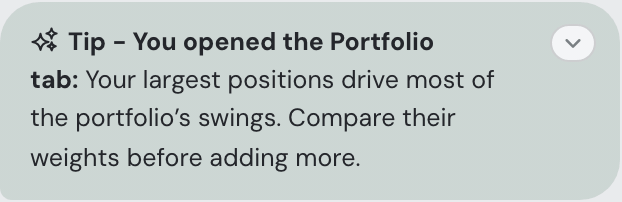
Investing notes 📝
Short, timestamped reminders you write for the assistant — "sell X before earnings", "when the FED raises rates, reallocate more into bonds". Edit them behind the always-visible 📝 pill next to the asset search in the topbar (it pins to the screen as you scroll, on every tab), or under ⚙ Settings → Strategy, where they live alongside your investing thesis: up to 20 notes of 500 characters each, newest first. You can also just ask the assistant — "add a note: watch my cash level this month" — and it saves the note itself. They travel with every chat message, proactive tip and ✨ report — a tip can point back to "your note from 12 Jul", Buy advice weighs them when drafting the trade plan, and Trades-tab candidates your notes mention get a small 📝 hint (the rule-based scores stay untouched). The assistant treats notes as your standing intentions: it weighs and references them, pushes back when your data argues otherwise, and never executes one on its own.
Assistant memory 🧠
The assistant also keeps its own notebook: concise memories saved across chats. After a non-trivial answer it can file a short line — phrases, terms and values, never prose ("worst PEG: INTC 3.1; advised trim") — recording what you asked or assumed and what it concluded; you can also just say "remember that I prefer dividend stocks". Every memory is stamped automatically with the situation it was saved in — the date, which accounts were loaded, and your overall portfolio value at that moment, nothing more — and the whole list travels with every chat message, so a new conversation picks up where the last one ended. The assistant reads those bracketed figures as historical, never as today's numbers. Up to 50 memories of 300 characters; when the list is full, the oldest rolls out to make room. Review them under ⚙ Settings → Assistant → View memories — a dialog just like the investing notes, where each line shows its stamp and can be edited in place or deleted (editing keeps the stamp: it describes the moment of saving). The Assistant memory switch beside the button (on by default) turns the whole feature off: nothing new is saved, the list stops travelling with your messages, and your saved memories stay put — still yours to review, edit or delete — until you switch it back on. Where notes are your standing intentions, memories are the assistant's record of what was discussed.
Skills — reusable custom instructions
Skills are Markdown files with standing instructions the assistant follows — output formats, focus areas, opening routines. Manage them under ⚙ Settings → Assistant → Skills: upload a .md file, click a skill's name to edit its text in a larger editor dialog, untick it to keep it without applying it, or ✕ to delete. Changes apply immediately (no Save needed), and skills are stored with your other session data — they survive restarts, ride the browser backup, and move into your account when you sign up. Limits: up to 10 skills, 16 KB each, 40 KB of enabled skill text in total. The chat's Context window lists your skills as their own section with a token estimate. A skill can also tell the assistant when to act, naming any of its dashboard actions from the complete action reference by name — show_card, sort_table, docs_lookup and the rest. Skills customize behavior — they can never override the assistant's safety and grounding rules, and never make it present financial advice.
Targeting surfaces with applies-to
The first line of a skill may name which assistant surfaces it applies to — for example applies-to: chat, tips. Parsing is lenient (Applies To =, an optional --- fence around the line, any comma or space separation all work); the line itself is stripped before the text reaches the model. Without a header, a skill applies to the chat only.
| Target | Where the skill's text is injected |
|---|---|
chat | The conversation — every chat message's system prompt (the default). |
tips | Proactive tips — the compact context behind the assistant's volunteered remarks. |
reports | The one-click ✨ reports: Portfolio brief, Strategy check, Buy advice and the seasonal Earnings season digest. |
appStart | The first exchange of a fresh chat session — the assistant's opening reply carries the skill as an app-start directive (clearing the conversation starts a fresh session). |
Example skills
An output-format skill for the Portfolio brief (save as brief-format.md):
applies-to: reports
When generating the Portfolio brief, always format the output like this:
- open with a single-line verdict (calm / watch / act), then the sections
- every number in bold, every percentage with one decimal
- close with "Next review:" and a suggested date
A tips-behavior skill:
applies-to: tips
When generating tips, include the concrete EUR amount at stake whenever
you mention a position, and prefer tips about concentration risk over
tips about daily price moves.
An app-start skill — the assistant's first reply of each session honors it:
applies-to: appStart
On app start, list my top 5 holdings by value with their last daily moves,
one line each, before anything else.
A skill that references actions by name — the assistant performs them when the skill's condition is met:
applies-to: appStart
On app start, use the show_card action with card "allocation" and comment
on the two largest weights. Then sort the holdings by this year's return
(the sort_table action on the holdings table, column returnPct, descending).
Four ready-made investing skills sit directly in ⚙ Settings → Assistant → Skills behind "Need inspiration?" — dividend-focus (income-first advice), value-discipline (valuation guardrails on every buy), risk-guardrails (concentration warnings) and opening-checkin (a recap when the app starts). One click adds them; edit the text afterwards to make them yours.
Your own agent — Pro
Connect your existing Codex, Claude Code, the Claude app, ChatGPT — or Siri, through the MCP Agent iPhone app — to your portfolio with MCP, the connection protocol shared by these clients. You need a paid Pro Fortunest account and your chosen agent installed and signed in. No provider API key is needed for the Fortunest connection.
In Settings → Assistant, click the External agents button in the connection subpanel beside Assistant overall. The compact list below it shares the same connections and Revoke controls as the detailed view. The button opens the connection dialog above Settings: the connection status, your connections with their permissions and expiry, their last-active and connected times and client-id prefix in full (each with Revoke), connection-wide permissions and the synchronized-portfolio controls. There, click Connect to agent to open the setup dialog, then choose your client for copyable instructions. Connection help stays collapsed until you expand it. Follow the web steps below for the hosted portfolio, or the desktop steps for the installed Fortunest app. Keep a dashboard open when asking an agent to control it.
For a short first-connection check, plan boundaries and the desktop hosting requirement, see connect an MCP agent to your portfolio.
The dashboard reacts immediately. Since 12.09.2026 an open Fortunest tab holds a live connection to the server, so an agent’s work shows up the moment it happens: the action it asked for runs in the tab, and the approval card and the agent-activity list update at once, instead of waiting for the tab’s next check a few seconds later. Nothing extra crosses the connection — it only says “there is something new”, and the tab then reads it the way it always has. If the connection cannot be opened (an office network or a proxy that holds streamed responses back), the tab falls back to checking on its own timer and everything still works, just a little later.
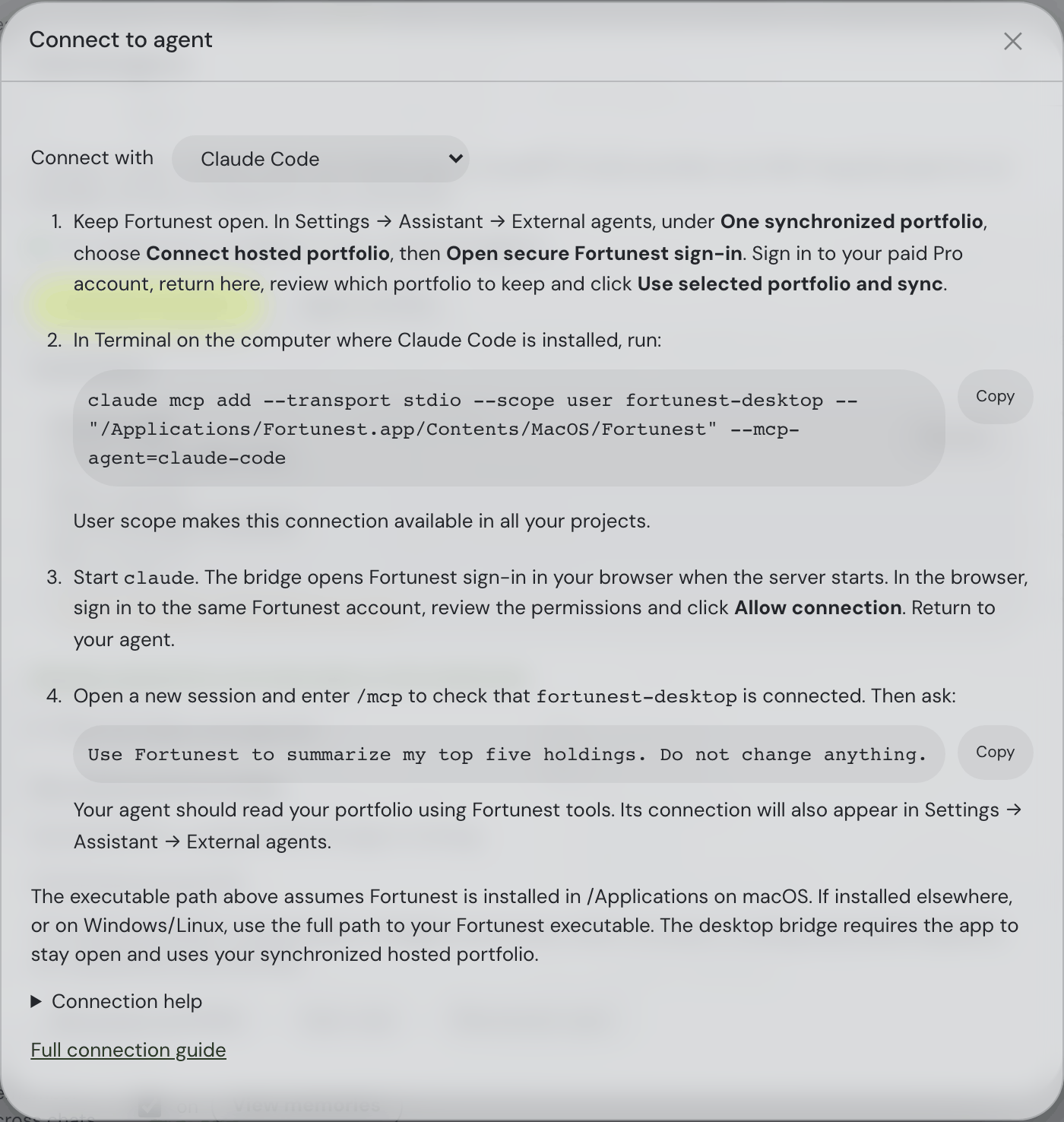

Codex app — hosted portfolio
- Sign in to your paid Pro account in Fortunest.
- In Codex, open Settings → Plugins → MCPs. Use Add to add an MCP server. Set the name to
fortunest, choose Streamable HTTP, and fill in the fields below.- URL:
https://app.fortunest.ai/mcp - Bearer token env var: Leave blank.
- Headers: Leave blank.
- Headers from environment variables: Leave blank.
MCP_BEARER_TOKENis placeholder text; do not type it in. For another Fortunest deployment, copy its endpoint from External agents Settings. - URL:
- Click Save, select Restart if offered, then Authenticate beside the server.
- In the browser, sign in to the same Fortunest account, review the requested permissions and click Allow connection. Return to Codex.
- Return to Codex’s MCPs list and check
fortunest, then start a new task and try the read-only check below.
https://app.fortunest.ai/mcp. Leave Bearer token env var, Headers and Headers from environment variables blank. The gray MCP_BEARER_TOKEN, Key and Value text shown here is placeholder text in empty fields. Save any changes, then return to the MCPs list and select Authenticate for browser sign-in. Click the image to enlarge it.Couldn’t connect to fortunest: open the gear beside fortunest in Codex’s MCPs list, verify the URL above and clear any values you entered in the bearer-token or header fields. Save changes, restart if offered, then select Authenticate and complete browser sign-in. The enabled toggle alone does not confirm a connection. If the details say invalid_redirect_uri or “Only allowlisted native loopback callback paths are accepted”, the Fortunest server needs a Codex callback compatibility update. Retry Authenticate after that server update; a token or header will not fix it. For other errors, note the exact message from Codex or the sign-in page.
See the official Codex MCP documentation for connection and OAuth configuration.
Claude app — hosted portfolio
Claude on the web, Claude Desktop, Claude mobile and Cowork share one connector setup, brokered through your Claude account. Fortunest registers Claude automatically (dynamic client registration) and accepts Claude’s published callback https://claude.ai/api/mcp/auth_callback; there is nothing to register yourself.
- Sign in to your paid Pro account in Fortunest.
- In Claude, open Settings → Connectors (on Pro/Max: Customize → Connectors → +) and choose Add custom connector. Fill in the fields as follows:
- Name:
Fortunest - Remote MCP server URL:
https://app.fortunest.ai/mcp— exactly, without a trailing slash. - Authentication: Always required (Claude detects this).
- OAuth client: No client ID — register one automatically. Fortunest does not support Anthropic’s hosted client metadata, and you have no client ID of your own to enter.
- Additional request headers: none.
- Advanced → Transport: Streamable HTTP.
- Name:
- Select Connect beside Fortunest. In the browser, sign in to the same Fortunest account, review the permissions and click Allow connection. Return to Claude.
- Start a new chat, open the tools menu (+), check that Fortunest is enabled and try the read-only check below.
Members of a Team or Enterprise organization need an owner to add the connector under organization settings; free Claude accounts get one custom connector. See the Claude custom connector guide.
ChatGPT app — hosted portfolio
Custom MCP connectors need ChatGPT’s Developer mode (Plus, Pro, Business, Enterprise and Edu plans; a workspace owner may have to allow them). Fortunest registers ChatGPT automatically and accepts its published callbacks.
- Sign in to your paid Pro account in Fortunest.
- In ChatGPT, open Settings → Apps & Connectors → Advanced settings and turn on Developer mode. Older versions keep the toggle under Settings → Connectors → Advanced or Settings → Security.
- Back in Apps & Connectors, choose Create and fill in:
- Name:
Fortunest - Description: optional.
- MCP server URL:
https://app.fortunest.ai/mcp— exactly, without a trailing slash. - Authentication: OAuth. Leave OAuth client ID and client secret blank.
- Name:
- ChatGPT opens Fortunest sign-in; if it does not, select Connect beside Fortunest. Sign in to the same Fortunest account, review the permissions and click Allow connection. Return to ChatGPT.
- Start a new chat, open + → More (or Developer mode), enable Fortunest and try the read-only check below.
See Developer mode and MCP apps in ChatGPT.
Discuss your portfolio in voice mode
Connect Fortunest using the Claude or ChatGPT setup above. In Claude, you can discuss your connected portfolio in voice mode. For ChatGPT Live, fetch a portfolio summary in a text conversation first, then switch to voice in the same chat to discuss that snapshot. Return to text when you need fresh portfolio data: Live does not currently call connected apps.
Checked 14 September 2026 against Claude’s voice guide and ChatGPT’s voice guide. Client availability and plan requirements can change. These are spoken conversations in the external clients; Fortunest’s dashboard actions remain typed chat commands.
MCP Agent on iPhone — Siri and Shortcuts
MCP Agent (Think Define Create; iOS 26) is an independent iPhone app that connects remote MCP servers to chat, voice, Siri and Shortcuts. Fortunest registers it automatically; the app finishes sign-in through its own app link (a private-use URL scheme the phone routes to the app), which the Fortunest server accepts beside loopback and hosted callbacks. Siri runs a Shortcut built from the app’s Ask MCP Agent action and speaks what Fortunest returns.
- Sign in to your paid Pro account in Fortunest.
- In MCP Agent, tap + to add a server and fill in:
- Name:
Fortunest - URL: for the app’s default on-device engine (Apple Intelligence, Siri) the small edition
https://app.fortunest.ai/mcp/mini; with your own Anthropic or OpenAI key under the app’s Settings → Engine, the full editionhttps://app.fortunest.ai/mcp. Exactly as written, without a trailing slash. - Enabled: on.
- Authentication → Method: OAuth 2.1.
- Client ID and Client Secret: leave blank; Fortunest registers the app automatically.
- Custom Headers: none.
- Name:
- Tap Fortunest in the server list and start its sign-in. iOS opens Fortunest in a sign-in sheet: sign in to the same account, review the permissions and tap Allow connection. iOS returns you to MCP Agent by itself.
- Open Chat (or Talk to the agent for voice) and try the read-only check below. Then build the Siri shortcut described below and say its name.
Apple Intelligence must be on, and downloaded. The app’s default engine is the iPhone’s on-device model, so Chat and Siri answer only once iOS Settings → Apple Intelligence & Siri shows the Apple Intelligence switch on and the note Support for Apple Intelligence is downloading has gone; until then the app prints Apple Intelligence is not enabled in red under your message. The switch appears only when the iPhone language and the Siri language are the same supported language — for example English (US) for both, chosen under Settings → General → Language & Region — and the download needs Wi-Fi and a charged battery. Your own Anthropic or OpenAI key under the app’s Settings → Engine skips the on-device model; with a key, use the full edition of the endpoint.
Two editions of the endpoint. https://app.fortunest.ai/mcp is the full Fortunest tool set — 88 tools, results of up to 8 000 characters — for agents with a large context window: Claude, ChatGPT, Codex, Claude Code, or MCP Agent with a cloud key. https://app.fortunest.ai/mcp/mini is the small edition for on-device models: the same sign-in and permissions (a connection to one is valid for the other), nine read-only tools — summary, top holdings, one holding, trade plan, allocation, risk, upcoming events, recent trades, watchlist — whose listing fits in about 600 tokens and whose answers are a few spoken sentences of at most 700 characters — company names rather than tickers, currency words rather than codes, and for the trade plan one reason per order, taken from the strongest criterion in its scoring (the same criteria the Trades tab weighs). Nothing in the small edition changes the portfolio, and every call still appears under Settings → Assistant → External agents. Apple’s on-device model holds 4 096 tokens for the prompt, the tool list and the answer together, so the full edition answers Exceeded model context window size there; edit the server in MCP Agent and switch its URL to the small edition. Right after a Fortunest restart the engine is cold and a first read can take close to a minute, longer than the app waits: the small edition then answers still loading your portfolio, ask again in a minute and keeps building in the background, so the retry is fast. Connecting the app also starts that build early.
Siri answers with the engine you chose in the app’s Settings → Engine — on-device, or your own Anthropic or OpenAI key; Fortunest needs neither. For spoken answers set iOS Settings → Apple Intelligence & Siri → Siri Responses → Prefer Spoken. Siri runs a Shortcut by its name. In the Shortcuts app add the Ask MCP Agent action with your question typed in — or set to Ask Each Time for a spoken prompt — add Speak Text pointed at its result, name the shortcut the phrase you want (My trade plan, Ask Fortunest) and run it once by hand so Siri learns it. Then say “Hey Siri, my trade plan”. Saying “Hey Siri, Ask MCP Agent” with the question in one breath does not reach the app, and without Speak Text Siri speaks only the first line and shows the rest as a card. The app’s Settings → Custom phrases builds the same kind of shortcut. The app’s free tier limits how many servers you can add and its own Pro lifts that — a separate subscription from Fortunest Pro. If sign-in fails with invalid_redirect_uri, the Fortunest server predates iPhone app support; retry after it is updated. See the MCP Agent support page.
Codex CLI — hosted portfolio
- In Terminal on the computer where Codex CLI is installed, run:
codex mcp add fortunest --url https://app.fortunest.ai/mcp codex mcp login fortunest - Complete the Fortunest browser sign-in and Allow connection step above.
- Start a new
codexsession, check/mcpand try the read-only check. Codex app and CLI share MCP configuration on the same host; you only need one setup method.
Claude Code — hosted portfolio
Fortunest advertises supported external-agent permissions during discovery, so Claude Code can request them for browser consent. The fixed callback port keeps the registered redirect URL consistent across sign-ins.
- In Terminal where Claude Code is installed, run:
User scope makes the server available across your projects.claude mcp add --transport http --scope user --callback-port 49310 fortunest https://app.fortunest.ai/mcp - Start
claude, enter/mcp, select fortunest and follow its authentication prompt. - In your browser, sign in to the Fortunest account containing your portfolio. Review the permissions and click Allow connection.
- Consent, sign-in and connection confirmation stay in the left panel above Settings, leaving Assistant chat accessible. If a fresh sign-in is required, Fortunest opens the sign-in form automatically and keeps your pending request through password, provider and two-factor authentication. After sign-in, review and allow the connection. The agent callback opens in another tab; Fortunest shows success only after the agent completes authentication. Use Continue to agent if your browser blocks the callback tab. If the request expires, restart authentication from the agent.
- Return to Claude Code, open a new session and check
/mcpbefore trying the read-only check.
Installed Fortunest app — desktop bridge
- Open Fortunest and keep it running. In Settings → Assistant → External agents → One synchronized portfolio, click Connect hosted portfolio, then Open secure Fortunest sign-in. Complete sign-in, return to Fortunest, review which portfolio to keep and click Use selected portfolio and sync. This choice replaces one dataset; a backup preserves its previous inputs.
- Use a STDIO MCP server named
fortunest-desktop. In Codex app’s Settings → Plugins → MCPs, use Add to add an MCP server, choose STDIO, and enter the command/Applications/Fortunest.app/Contents/MacOS/Fortunestand the argument--mcp-agent=codex, then Save and select Restart if offered. Alternatively, use the command for your client in Terminal:codex mcp add fortunest-desktop -- "/Applications/Fortunest.app/Contents/MacOS/Fortunest" --mcp-agent=codex
These paths assume a macOS installation in /Applications. On Windows/Linux, or with a different installation folder, substitute the full path to your Fortunest executable.claude mcp add --transport stdio --scope user fortunest-desktop -- "/Applications/Fortunest.app/Contents/MacOS/Fortunest" --mcp-agent=claude-code - Start a new Codex task,
codexsession orclaudesession. When the MCP server starts, the bridge opens browser sign-in. Use the same paid Pro account as the synchronized desktop portfolio and click Allow connection. The bridge handles authentication; do not runcodex mcp loginfor this STDIO connection. - Enter
/mcpin your agent to checkfortunest-desktop, then try the read-only check. The bridge accesses your synchronized hosted portfolio and requires the desktop app to remain open.
Check the connection
Ask your agent:
Use Fortunest to summarize my top five holdings. Do not change anything.It should call Fortunest tools and return your portfolio’s holdings. Its grant also appears in Settings → Assistant → External agents, where you can revoke it. A saved MCP configuration alone does not mean authentication has succeeded.
If connection fails
Claude Code: Redirect URI not registered or invalid_scope
A saved callback URL can differ from the one used for sign-in, or the authorization request may omit permissions ("Explicit known permissions required"). Hosted Claude Code setup uses fixed callback port 49310. If you already added Fortunest, exit the pending authentication with Esc and exit Claude Code, then run these commands in Terminal to reset the user-scoped connection with explicit read-only permissions:
claude mcp logout fortunest
claude mcp remove --scope user fortunest
claude mcp add-json --scope user fortunest '{"type":"http","url":"https://app.fortunest.ai/mcp","oauth":{"callbackPort":49310,"scopes":"context:read portfolio:read dashboard:read"}}'
claude mcp login fortunest
Complete browser sign-in and restart Claude Code. This recovery connection can read portfolio and context but cannot change the portfolio or control the dashboard. These commands replace the user-scoped server entry; if you customized it or configured a project/local entry, update that entry instead. Port 49310 must be available. Choose another available port if needed, keep it fixed and repeat the reset. This recovery applies to hosted HTTP connections; the desktop STDIO bridge uses the reconnect steps below.
- Claude app or ChatGPT: connection or registration fails: keep the URL exactly
https://app.fortunest.ai/mcpwithout a trailing slash, use OAuth sign-in without your own client ID or secret, and leave every header empty. Fortunest registers the app itself and does not support hosted client metadata. Aninvalid_redirect_urierror means the Fortunest server predates hosted-app support; retry after it is updated. Aprivate_key_jwterror means the app tried a signed client key; choose plain OAuth sign-in without one. - MCP Agent on iPhone: sign-in fails: keep the URL exactly
https://app.fortunest.ai/mcp, choose OAuth 2.1 with Client ID and Client Secret blank and add no header.invalid_redirect_urimeans the Fortunest server predates iPhone app support (the app’s callback is an app link, not a web address) — retry after it is updated; a token or header will not fix it. If Siri stays silent, set Siri Responses to Prefer Spoken and check the engine chosen in the app. - Add custom connector or Developer mode is missing: Claude free accounts get one custom connector and organization members need an owner to add it; ChatGPT custom connectors need a Plus, Pro, Business, Enterprise or Edu plan.
- Command not found: install or update your chosen CLI and reopen Terminal. The Codex app setup works without the CLI.
- No browser window: retry Authenticate in Codex,
codex mcp login fortunestin Terminal, or authentication under Claude Code’s/mcp. Open the sign-in link manually if your client offers one. For the desktop bridge, keep Fortunest open and restart the MCP server. - Sign-in or consent expired: sign in to Fortunest again and retry authentication. New grants require a recent sign-in; they expire after 30 days and can be revoked earlier.
- A connected agent stops receiving a response: if its access expires or is revoked, Fortunest ends the response without sending further private data. Reconnect or authenticate again in the agent. Check Agent activity before repeating an interrupted change; the interruption does not mean it is safe to apply the change twice.
- Installed Fortunest app with the Claude app or ChatGPT: the hosted apps connect to your synchronized hosted portfolio at
https://app.fortunest.ai/mcp, not to the desktop bridge on your computer; finish the hosted-portfolio sync first. - Desktop grant expired or revoked: temporarily add
--mcp-reconnectto the bridge arguments, restart the server and approve fresh consent. Remove that argument afterwards. - Connected but empty or wrong portfolio: confirm you approved the correct account and, on desktop, completed synchronization.
- Server already exists: edit the existing entry in your client rather than adding it again.
- Agent access disabled: the hosted server must enable external-agent access. On desktop, finish connecting the hosted portfolio first. Free accounts cannot use MCP or portfolio synchronization.
Tool list outdated: a connected client keeps the list of Fortunest tools it fetched when you added the connector, so a Fortunest update can leave it calling an older version; Fortunest tells clients that subscribe to server events to refetch it, and marks any connection still holding the older list Tool list outdated — reconnect in the client in Settings → Assistant → External agents until it does, which you clear by reconnecting Fortunest in that client.
Client reference: Codex MCP documentation, Claude Code MCP documentation, Claude custom connectors and ChatGPT Developer mode.
What you share and approve
Your connected agent can use the Assistant’s tools, calculations and context, including sent conversations, attachments, notes, memories, skills and reports. It can control a live dashboard and present attributed results. A command succeeds only when that dashboard acknowledges success. Failed actions remain marked failed in Agent activity.
Which tab. Every open Fortunest tab of your account is a dashboard the agent could drive, and with several open they used to look identical. Each tab now tells the server whether it is on screen and focused, which tab of the app it shows and what kind of browser it is, so the agent’s dashboard list reads Fortunest · Explore tab · Chrome · macOS · on screen rather than four times “Fortunest”. A command that names no tab goes to the one that stands out — the only tab open, the only one on screen, or the one you last clicked Approve in — and is refused up front, before any approval is asked for, when no tab stands out or the named one is gone. Approving an action delivers it to the tab you approved it in: the click is the one thing that proves which tab you are looking at, and that tab is remembered for the connection’s later commands. A closed tab drops off the list at once instead of lingering for most of a minute, and the agent’s tool result waits a few seconds for the tab’s own answer — “opened”, or why not — instead of reporting queued and leaving the refusal to a toast only you could see. You can see the same thing from your side: under the connection status in Settings → Assistant → External agents (and at the top of Agent activity) one line says An agent is driving this tab, or names the other one — An agent is driving another tab (Explore · Safari) — and says where an idle connection’s next command would arrive. An approval request appears in every open tab, so a request to move the dashboard now carries Will run in this tab: the tab you approve it in is the one that moves. Actions that only change data say nothing, because they belong to no tab.
Completed calls from connected agents also appear in Assistant chat. Consecutive calls share one flash-marked bubble whose header folds the whole list, for example Codex: read dashboard information. The agent’s own name leads the sentence, typed in its own colour and followed by a colon. When the call named an asset, the row says which: Codex: read one of your positions: NVDA, or a whole list after the colon — read the latest news: WDC, SNDK, MU, UBER, NFLX +2 more (five tickers, then a count of the rest). The tickers come from the call’s own arguments; nothing else about them leaves the disclosure. A run of eight or more actions carries a small round Collapse actions button at the bottom right of the open list — it stays within reach while you scroll the list and folds it back to its “⚡ N actions” chip. Above each action sits the same date-and-time line a generated reply shows, always visible without clicking. The connection label joins that line only when it differs from the app name, so the agent is never named twice; if two connections have the same name and label, a short connection suffix tells them apart there. Expand it to load the request and result. Failed, declined and undone calls say what happened; routine status checks stay out of the conversation. These bubbles work even without a chat model. A command the agent sends to this dashboard — sorting a table, opening an asset, showing a card — appears the moment the tab has run it: acknowledging the command is what completes the operation, so the page reads its agent status again right then rather than waiting for its next routine check. The live connection described above tells it the same thing and usually first; this read is the tab’s own, so the bubble still arrives with the action on a network that cannot keep that connection open. The server keeps the latest 100 calls whose details are retained (up to seven days); out of that pool chat shows the ones made during the conversation you are in: a new conversation — a fresh browser tab, Reset conversation, or the new session a sign-in brings — starts with no bubbles at all, while reloading the page keeps the running conversation’s. The times are the server’s, reconciled against your browser’s, so a computer clock a few minutes off neither hides nor repeats a call. Agent activity under Settings → Assistant lists the most recent operations.
Several agents can connect to the same portfolio. Their app name comes from the connection setup and their connection label from the connection you approved. New connections must supply an app name; older unnamed clients show External agent. These names identify the connection for display and are not verified product identities. Only one agent controls a particular dashboard at a time.
Open Agent activity in Settings → Assistant → External agents while an external agent is connected. Integrated Assistant chat and desktop synchronization alone do not enable this panel, and no agent banner appears at the top of dashboard pages. Integrated chat actions on web and desktop are automatically approved, with no additional approval dialog. Completed documentation and data lookups return their results to the assistant so it can answer in the same conversation without another message from you. External activity excludes integrated chat history. Pending approvals appear at the bottom of the AI Assistant conversation as compact cards. Expand Details to review the exact arguments and portfolio revision. Approve once, reject, allow matching bounded actions, or choose All actions from this connection for 1 hour or 8 hours. Connection-wide approval includes sensitive actions within the connection’s existing OAuth permissions and applies only to that connection. A new duration replaces its previous window; expiry and revocation are visible in chat and Settings. Later portfolio changes can still invalidate a proposal or its undo.
Agent activity stays within the left panel above Settings, leaving the Assistant chat available. Entries start collapsed with action, status and local timestamp. Click an entry to reveal its arguments, result or error and approval, resume or undo controls.
When an action runs without asking you again — because one of those permissions was still open — the agent is now told which permission let it through and when that permission expires: the connection-wide window, or the bounded permission for that action with the exact arguments it covers. An action you approved yourself carries no such note, so the two can never be confused, and a permission that has expired in the meantime sends the action back to you for approval rather than being trusted from when it was submitted.
New agent results show their title and the connected agent’s name with Open result. Retained results can be opened again in Agent activity after reloading. They remain separate from your integrated Assistant conversation.
External changes refresh open notes, memories, skills, favourites, followed investors and settings. Completed external syncs update connection status and activity counts in open Data settings. Unsaved settings stay in your draft, with a notice when saved values changed elsewhere. Resetting a conversation revokes access to the attachments shared through it; sent attachments renew while the dashboard stays connected.
Large context sections and group holdings are available in pages, so the agent can retrieve additional data without exceeding a response limit. Your portfolio context is also offered as named sections — the recommended trade plan, your holdings, your watchlist and the rest — so a connected agent asked for your recommended trades reads them in a single call instead of paging through everything. Every section name carries a one-line description of what it answers, so the agent picks the right one instead of reading everything first: the Trades tab alone is offered as four separate names — the trade plan, the buy candidates, the sell candidates and the tax-lot orientation. Asked “what are my recommended trades?”, a connected agent can also call one dedicated tool that returns just the plan: the buy and sell orders, what each costs, the net of the two and why the planner stopped where it did. Amounts are in your display currency. Nothing here places an order. That answer now carries the numbers and a pointer to the manual rather than the standing explanation of how the plan is built, which used to be repeated on every call and was longer than the orders themselves — an agent that wants the explanation asks for it, and gets exactly the same text. Every answer is likewise the outcome of what you asked for rather than a copy of the request, so a conversation with an agent spends its room on your portfolio instead of on bookkeeping. Connector progress never includes API-key identifiers or credentials.
After a Fortunest update, reconnect the connector to see new tools. Your agent stores the list of Fortunest tools it was offered when it connected, so a newly added tool or section stays invisible until you reconnect Fortunest (or refresh its tools) in the Claude app, Codex or ChatGPT.
The desktop app must be running. Connect its hosted portfolio in the same settings section; review both datasets and choose which one to keep. A backup preserves replaced inputs. Web and desktop then synchronize one portfolio, pause on conflicting edits, and queue automatic social publication. Successive edits share a background publication; a pending publication is not yet visible to friends.
Agent result text cannot execute actions. Inline charts cannot fetch remote resources. Connecting an agent never exposes your provider API keys or Fortunest login credentials. Review what you share with your chosen agent provider.
Smart search that uses Fortunest’s AI provider needs spending permission and an approved action. Ordinary asset lookups never silently trigger paid AI.
Completed action details and Undo are retained for 7 days, with minimal status history for 90 days. Interrupted actions require review and are never automatically retried. If no external agent is connected, recovery controls appear in Settings → Assistant. For external agents on desktop, review approvals and Undo in the hosted app.
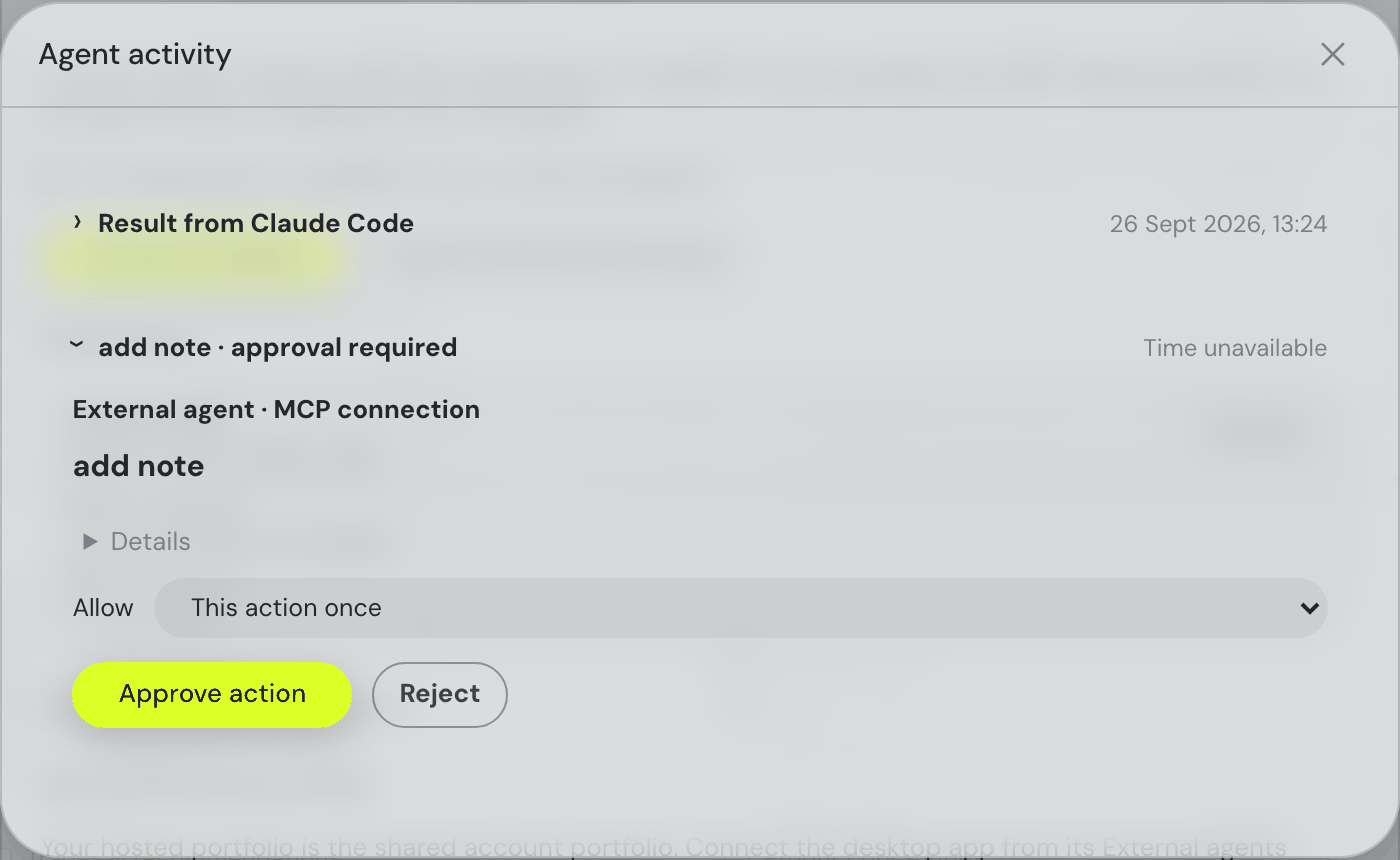
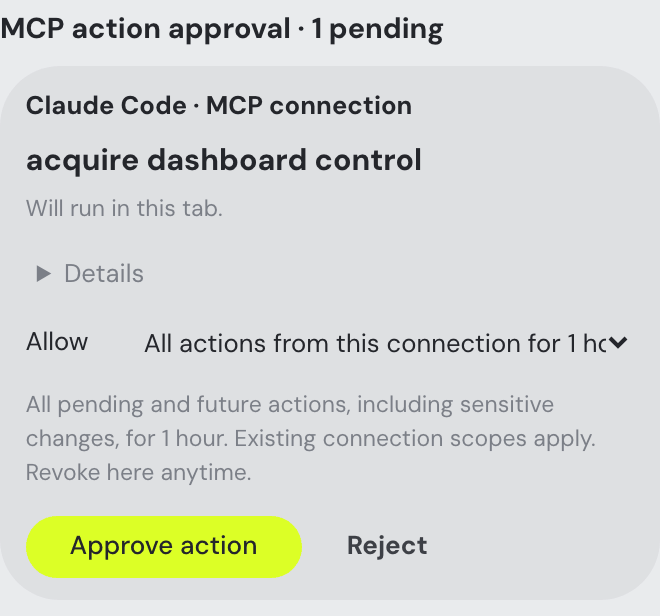
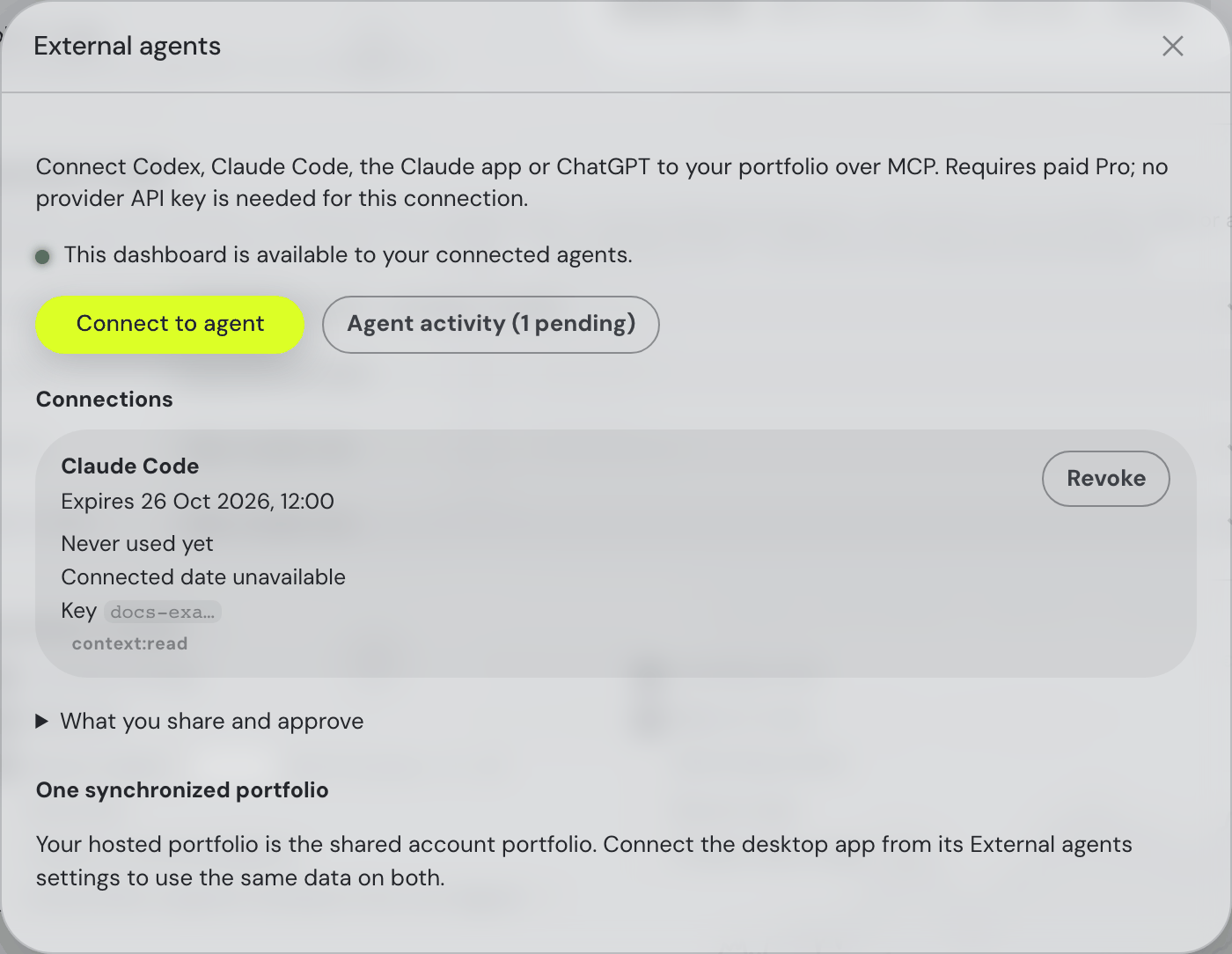
Where else the assistant shows up
- ✨ AI insights in the topbar Insights & alerts bell's list — up to four model-found patterns.
- ✨ Smart search — quoted prompts in the topbar finder and Explore.
- ✨ Semantic holdings filter — quoted text in the holdings table's filter box.
- ✨ News & filing summaries — on asset detail panels and the Events card's filed reports.
All of these run on the fast model, are marked with ✨ throughout the app, and stay visibly disabled (with a red "not connected" note) until you connect.
News summaries are shared, not per-person
The ✨ summary above a stock's headlines is the one thing here that isn't generated for you alone. The news about a company is the same news for everybody, so on the hosted app one summary per set of headlines is generated and then served to every reader. Two consequences, both in your favour:
- It usually appears instantly and costs you nothing. A pooled summary doesn't touch your free AI allowance — only being the first person to ask about a set of fresh headlines does, and that summary then warms the pool for the next reader. A fixed shortlist — the demo portfolio's holdings, then the largest listed companies — is refreshed automatically once a day (top 20 by default), so those summaries are normally already waiting. Nothing about who holds or reads what goes into picking them.
- The model line names whoever wrote it. A pooled or daily-refreshed summary says
gpt-5.6-luna— the shared model we pay for — rather than the model you picked in Settings. Your own pick still drives everything else, and a brand-new set of headlines is always summarised fresh. - Only the app’s own model writes what everybody reads. The pool is filled by the daily refresh and by first requests answered on the app’s free AI budget. When your own AI provider writes a summary — your own OpenAI, Anthropic or OpenRouter key, or your Ollama or LM Studio server — it is shown to you and kept for your visit, but never shared with anybody else. A shared summary of the same headlines still appears for you first, and Refresh asks your own model without replacing the shared one. On your own machine (the desktop app) you are the only reader, so your model’s summaries are kept there as before.
- Only a finished summary is shared. If the model declines, runs into its length limit or writes nothing, you see that once, and nobody else is served it — the next reader, and you the next time you open the stock, get a fresh attempt.
Nothing about your portfolio is in that pool: it holds public article text and a ticker, with no account, session or holding attached. Filing summaries, insights, the brief and the chat itself are unaffected — those are about your data and stay entirely yours.
Action results, Undo and recovery
Undo checks the fields changed by its action. It refuses to overwrite a newer model/provider choice or a source that has since been replaced, even if its label is unchanged. A dashboard refresh arriving during an earlier refresh remains pending until its own acknowledgement.
Read-only agent requests retain their permissions, audit and retry identity while allowing ordinary portfolio edits to proceed. A busy reader pool asks the caller to retry. Failed browser recovery keeps its original backup; do not treat a partial recovery or an unconfirmed action as complete.
Desktop portfolio sync now preserves original favourite added dates. Upgrade the hosted app and desktop together before resuming sync; older readers reject the new format, and a new desktop identifies an old backend when its response is recognizable. Re-sync cannot recover dates already lost before this change.
Read a group portfolio
Ask “compare my portfolio with the friends group” or “what do my followed funds hold?”. The group_portfolio action reads consensus, allocation, overlap and approximate flows. Specify group: friends or investors; investor groups require Pro and optionally accept weighting: aum. Friends support equal weighting only. The assistant can describe the open group overlay and preserves the filing and flow caveats. Investor allocation coverage reflects cached metadata; unclassified weights are not missing holdings. An open group can expose current holdings while classification or history is still loading; its context names those unfinished sections.
Investor groups omit positions below 0.5% of each fund’s full filed equity value, retaining exactly 0.5% and original weights. Omitted counts and weight are visible, including per-fund details. Holder counts and history apply this cutoff; absence can mean a small holding, not no ownership or a sale. Flow actions still use actual filing changes for positions meeting the cutoff in either quarter. Interrupted sections are labelled incomplete, including in assistant context.
Score explanations requested while Trades first loads wait for its candidate tables — for as long as the tables are loading (a cold recompute can take a while), with a one-minute ceiling rather than a fixed few seconds. Buy and sell candidates are both considered, including when only one side has candidates.